How to Add a WhatsApp Chat Button to Shopify (Free Code and Apps)
Add a WhatsApp chat button to Shopify for free with a wa.me link, put an Order on WhatsApp button on product pages, or use an app embed. Plus the 24-hour rule and opt-in.
On this page 8
- Three ways to add a WhatsApp button to Shopify
- Step 1: build your click to chat link
- Add a free floating WhatsApp button with code
- Add a WhatsApp button with an app
- What happens after a customer taps the button
- Turn the button into a subscriber list
- Test it and fix common problems
- Setting it up with Piaflo
A shopper on your product page at 10 pm wonders whether the medium will fit. With a WhatsApp button in the corner, they ask, you answer in the morning, and the sale is still alive. To add a WhatsApp chat button to Shopify for free, build a click to chat link, https://wa.me/ followed by your full number in international format, and put it behind a button in your theme. On product pages, add a pre-filled message with the product name and link, so you know what the customer is asking about. Without code, a chat app adds the same floating button as an app embed you switch on in the theme editor.
The button opens a conversation. Sending promotions later takes an opt-in, usually collected with a popup next to the button.
Three ways to add a WhatsApp button to Shopify
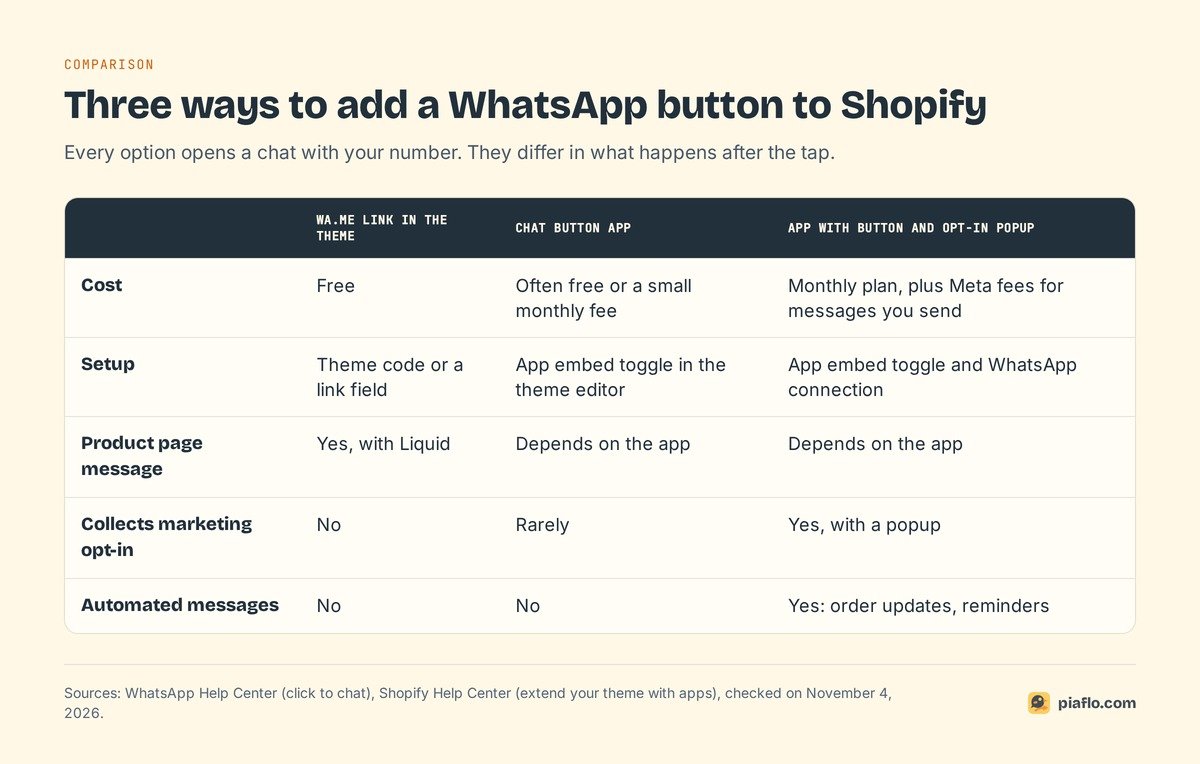
Pick by what you want after the tap: a free link, a no-code chat button app, or a WhatsApp app that also collects subscribers and sends order updates.
| wa.me link in the theme | Chat button app | App with button and opt-in popup | |
|---|---|---|---|
| Cost | Free | Often free or a small monthly fee | Monthly plan, plus Meta fees for messages you send |
| Setup | Theme code or a link field | App embed toggle | App embed toggle and WhatsApp connection |
| Product page message | Yes, with Liquid | Depends on the app | Depends on the app |
| Collects marketing opt-in | No | Rarely | Yes |
| Automated messages | No | No | Yes |
Step 1: build your click to chat link
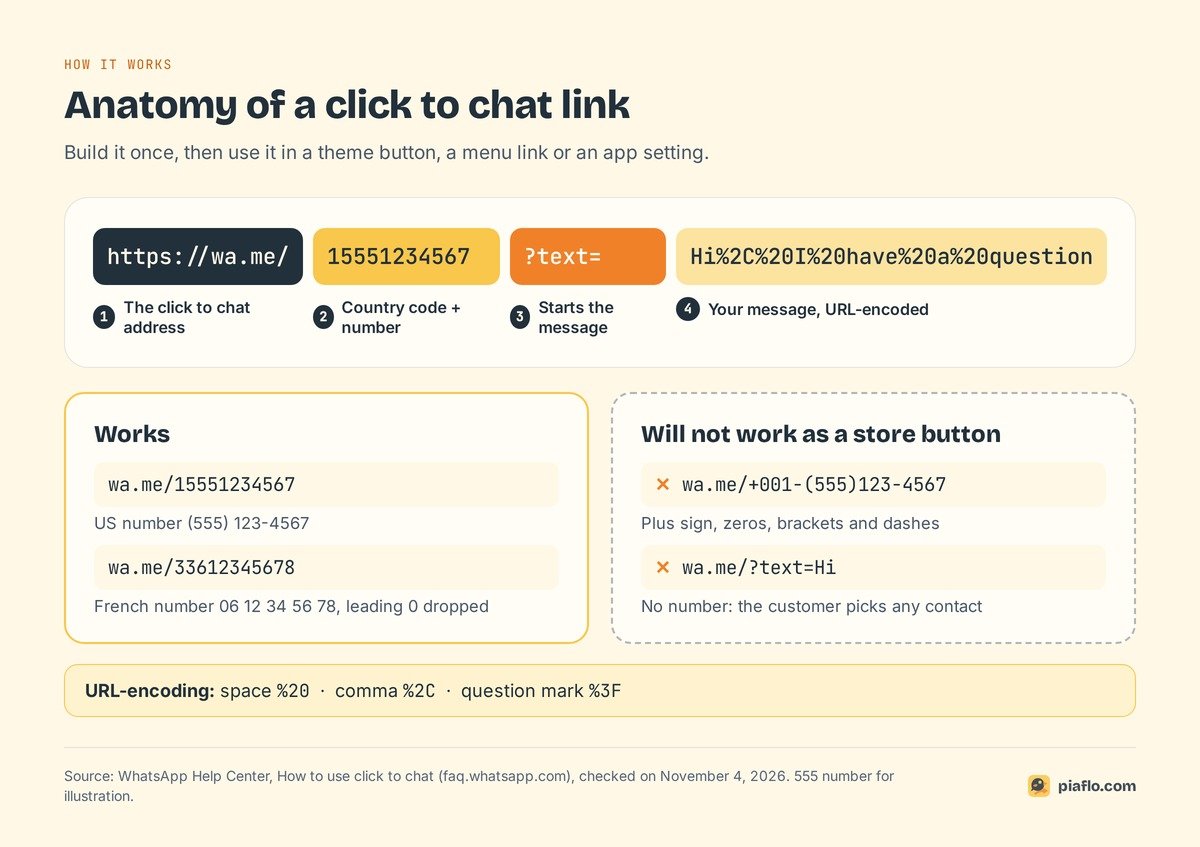
Every WhatsApp button ends in a click to chat link, in the format set by WhatsApp's click to chat guide.
Use the right number format
The link is https://wa.me/ plus your full phone number in international format: country code and number, without plus sign, leading zeros, brackets, dashes or spaces.
- A US number (555) 123-4567 becomes
https://wa.me/15551234567. - A French number 06 12 34 56 78 becomes
https://wa.me/33612345678(country code 33, the leading 0 dropped). https://wa.me/+001-(555)123-4567will not work.
It opens a chat even if the shopper never saved your number, on a phone or on WhatsApp Web.
Add a pre-filled message
Add ?text= and a URL-encoded message after the number, and WhatsApp puts that text in the customer's typing field.
https://wa.me/15551234567?text=Hi%2C%20I%20have%20a%20question%20about%20my%20order
URL-encoded means a space becomes %20, a comma %2C, a question mark %3F; any online URL encoder does it. A short message such as "Hi, I have a question about sizing" tells you at a glance what the chat is about. And always include your number: https://wa.me/?text=... lets the customer pick any contact.
Already on the WhatsApp Business app? Use your short link
The WhatsApp Business app creates a short link automatically, under Tools > Short link, with an optional default message. The same screen shows your QR code, which does not expire unless you reset it, according to WhatsApp's Help Center. Use them in a menu, a bio or on packaging; for product page buttons, the wa.me format is easier to build in Liquid.
Add a free floating WhatsApp button with code
No app, no cost, about ten minutes if you are comfortable copying code.
Before you edit: duplicate the theme
Shopify's code editor restores one file at a time from its Timeline; it cannot restore a whole theme or a deleted file. In Online Store > Themes, duplicate your live theme, edit the copy, preview, then publish. A paid theme in trial must be purchased before you can edit its code.
Paste the button into theme.liquid
- Go to Online Store > Themes, open the menu next to your theme copy and choose Edit code.
- Open
layout/theme.liquid, the file that wraps every page of your store. - Paste this code just before the closing
</body>tag near the bottom:
<a class="wa-chat-button"
   href="https://wa.me/15551234567?text=Hi%2C%20I%20have%20a%20question"
   target="_blank" rel="noopener"
   aria-label="Chat with us on WhatsApp">
  Chat with us on WhatsApp
</a>
<style>
  .wa-chat-button {
    position: fixed;
    right: 20px;
    bottom: 20px;
    z-index: 50;
    padding: 12px 18px;
    border-radius: 999px;
    background: #22303C;
    color: #fff;
    font-weight: 600;
    text-decoration: none;
  }
  @media (max-width: 749px) {
    .wa-chat-button { bottom: 90px; }
  }
</style>
- Replace
15551234567with your number, adjust the colors, save, and preview on a phone and a computer.
position: fixed makes the button float in the bottom right corner. On phones, the media query lifts it 90px so it stays clear of a sticky add to cart bar; adjust that value to your theme, and change right to left if a cookie banner or another widget already sits there. The aria-label keeps a clear name for screen readers if you later swap the text for an icon.
Add an "Order on WhatsApp" button to product pages
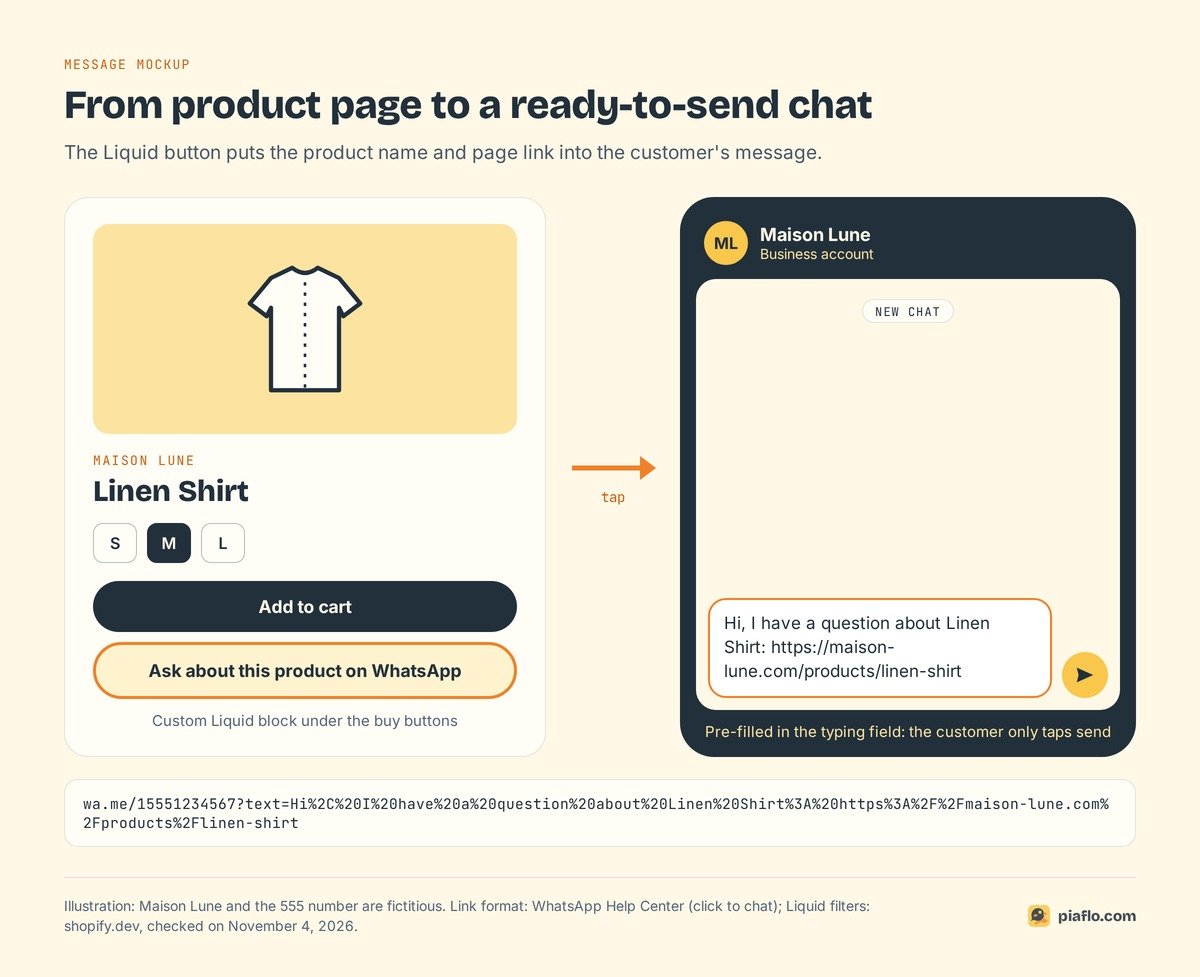
Merchants keep asking in Shopify's community forums how to put the product link into the WhatsApp message. Liquid, Shopify's template language, does it: product.title gives the product name, canonical_url the address of the current page.
{%- assign wa_message = 'Hi, I have a question about ' | append: product.title | append: ': ' | append: canonical_url -%}
<a class="wa-product-button"
   href="https://wa.me/15551234567?text={{ wa_message | url_encode | replace: '+', '%20' }}"
   target="_blank" rel="noopener">
  Ask about this product on WhatsApp
</a>
Two details make this code work where many copied snippets fail:
url_encodestops an ampersand or a hash sign in a product name from cutting the message short.replace: '+', '%20'keeps spaces in WhatsApp's format: Shopify'surl_encodeturns them into+, while WhatsApp's examples use%20. A real plus sign in a product name is already encoded as%2B, so the replace only touches spaces.
If your theme offers a Custom Liquid block or section in the product template, paste it there in the theme editor, under the buy buttons. Otherwise, the product section file is sections/main-product.liquid in many Online Store 2.0 themes. Give the link your theme's button class if you want it styled like your other buttons, then check it in the theme preview before you publish. The customer then sees: "Hi, I have a question about Linen Shirt: https://maison-lune.com/products/linen-shirt".
Calling it "Order on WhatsApp"? The order does not exist in Shopify until you create it, for example as a draft order, and you take payment by hand. A button that answers the question blocking the purchase keeps the checkout on your store.
Add a WhatsApp button with an app
How chat apps plug into your theme
Shopify's guide to extending your theme with apps lists three ways:
- App embeds: elements that float or display as an overlay, such as "a chat bubble app that appears in the corner of your store". In Online Store > Themes > Edit theme, click the App embeds icon, switch the app on and save. They can be set per market.
- App blocks: a block you place exactly where you want it, for example under the buy buttons on product pages.
- Code added to the theme: some apps give you code to paste; if your theme offers a Custom Liquid section, it can go there instead of in the theme files.
What to check before you install one
- Which number: your WhatsApp Business app number, or one on the WhatsApp Business Platform (the API).
- Product context: can the pre-filled message include the product name or link?
- Where replies go: your phone, or a shared team inbox.
- What else it does: opt-in popup, order updates, cart reminders (two floating widgets fight for one corner).
- Price: the plan, plus Meta's fees if it sends messages on the API.
What happens after a customer taps the button
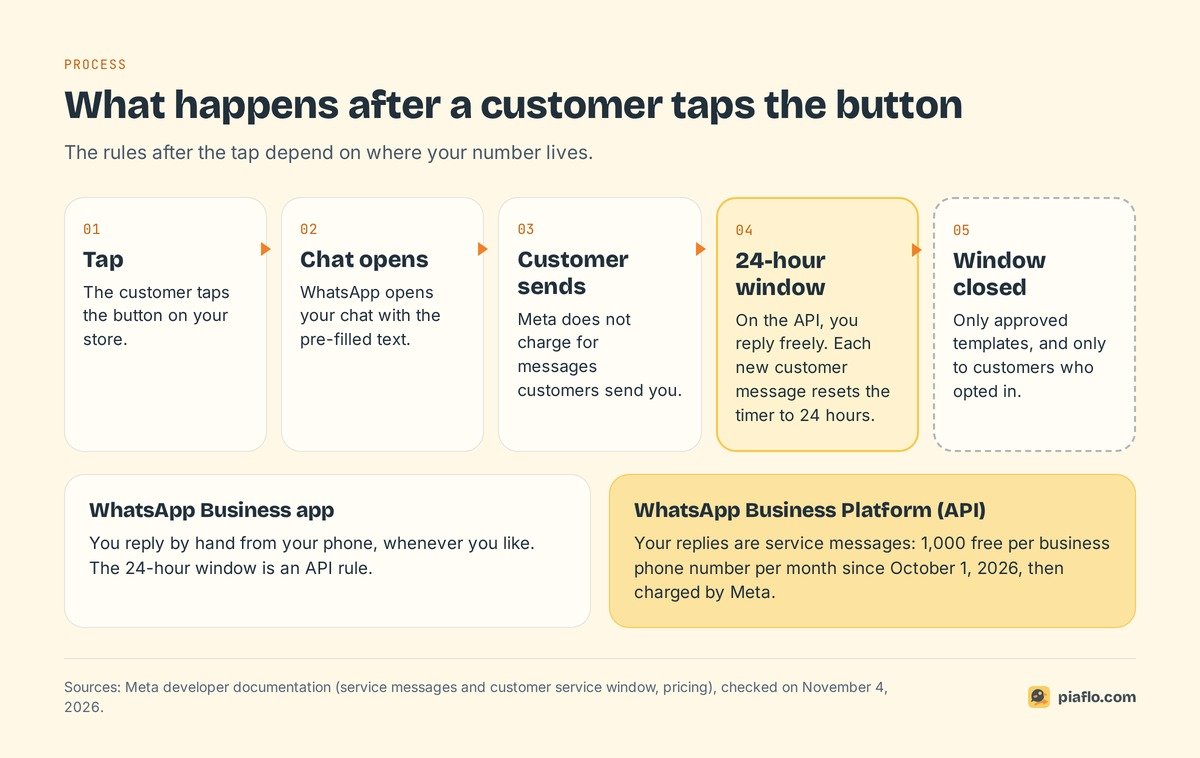
After the tap, the rules depend on where your number lives.
The 24-hour window
On the WhatsApp Business app, you reply by hand whenever you like.
On the WhatsApp Business Platform (the API, used by Shopify apps that automate messages), a customer message opens a 24-hour customer service window, reset by each new message. Inside it, you reply freely with text, photos, links and buttons. After it, only pre-approved templates.
Customers' messages are free. Your replies are service messages: since October 1, 2026, each business phone number gets 1,000 free service messages per month before Meta charges, according to Meta's pricing page. Our WhatsApp Business API pricing guide has the rates by country.
With coexistence, the number stays in the app on your phone while an API tool sends automated messages: see WhatsApp Business app vs API.
A chat is not marketing consent
A customer asking about sizes agreed to talk about sizes. Meta's opt-in rules require the person to confirm they want messages from your business, with your business name stated clearly. So:
- Answer the question inside the window, and stop there.
- If the conversation goes well, ask: "Would you like to hear about new arrivals on WhatsApp?" A clear yes, recorded with the date, is an opt-in.
Turn the button into a subscriber list
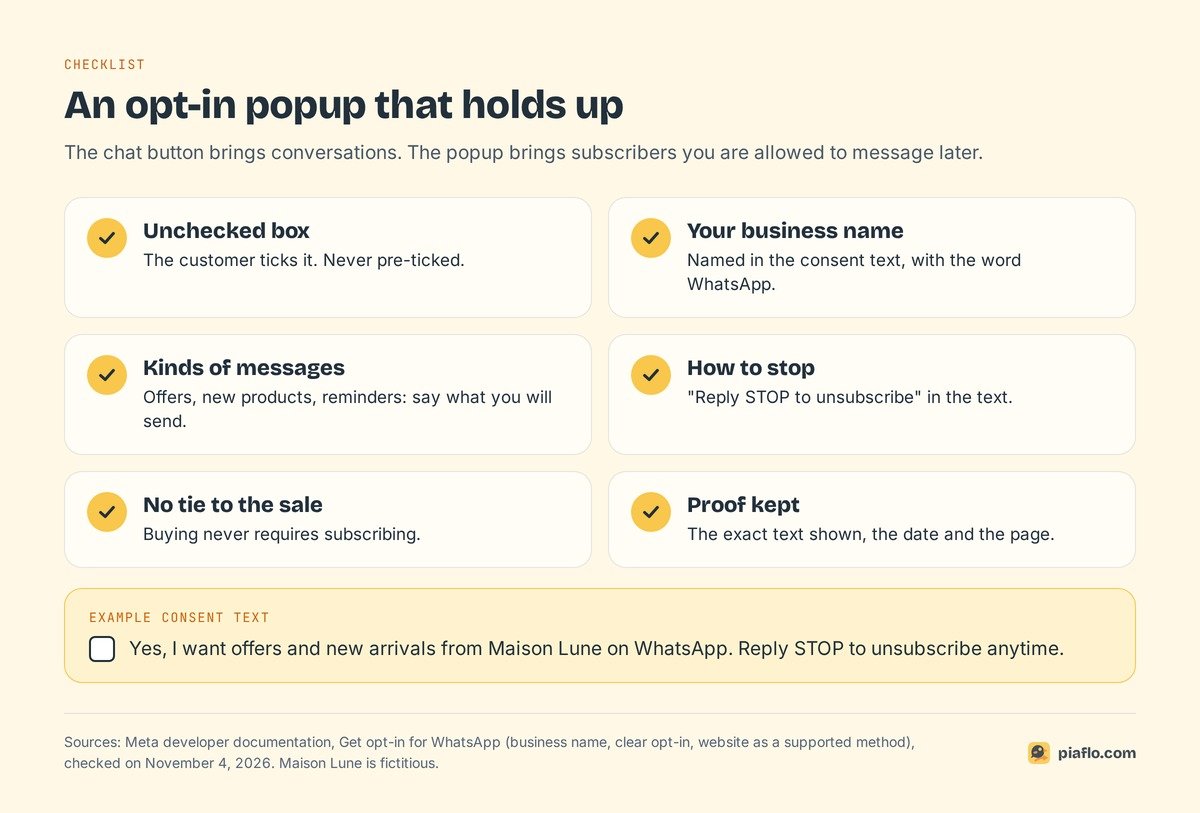
A popup brings subscribers, who agreed to receive your WhatsApp messages: welcome offers, cart reminders, new collections. Meta lists a website among supported opt-in methods. A popup that holds up has:
- an unchecked box, ticked by the customer;
- your business name and the word WhatsApp in the text;
- the kinds of messages you will send (offers, new products, reminders);
- how to stop: "Reply STOP to unsubscribe";
- no tie to your terms of sale: buying never requires subscribing;
- a record of each opt-in: the exact text shown, the date and the page.
Example: "Yes, I want offers and new arrivals from Maison Lune on WhatsApp. Reply STOP to unsubscribe anytime."
EU consent rules are stricter: see WhatsApp consent and GDPR for Shopify. Once the list grows, the WhatsApp marketing guide for Shopify shows what to send to it.
Test it and fix common problems
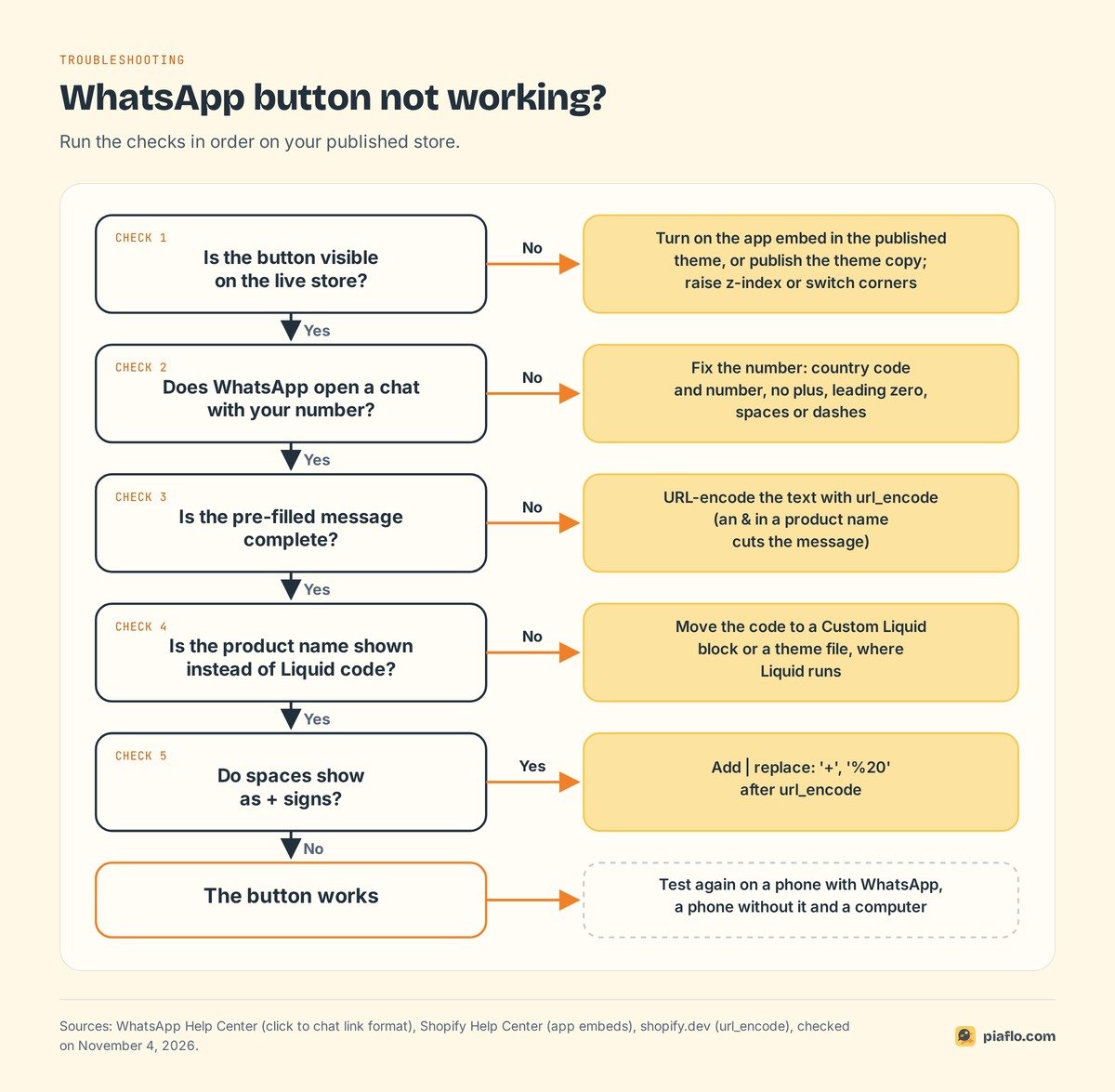
Test on a phone with WhatsApp, a phone without it and a computer, and check that the pre-filled message arrives complete. Most problems come from the link:
- Wrong contact or an error: a plus, leading zero, spaces or dashes in the number.
- Empty or cut-off message: the text is not URL-encoded, or an
&in a product name broke it. - Plus signs where spaces should be: add
| replace: '+', '%20'afterurl_encode. - No button: the app embed is off in the published theme, the code sits in an unpublished copy, or another widget covers it (raise
z-indexor switch corners). {{ product.title }}shows as text: Liquid does not run there (a rich text field, a widget setting); use a Custom Liquid block or a theme file.
The pre-filled first line tells you which page started each chat. Customers can delete it, so the count is a lower bound.
Setting it up with Piaflo
Piaflo is a Shopify app that connects your number to the WhatsApp Business Platform, with a WhatsApp chat button on every plan, Free included. Customers who tap it write to your connected number, and your team answers from a shared inbox next to their Shopify orders and tags. When a teammate replies, that customer's automated flow pauses.
The Free plan also sends order and shipping updates, with one inbox seat. Starter, at $29 a month, adds the opt-in popup with an unchecked consent box, QR codes and links for packaging and social posts, and abandoned checkout and cash on delivery flows. Each opt-in is written to the customer's WhatsApp marketing consent in Shopify, with the date, text and page as proof; STOP unsubscribes right away. Among Piaflo's ready-made recipes, one greets each new subscriber right after they opt in. Meta bills its fees directly to you at its official rates, with no Piaflo markup.
Connecting takes 10 to 15 minutes in a Meta window, and you can keep the WhatsApp Business app on the same number where coexistence is offered. See the plans, including the Free plan, or read the guide to connect your WhatsApp number. You can also install Piaflo from the Shopify App Store.
Frequently asked questions
Is there a free WhatsApp button for Shopify?
Yes. A click to chat link, https://wa.me/ followed by your number in international format, pasted into your theme as a button, costs nothing and needs no app. Many chat button apps on the Shopify App Store also have a free plan.
How do I add an "Order on WhatsApp" button in Shopify?
Add a button on the product template whose link is https://wa.me/ plus your number and a pre-filled message built with Liquid from the product title and the page URL, encoded with url_encode. Paste it in a Custom Liquid block under the buy buttons, or in the product section file of your theme. Orders taken in the chat still have to be created in Shopify by hand.
Should I use my personal WhatsApp number?
Use a WhatsApp Business account, on the WhatsApp Business app or the API, rather than your personal account. The WhatsApp Business app adds a business profile, a short link and a QR code, and a business number keeps customer chats apart from friends and family. A dedicated number also makes it easier to hand the chats to a team later.
Can I message customers later if they chatted with me through the button?
Only within the conversation. On the WhatsApp Business Platform, you can reply freely for 24 hours after the customer's last message. To send promotions later, you need their opt-in, collected with a popup or by asking in the chat and recording the answer.
Can I use Shopify Inbox and WhatsApp together?
Yes. Shopify Inbox handles chat on your store, and a WhatsApp button opens a chat in the WhatsApp app. Shoppers pick the channel they prefer. Place the two buttons in different corners so they do not overlap.