Connect Claude, ChatGPT or another AI assistant
Connect your AI assistant to Piaflo with one URL. It can then build flows, write templates, read your results and prepare campaign drafts, with the permissions you approve in your Shopify admin.
On this page 5
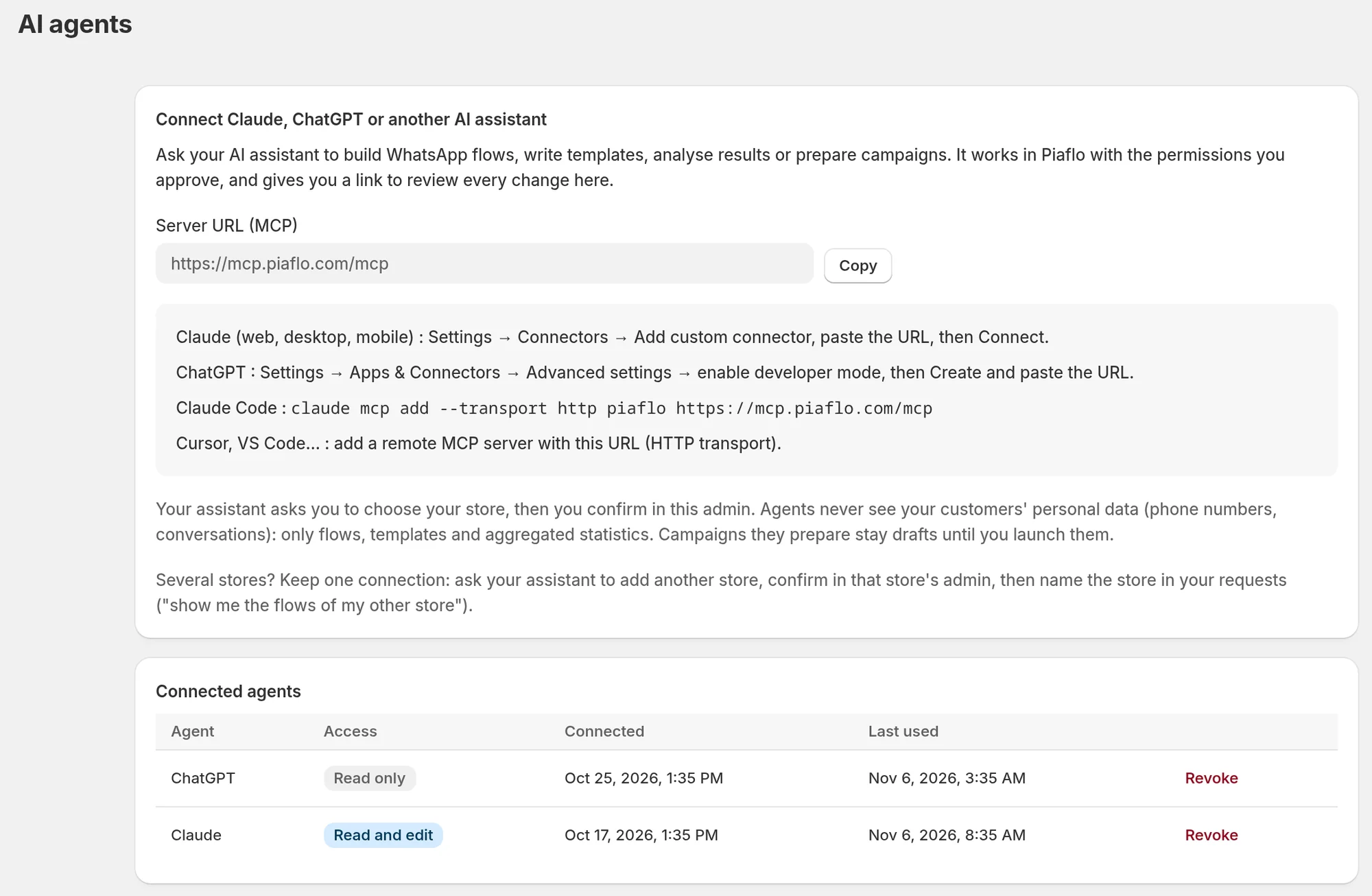
Piaflo has a server for AI assistants, using the Model Context Protocol (MCP). Once connected, you can ask your assistant in plain language to build a flow, write a template, explain your results or prepare a campaign. It works on your Piaflo data and gives you a link to review each change in Piaflo.
The page is AI agents in the Piaflo menu.
What the assistant can and cannot do
| With read access | With changes allowed |
|---|---|
| See your flows, message templates, campaigns and aggregated statistics | Create and edit flows and templates |
| See the recipes and Shopify segments available | Activate recipes, publish or pause flows |
| Preview the audience and cost of a campaign | Prepare campaign drafts |
- It never sees your customers' personal data: no phone numbers, no conversations. Only flows, templates and aggregated statistics.
- It cannot send a campaign. The campaigns it prepares stay drafts until you launch them in Piaflo.
- It works within your plan, with the same limits as in the app. Campaign tools need Starter or above. Detailed analytics need Growth or above; on every plan the assistant gets an overview of the last 30 days.
Connect your assistant
- In Piaflo, open AI agents and click Copy next to Server URL (MCP). The URL is
https://mcp.piaflo.com/mcp. - Add it to your assistant:
- Claude (web, desktop, mobile): Settings > Connectors > Add custom connector, paste the URL, then Connect.
- ChatGPT: Settings > Apps & Connectors > Advanced settings, enable developer mode, then Create and paste the URL.
- Claude Code: run
claude mcp add --transport http piaflo https://mcp.piaflo.com/mcp. - Cursor, VS Code and other tools: add a remote MCP server with this URL, HTTP transport.
- A Piaflo page opens. In Your store, enter your store address, for example my-store.myshopify.com, and click Continue in Shopify.
- Your Shopify admin opens on Connect an AI agent. Check what the agent will be able to do. Keep Allow changes (recommended to build flows) ticked if you want it to build flows, or untick it for read-only access.
- Click Allow access. You are sent back to your assistant, which can now work on your store.
Piaflo must be installed on the store you enter. Otherwise the page says Piaflo is not installed on this store.
Things to ask
The Ideas to try section of the page has examples you can copy, such as:
- "Build an abandoned checkout flow: a reminder after 1 hour, then a 10% code after 24 hours if they still have not ordered."
- "Which of my flows brought the most revenue this month, and what would you change?"
Flows the assistant creates or changes are saved like yours: open them from Flows to review them. Messages that start a conversation still need templates approved by Meta, see WhatsApp templates.
Several stores
Keep one connection for all your stores. Ask your assistant to add another store: it gives you a link, valid for 15 minutes. Open it, enter the other store's address, then confirm in that store's Shopify admin. The store is added to the same connection. Then name the store in your requests, for example "show me the flows of my other store".
When you confirm a store for a connection that already has others, Piaflo lists the stores it can already access. Continue only if you asked your own assistant to add this store.
See and revoke access
Connected agents on the AI agents page lists every assistant with access to this store: its name, Read and edit or Read only, when it was connected and when it was last used.
Click Revoke to remove an assistant's access to this store right away. If the connection covered other stores, they stay connected until you revoke them in their own admin.
To change an assistant's permissions on a store, ask it to add that store again, as in Several stores. The confirmation page says This store is already connected: your choice below replaces its permissions. If you instead connect the assistant again from scratch, it creates a new connection with its own line in Connected agents, and the old one keeps its access until you revoke it.
 Still stuck? Write to us with the flow name or the order number involved.