The customer profile, tags, notes and pins
Next to each conversation, Piaflo shows the customer's Shopify orders, what WhatsApp brought in, the flows they are in and their consent. Tags, internal notes and pins keep your team organized.
On this page 8
When you open a conversation in Inbox, the right column shows who you are talking to. On a narrow screen, open it with the Customer details button (sidebar icon) in the conversation header.
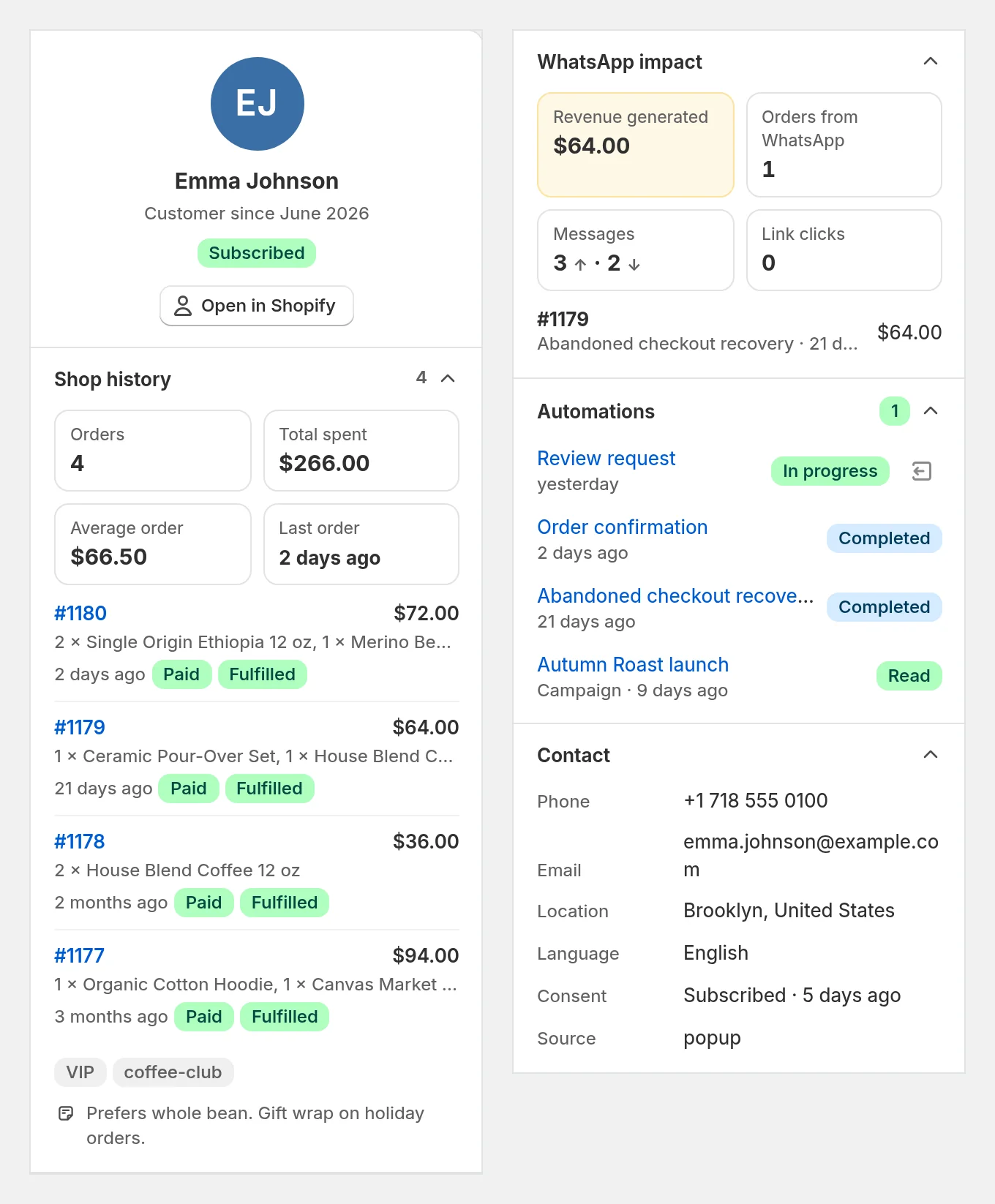
At the top
- The customer's name, and Customer since (month of their Shopify account) or Contact since if they are not linked to a Shopify customer.
- Their consent status: Subscribed, Unsubscribed, Pending or Not subscribed. See WhatsApp consent.
- Automations paused when a team member has replied in this conversation. See Automation pause.
- Not on WhatsApp when an earlier message failed because the number has no WhatsApp account.
- Open in Shopify, to open the customer in your Shopify admin, when the contact is linked to a Shopify customer.
Shop history
Read from Shopify each time you open the conversation:
- Orders, Total spent, Average order and Last order.
- The 5 most recent orders, each with its number (a link to the order), amount, first items, and its payment and fulfillment status. When they have more orders than that, the See all link (for example See all 12 orders) opens the full list in Shopify.
- The customer's tags and note from Shopify.
If the contact is not linked to a Shopify customer yet, the block says so. The link is made on their first order or checkout.
When the customer left a checkout in the last 30 days without ordering, the block also shows Abandoned checkout with its amount. The link icon copies the recovery link, so you can paste it in your reply.
WhatsApp impact
- Revenue generated and Orders from WhatsApp: the orders Piaflo attributed to your flows and campaigns for this customer, with the last 4 listed. How orders are attributed.
- Messages: how many messages you sent them (↑) and how many they sent you (↓). Internal notes do not count.
- Link clicks: clicks on the tracked links in your messages.
Automations
The flows the customer is in right now (In progress), then their last past flows with how each ended: Completed, Ordered, Exited, Failed or Removed by your team. Their last campaigns follow, with the status of the message.
To take a customer out of a flow, click the exit icon (Remove from this flow) next to a flow in progress. The flow stops for them and runs no further step.
Contact
Phone (click to copy), Email, Location, Language, Consent with how long ago it changed, Source of their subscription and Last click.
Tag a conversation
Tags help you sort conversations, for example "VIP", "Return" or "Wholesale".
- Click the
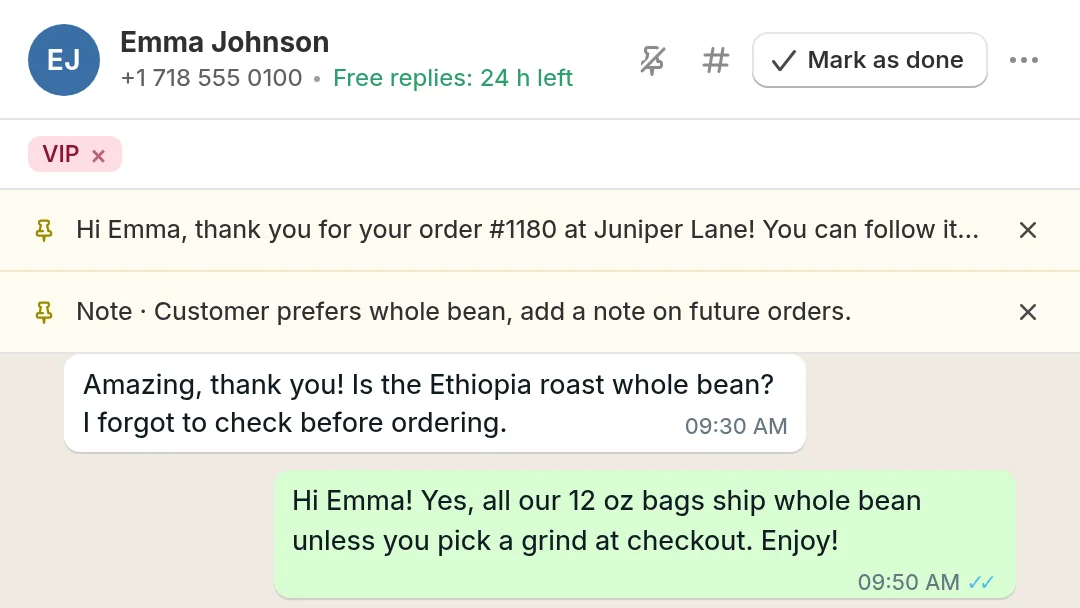
#icon in the conversation header. - Type a tag and click Add, or click one of your Existing tags.
A conversation can have up to 8 tags of 24 characters each. Capital letters are ignored when comparing tags, so "vip" and "VIP" are the same tag. Click the × on a tag to remove it.
These tags belong to the conversation in Piaflo. They are separate from the customer's tags in Shopify, which you see in Shop history. Filter the inbox by tag with the chips above the list.
Internal notes
Switch the reply box to Internal note, write, then click Add note. The note appears in the conversation with the label Internal note, for your team only. It is never sent to the customer, and the AI reply suggestion does not read it.
Pin a conversation or a message
- Pin a conversation with the pin icon in its header: it stays at the top of the list under Pinned.
- Pin a message by hovering it and clicking its pin icon (Pin message). Pinned messages show in a bar above the conversation: click one to jump to it. A conversation keeps up to 3 pinned messages. Pinning a fourth unpins the oldest.
 Still stuck? Write to us with the flow name or the order number involved.