Triggers
The nine events that can start a flow, when each one fires, the data it gives your messages, and the flow settings that decide who enters.
The trigger is the event that makes a customer enter a flow. Each flow has exactly one. You choose it when you create the flow, and you can change it in Flow settings: click the trigger card on the canvas, or press Escape to deselect every step.
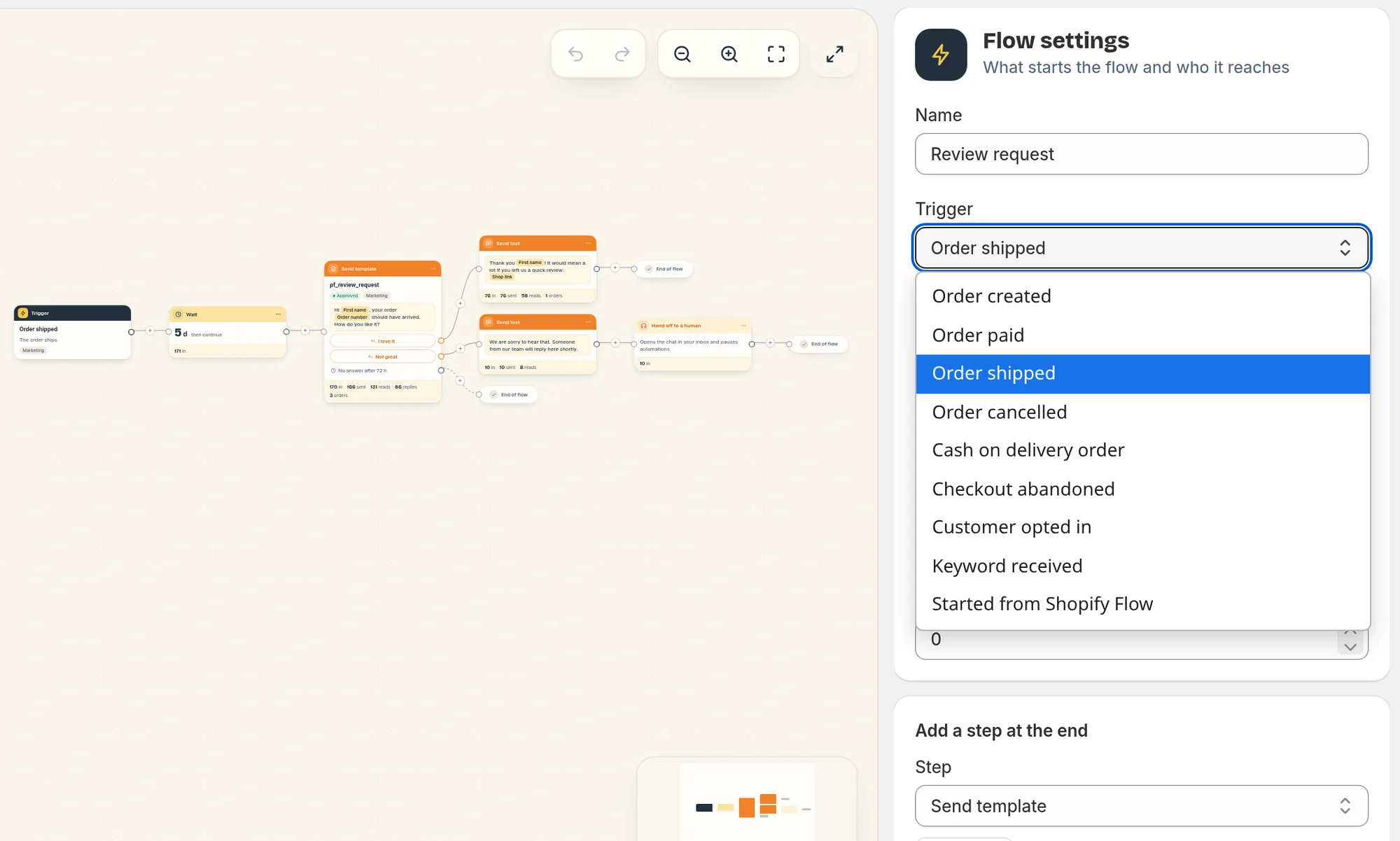
The nine triggers
| Trigger | Fires when | Plan |
|---|---|---|
| Order created | A customer places an order that is not cash on delivery | Free |
| Order paid | Shopify marks an order as paid | Starter |
| Order shipped | A fulfillment is created for an order, once per fulfillment | Free |
| Order cancelled | An order is cancelled in Shopify | Starter |
| Cash on delivery order | A customer places an order with a cash on delivery payment method | Starter |
| Checkout abandoned | A shopper left checkout with a phone number and did not order | Starter |
| Customer opted in | A customer subscribes to your WhatsApp marketing messages | Starter |
| Keyword received | A customer sends a message that is exactly one of your keywords | Starter |
| Started from Shopify Flow | A Shopify Flow workflow runs the action "Start a Piaflo flow" | Growth |
On the Free plan, flows can only start from Order created or Order shipped, with one active flow per trigger.
Order created and Cash on delivery order
Every new order starts one of the two, never both. Piaflo compares the order's payment method with the list in Settings > Order messages and consent > Cash on delivery payment methods. A match, or a payment method containing "cash on delivery" or "livraison", goes to Cash on delivery order. See Cash on delivery confirmation.
Checkout abandoned
Piaflo checks every minute for checkouts that:
- have a phone number,
- were not completed,
- were last updated longer ago than the delay you set, and less than 72 hours ago.
Each checkout starts the flow once. Set the delay with Send after (minutes without an order): 30 by default, 5 at least. Piaflo warns you below 15 minutes, because shoppers may still be filling in the payment page.
Customer opted in
Fires when a customer subscribes with the opt-in popup, sends START on WhatsApp, taps Yes in a flow with a Subscribe to marketing step, or places an order with WhatsApp consent already recorded in Shopify. Contacts imported from a CSV file do not fire it. See Welcome new subscribers.
Keyword received
Enter your words in Keywords (comma separated). The flow starts when the customer's whole message equals one of them. Capital letters and spaces around the word do not matter, but "price please" does not match "price". A keyword flow needs at least one keyword to publish.
Keyword flows do not start:
- when a person from your team has taken over the conversation and automations are paused;
- for STOP and START messages, which Piaflo handles itself.
Since the customer just wrote to you, a keyword flow can send free text, buttons and lists right away.
Started from Shopify Flow
The flow starts when a Shopify Flow workflow runs the action Start a Piaflo flow with this flow's ID. See Shopify Flow.
What each trigger gives your messages
Every flow can use the customer's first name, last name, email and phone, your shop name and shop link. Each trigger adds its own data:
| Trigger | Extra variables |
|---|---|
| Order created, Cash on delivery order | Order number, Order total, Order status link, First item, Number of items |
| Order paid | Order number, Order total, Order status link, First item |
| Order shipped | Order number, Order status link, Tracking number, Tracking link, Carrier |
| Order cancelled | Order number, Order total, Cancel reason |
| Checkout abandoned | Cart link, Cart total, First item in cart |
| Customer opted in | Opt-in source |
| Keyword received | Customer message |
| Started from Shopify Flow | The order variables, when the workflow passes an order |
See Variables for how to insert them and set fallbacks.
Flow settings
These settings sit under the trigger in Flow settings.
- Only when the amount is at least: the flow only starts for orders whose total reaches this amount. It works on Order created, Order paid, Order cancelled and Cash on delivery order.
- Message type: Order updates (transactional) or Marketing. Marketing flows only reach subscribed customers and respect quiet hours and the weekly limit. Order updates go to subscribed customers, or to everyone with a phone number when I inform customers at checkout that order updates are sent on WhatsApp is on in Settings > Order messages and consent.
- Stop the flow when the customer places an order: as soon as the customer orders, they leave the flow and the messages still planned are cancelled. Abandoned checkout flows also stop when the shopper completes that same checkout, even with this box unticked.
- Hours before a customer can enter again (0 = never): how long after entering a customer must wait before entering this flow again. At 0, there is no waiting time: the customer can enter again as soon as their previous journey is over. Whatever the value, a customer already in the flow is never entered a second time.
A new custom flow starts as Marketing, with Stop the flow when the customer places an order ticked and 24 hours before re-entry. Change them to match what the flow sends.
 Still stuck? Write to us with the flow name or the order number involved.