WhatsApp templates
A template is a message format approved by Meta. You need one to write to a customer first. Here is what the two categories mean, what each status means and how Piaflo keeps them up to date.
On this page 8
WhatsApp only lets a business start a conversation with a message format that Meta has approved beforehand: a template. Every automatic message Piaflo sends first (an order confirmation, a cart reminder, a campaign) is a template. Free text and buttons can only follow once the customer has replied, within 24 hours.
Templates belong to your WhatsApp Business account, so you need a connected number to see them. Go to Templates in the Piaflo menu. If your number is not connected yet, the page shows Connect WhatsApp: see Connect your WhatsApp number.
Where your templates come from
- Recipes. When you click Activate on a recipe in Flows, Piaflo submits its templates to Meta in English and French. Their names start with
pf_, for examplepf_order_confirmationorpf_cart_reminder. - Your own templates. Click Create template to write one. See Create a template.
- Campaigns. When you write a message directly in a campaign, Piaflo turns it into a marketing template when you schedule it. Its name starts with
pf_c_. - Templates already on your WhatsApp account, created in another tool. Piaflo reads them when you connect your number.
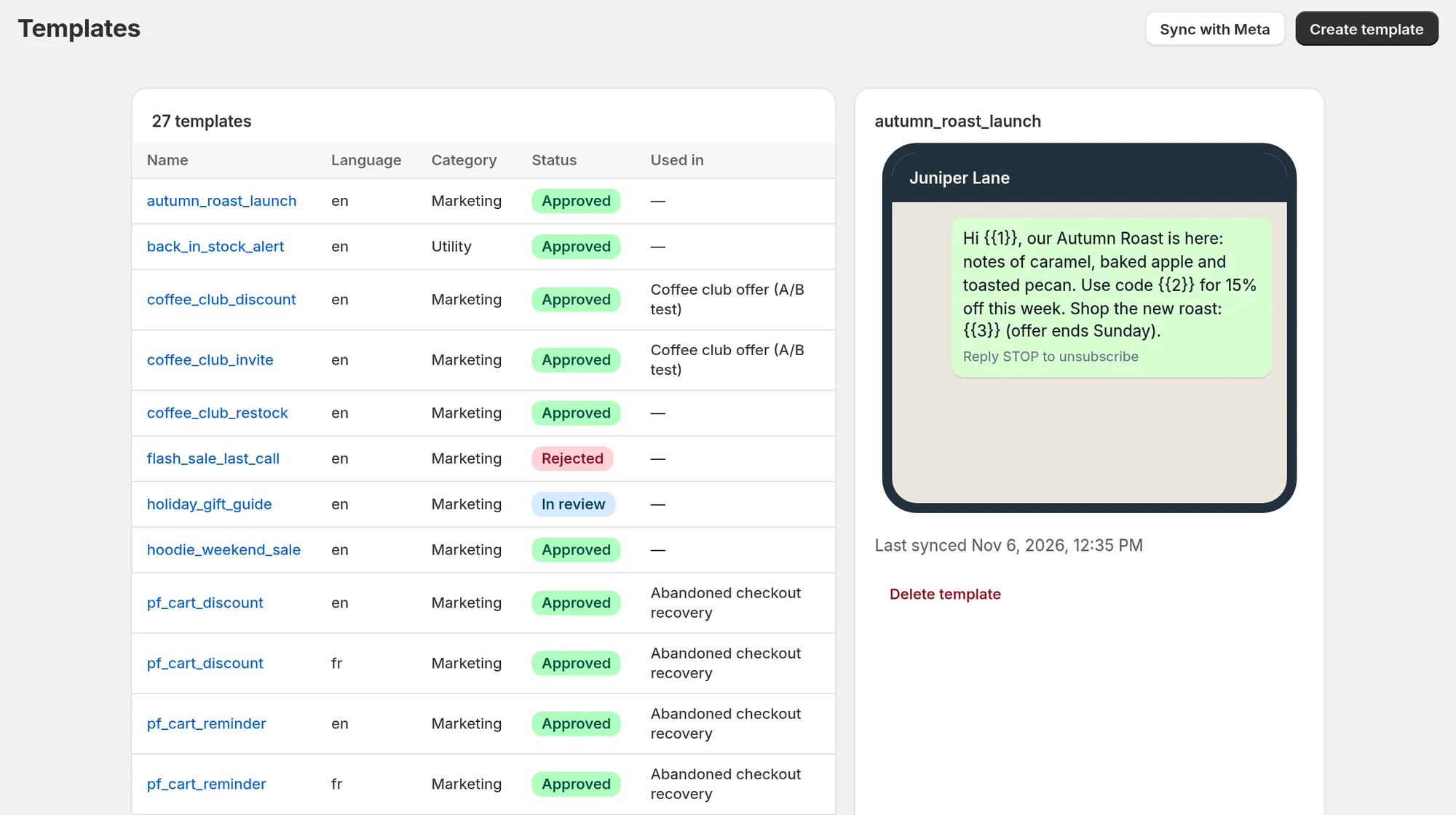
The template list
Each line is one template in one language. The same template in English and French shows as two lines.
| Column | What it shows |
|---|---|
| Name | The template's name. Click it to see the preview |
| Language | The language code, for example en or fr |
| Category | Marketing or Utility |
| Status | Where the template stands with Meta |
| Used in | The flows that use this template |
The panel next to the list shows the message as a customer will see it, with its footer and buttons, and when it was last synced.
Utility or marketing
Meta sorts every template into a category. Piaflo offers two.
| Utility | Marketing | |
|---|---|---|
| What it is for | Updates about an order the customer placed: confirmation, shipping, cancellation, cash on delivery | Anything promotional: cart reminders, welcome offers, review requests, campaigns |
| Recipe templates | Order confirmation, order confirmation with opt-in, shipping update, order cancelled, COD confirmation | Cart reminder, cart discount, welcome, review request |
| Meta's price | The lower rate | The higher rate |
Meta can change the category of a template after reviewing it. Piaflo then shows the new category. In a campaign, Piaflo warns you when you pick a utility template: "Utility templates are for order updates. Meta may pause them if they are used for promotions."
The category of a template and the category of a flow are two separate things. The flow's category decides who can receive it, see Order updates and marketing flows.
Statuses
| Status | What it means | What Piaflo does |
|---|---|---|
| Approved | Meta accepted the template | Sends it |
| In review | Meta has not decided yet | Messages wait and go out once it is approved |
| In appeal | A rejection is being appealed with Meta | Messages wait, as for In review |
| Rejected | Meta refused the template | Nothing is sent with it. Flows that use it cannot be published |
| Paused | Meta paused it | Messages wait, as for In review |
| Disabled | Meta disabled it | Nothing is sent with it. Flows that use it cannot be published |
A message that waits for a template is checked again every 10 minutes. If the template is still not approved 24 hours after the message was planned, that message is dropped.
When Meta rejects a template, open it in Templates: the reason Meta gave appears under Rejected by Meta. Rejected or paused templates explains what to do.
How Piaflo stays in sync with Meta
Meta tells Piaflo as soon as a template's status or category changes, and Piaflo also rereads all your templates every hour. If you changed something in another tool and want to see it right away, click Sync with Meta at the top of the page.
Which language a customer receives
When a template exists in several languages, Piaflo sends the one that matches the customer's language. If there is none, it sends the English version, and if there is no English version, the first one available. That is why recipes submit every template in English and French.
Delete a template
Select the template and click Delete template. Piaflo deletes that language of the template on your WhatsApp account and in Piaflo. Meta can delete a template's other languages along with it, so click Sync with Meta afterwards to check what is left. A template used by a flow cannot be deleted: the button reads Used by a flow. Remove it from the flow first.
Common questions
Can I edit a template after submitting it? No. Meta reviews a fixed text. Create a new template with the new wording, wait for approval, then choose it in your flow or campaign.
How long does approval take? Usually a few minutes, up to 24 hours.
Do templates cost anything in Piaflo? Piaflo adds no fee. Meta bills each template message delivered to your WhatsApp Business account, at a rate that depends on the category and the customer's country.
 Still stuck? Write to us with the flow name or the order number involved.