Get a dedicated number
No spare number for WhatsApp? Piaflo rents you a local number, already verified by Meta, included with yearly billing on paid plans. Choose it, verify your business if your country requires it, then connect it.
On this page 6
If you do not want to use your personal number, or have no spare one, Piaflo can rent a number for your store. It is pre-verified with Meta: there is no SIM card and no code to receive. Customers write to a business line and your own phone stays private.
Who can get one
A dedicated number is included with yearly billing on the Starter, Growth and Pro plans. Each store can have one.
| Your plan | What you see |
|---|---|
| Starter, Growth or Pro, billed yearly | Get a number: the number is included in your plan |
| Starter, Growth or Pro, billed monthly | Switch to yearly billing (Starter $329, Growth $849, Pro $1,999 per year) |
| Free | See plans |
Meta's message fees stay billed by Meta to your WhatsApp Business account, without markup.
Order your number
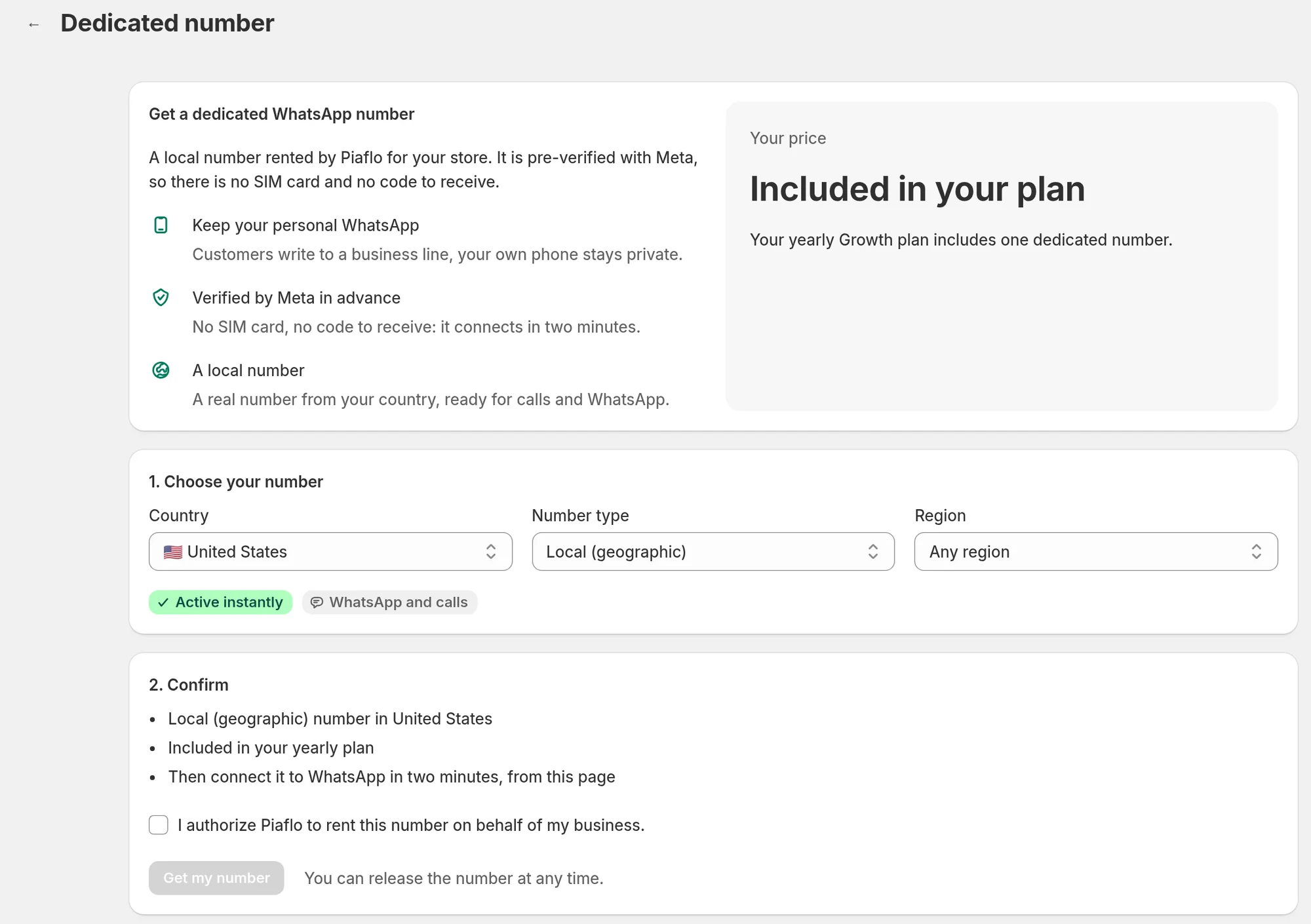
- Go to Settings. Under WhatsApp account, in the Get a dedicated number card, click Get a number. You can also use Get a dedicated number in the WhatsApp health box on Home.
- In 1. Choose your number, pick the Country. Depending on the country, also choose the Number type (Local (geographic), National (non-geographic) or Mobile) and the Region, or keep Any region.
- Check the badges under the fields. Active instantly means no paperwork. Active 1 to 3 business days after verification means the next step asks for documents.
- If the country requires it, fill in 2. Verify your business (see below).
- In 2. Confirm (3. Confirm when your country needs the business check), tick the box that authorizes Piaflo to rent the number on behalf of your business, then click Get my number or Send and order my number.
The business check
Telecom rules in some countries, France among them, require the holder of a number to be identified. Your documents go straight to the carrier: Piaflo does not keep them. Files must be PDF, JPG or PNG, 4 MB at most.
What the carrier usually asks for:
- Business contact: the person the carrier can reach about this number.
- Company registration certificate: in France, a Kbis extract less than 3 months old is recommended, or the ID card or passport of the legal representative. For an ID card, put both sides in one file.
- Proof of address: an electricity, gas, water, internet or landline bill, or an insurance document, dated within the last 3 months and showing the business name and address. Mobile phone bills and screenshots are not accepted.
- Business address in your country: a real address in that country, no P.O. box or virtual office. It should match your documents.
- Identity check of the legal representative: enter the legal first and last name exactly as on the ID. After you order, you get a secure link to confirm your identity with an ID and a selfie.
Track your order
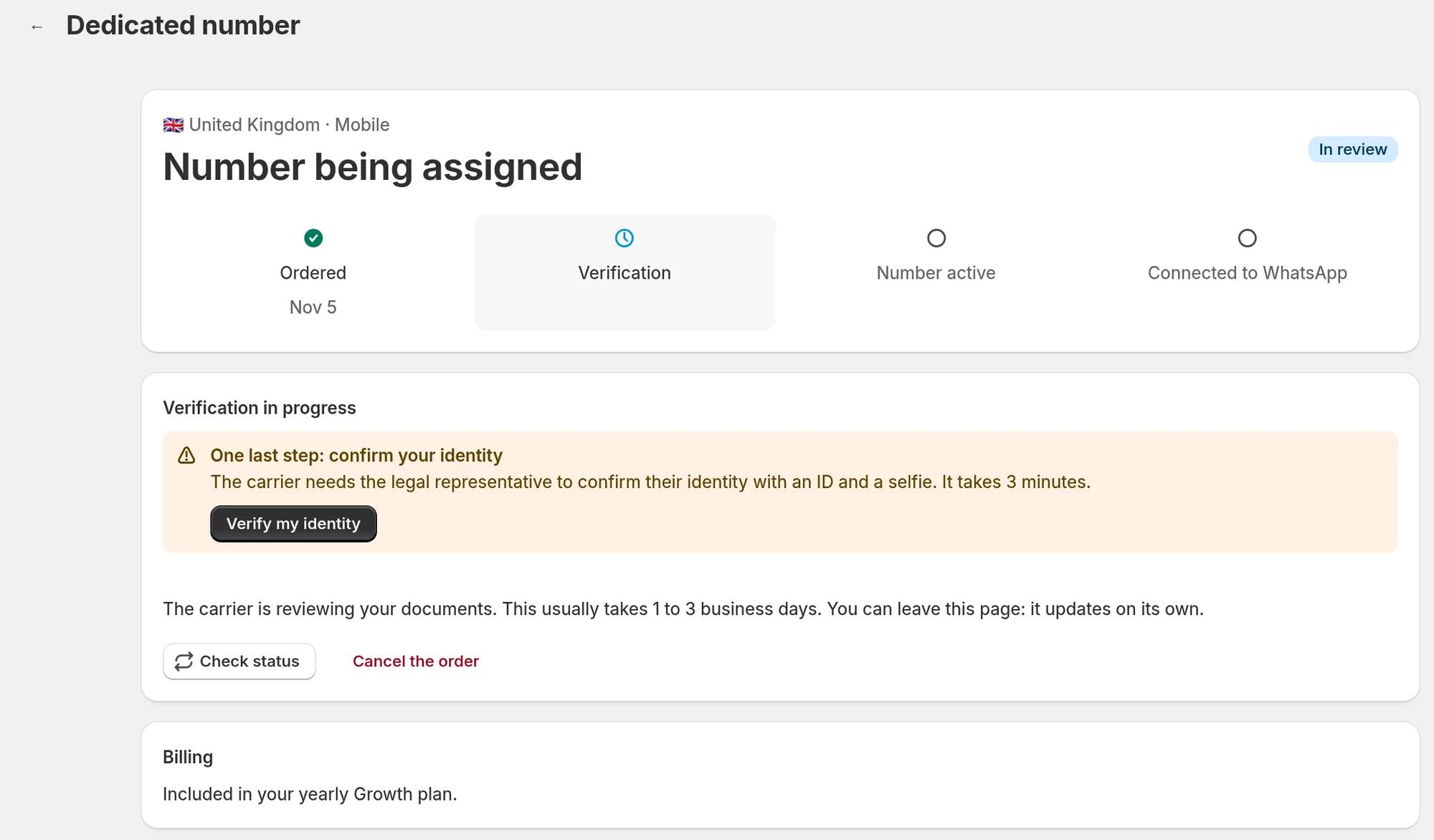
After ordering, the Dedicated number page shows a tracker: Ordered, Verification, Number active, Connected to WhatsApp. It updates on its own, so you can leave the page and come back.
| Status | What it means | What to do |
|---|---|---|
| Setting up | The number is being set up, usually in less than a minute | Wait, or click Check status |
| In review | The carrier is reviewing your documents, usually 1 to 3 business days | If the banner One last step: confirm your identity shows, click Verify my identity |
| Information requested | The carrier needs a correction or an answer | Fill in the fields listed, or answer in Your answer to the reviewer, then send |
| Verification declined | Something in your file was refused | Correct only what is listed and click Send for review. Your order keeps its place and is not billed again |
| Ready to connect | The number is active | Connect it to WhatsApp (below) |
| Live on WhatsApp | Connected, your flows send from it | Send yourself a test |
| Suspended | Messages and calls are paused | Click Contact support |
To stop an order during the review, click Cancel the order. Nothing is billed, but you will have to send your documents again if you order later.
Connect it to WhatsApp
When the number is ready, the page shows Connect your number to WhatsApp. It takes about two minutes and there is no code to enter.
- Click Connect to WhatsApp and log in with Facebook.
- Choose your business, or create one. Then create a WhatsApp Business account or pick an existing one.
- Select your new number: it shows as Verified. Enter the display name customers will see.
- If the window does not close by itself, click I finished, check my connection.
The page then shows Your number is live. Click Send a test message to check it: see Send a test message. Then add a payment method at Meta, as for any number: Meta payment method and display name.
Release the number
Under Billing, Release this number gives the number back to the carrier. This cannot be undone: customers who write to it no longer reach you. Piaflo asks you to tick I understand that this cannot be undone before Release the number.
The number is also released if your store stops being entitled to it: when you move to monthly billing, to the Free plan, or uninstall Piaflo. Piaflo gives you 30 days first. The page shows This number will be released on with the date, and switching back to yearly billing before then keeps the number. After an uninstall, the number is lost earlier if your store data is deleted first: see Uninstall and your data.
 Still stuck? Write to us with the flow name or the order number involved.