Rejected or paused templates
What happens to your flows and campaigns when Meta rejects, pauses or disables a template, where to find Meta's reason, and how to replace the template.
On this page 6
Meta reviews every template before it can be sent, and can change its decision later. This page explains what each outcome does inside Piaflo and how to get your messages going again.
Find the status and the reason
- Go to Templates.
- Look at the Status column. A template that needs attention shows Rejected, Paused or Disabled.
- Click the template's name. For a rejected template, the reason Meta gave appears in the red box Rejected by Meta.
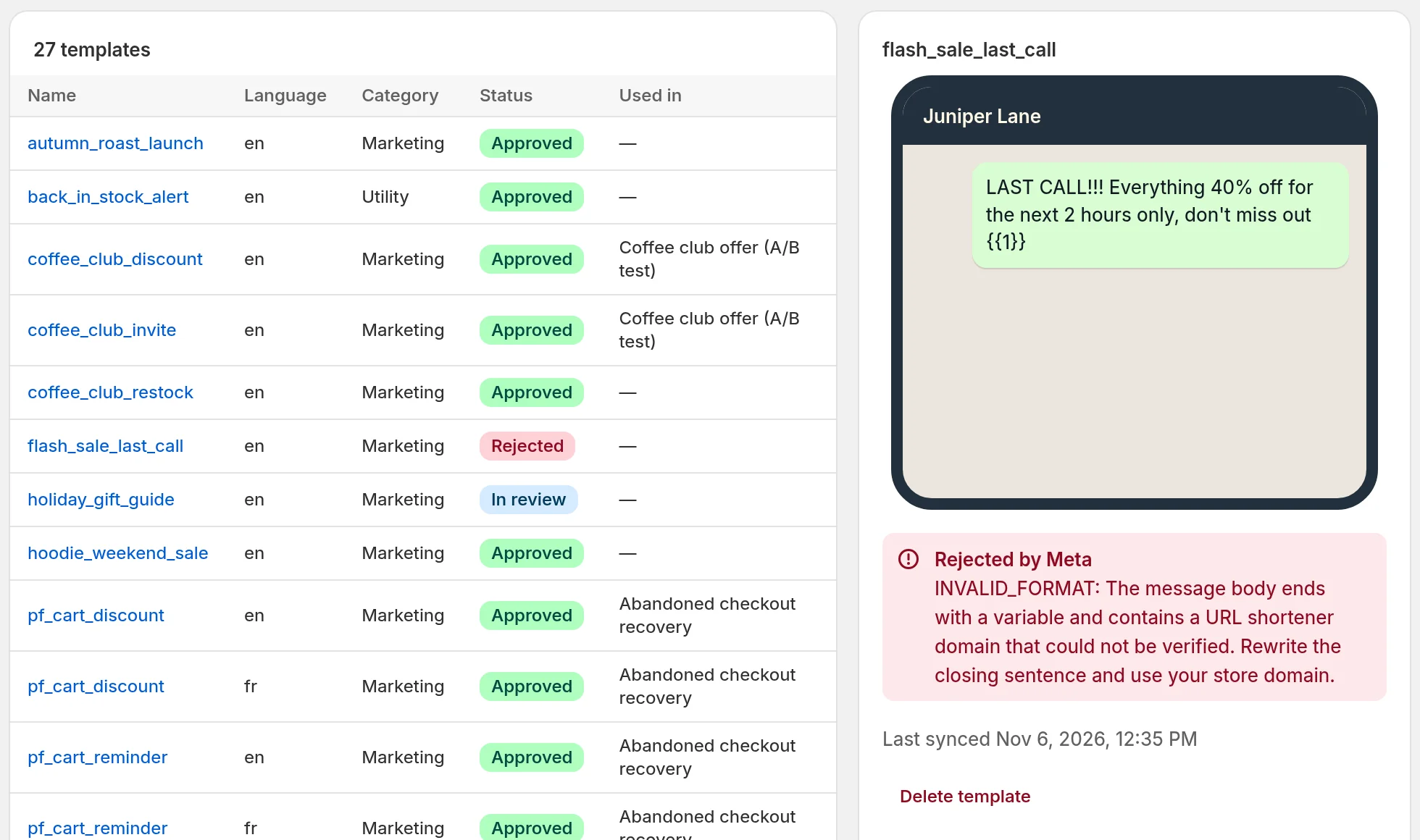
Statuses update on their own as soon as Meta decides. To check right away, click Sync with Meta.
What each status does
Rejected or disabled
Piaflo does not send the template at all.
- Flows: the step using the template shows an error, "Meta rejected this template." or "Meta disabled this template.", and the flow cannot be published. If the flow was already live, messages using this template fail.
- Campaigns: when no language of the template is approved, a scheduled campaign that uses it is paused before anything is sent, with the banner "Meta rejected the message".
Paused
Meta can pause a template after approving it. Piaflo treats a paused template like one in review in flows: messages wait and go out if Meta reactivates it. A message that has waited 24 hours is dropped. On the flow canvas, the step shows the template as "In review".
A campaign whose template is paused in every language is paused before sending, like a rejected one.
In review or in appeal
Nothing is wrong yet. Flows can be published with a warning, "Template awaiting Meta approval. Messages will wait until it is approved.", and messages go out once Meta approves the template. Campaigns start on their own once the message is approved.
Fix a rejected template
A template cannot be edited once submitted, so the fix is always a new template.
- Read Meta's reason under Rejected by Meta.
- Click Create template and write a new version with another name, for example
spring_sale_v2. - Wait for Approved.
- Open each flow listed under Used in, choose the new template in the step, and click Publish.
- Once no flow uses the old template, select it and click Delete template.
What usually makes the difference when you rewrite:
- Pick the right category. Utility is for updates about an order the customer placed. Anything promotional goes in Marketing.
- Tone down the promotion. Piaflo's own advice when Meta rejects a campaign message: "avoid aggressive promotion wording and shortened links".
- Respect the variable rules Piaflo shows in the editor: do not start or end with a variable, and put a word between two variables.
For more causes and examples, see Template rejected.
Recipe templates
If Meta rejects a template that came with a recipe (its name starts with pf_), write your own version as described above and choose it in the flow. Once a recipe's flow exists, its card in Flows shows Open flow instead of Activate, so the recipe's templates are not submitted again from there.
Campaign messages
When you write a message directly in a campaign, Piaflo submits it as a marketing template. If Meta rejects it:
- The campaign page shows "Meta rejected the message" with Meta's reason, and "Nothing was sent."
- Click New campaign and write the message again with different wording. The rejected campaign cannot be resumed.
Utility templates used for promotions
In a campaign, Piaflo warns you when you choose a Utility template: "Utility templates are for order updates. Meta may pause them if they are used for promotions." Meta can also move a template to the marketing category on its own. Piaflo then shows the new category, and its cost estimates use the marketing rate for that template.
 Still stuck? Write to us with the flow name or the order number involved.