The setup guide on Home
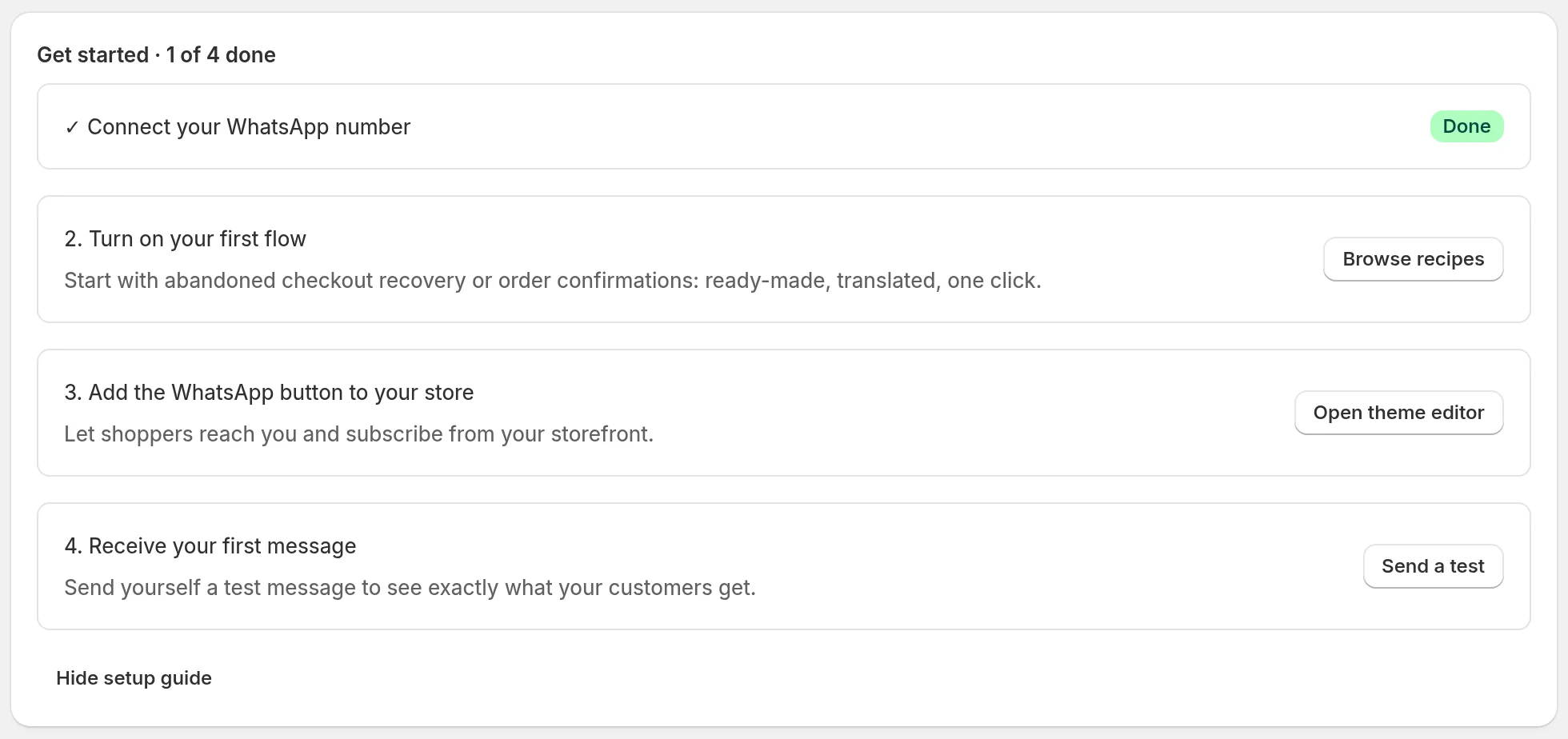
The Get started box on Home walks you through four steps, from connecting your number to receiving your first WhatsApp message. Here is what each step does and when it counts as done.
On this page 5
When you open Piaflo, the top of the Home page shows Get started · 0 of 4 done. Each step has a button that takes you to the right place. A step that is done shows a check mark and a Done badge.
Step 1: Connect your WhatsApp number
Click Connect WhatsApp. You land on Settings > WhatsApp account, where you either connect a number you already have or get a dedicated number from Piaflo.
- To connect your own number, follow Connect your WhatsApp number.
- To get a number from Piaflo, see Get a dedicated number.
If you ordered a dedicated number, the step changes. While the carrier checks your documents it says the number is being verified, usually within 1 to 3 business days, and the button is Track my order. Once the number is ready, the button becomes Connect my number.
The step is done as soon as a WhatsApp number is connected.
Step 2: Turn on your first flow
Click Browse recipes to open Flows. Recipes are ready-made flows, already written and translated: activate one, such as order confirmation or abandoned checkout recovery, and it starts working.
The step is done when at least one flow is active. How flows work explains recipes, drafts and publishing.
Step 3: Add the WhatsApp button to your store
Click Open theme editor. Your theme editor opens in a new tab with the Piaflo app embed selected. Turn it on and click Save.
The step is done when the Piaflo embed is active in your published theme. Details in Add the WhatsApp button to your store.
Step 4: Receive your first message
Click Send a test. You land on Settings > Send a test message: enter your own number, choose an approved template and click Send test.
The step is done as soon as one message sent by Piaflo is delivered or read, whether it is your test or a real customer message. See Send a test message.
Hide the guide
The guide disappears by itself when the four steps are done. To hide it earlier, click Hide setup guide at the bottom of the box. It does not come back, and nothing else changes: you can still do each step from Settings, Flows and Opt-in tools.
 Still stuck? Write to us with the flow name or the order number involved.