Lists and CSV import
Group contacts into lists to target campaigns, and import contacts from a CSV file with their consent, in three steps.
A list is a group of contacts you choose: the customers from a trade show, a file from your old tool, an imported Shopify segment. Lists are used to target campaigns. A contact can be in several lists.
Create a list
- Go to Contacts and click Create list.
- Type a List name, for example "VIP customers".
- Click Create list. Piaflo opens the new list.
Then fill it in one of three ways: tick contacts in the contact list and click Add to list, import a CSV into it, or import a Shopify segment into it (Shopify segments).
The list page
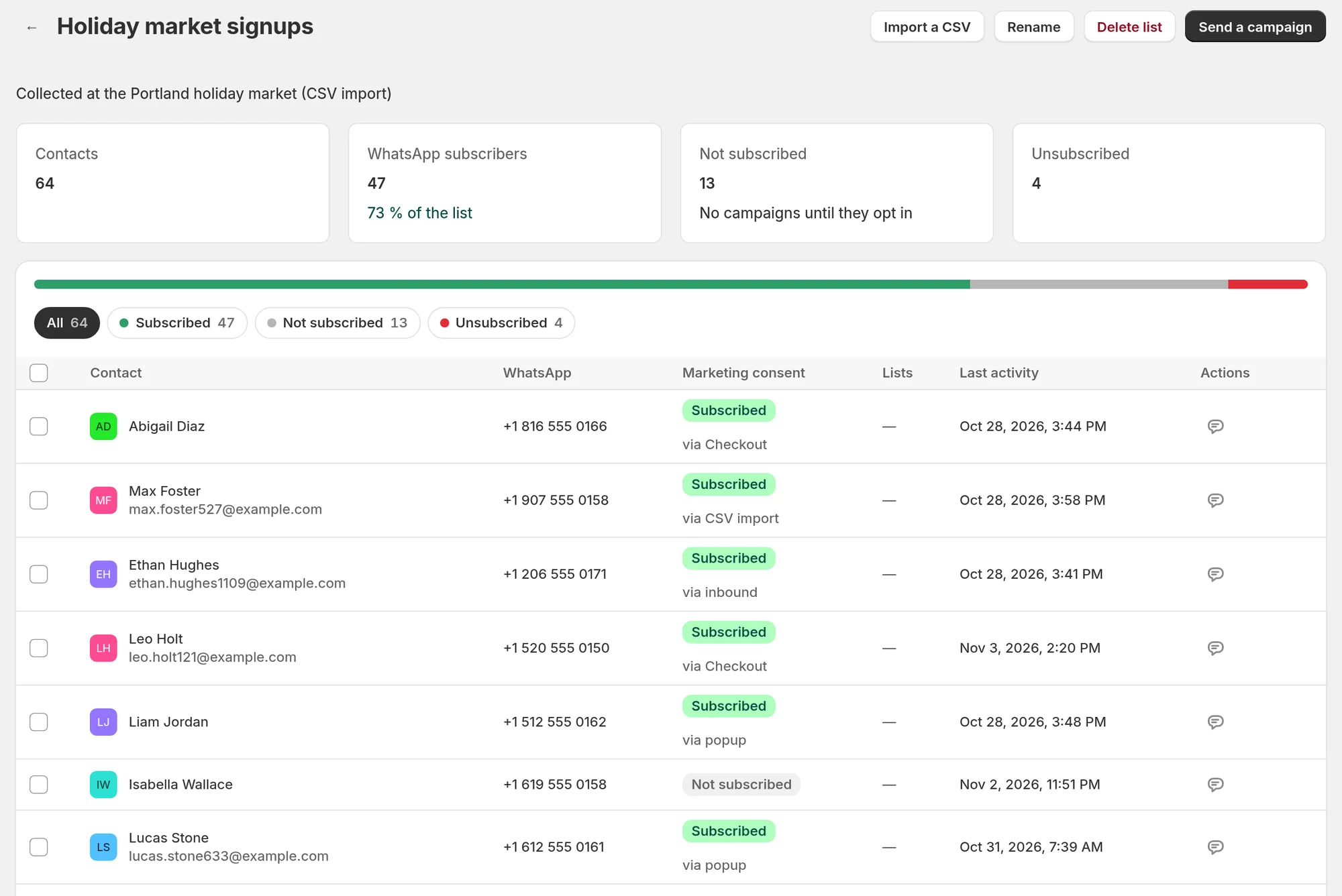
Open a list from the Lists tab. It shows:
- Contacts, WhatsApp subscribers, Not subscribed ("No campaigns until they opt in") and Unsubscribed.
- The contacts of the list, with the same consent filters as the contact list.
From there you can Send a campaign to the list, Import a CSV into it, Rename it (name and description) or Delete list. To take contacts out, tick them and click Remove from list.
Deleting a list keeps its contacts in Piaflo, with their consent.
Import a CSV file
Click Import contacts on the Contacts page, or Import a CSV on a list. The import has three steps.
1. File
Drop your CSV file. The file needs one contact per line with at least a phone number. A customer export from Shopify works as it is. Click Download a sample file to see the expected format: phone, first_name, last_name, email.
Limits: 8 MB per file and 20,000 contacts per import. Split larger files and import them in several parts. Commas, semicolons and tabs are all accepted as separators.
2. Columns
Piaflo matches the columns on its own and shows the first lines. Check each field: Phone number (required), First name, Last name, Full name, Email. Choose Don't import for a field you want to leave out.
- Default country: the country used for numbers written without their country code, such as
0612345678. Choose None: numbers include the country code if every number starts with+. - The first line contains column names: untick it if your file starts directly with contacts.
Under the preview, Piaflo counts the valid WhatsApp numbers and the lines it will skip because the number is missing or invalid.
3. Consent and list
Choose the WhatsApp marketing consent of the contacts:
- Import as not subscribed (the default). They can receive order updates and replies, but no campaigns until they opt in.
- These contacts agreed to receive WhatsApp marketing. They are subscribed in Piaflo and in Shopify. You then have to tick "I confirm these people gave their consent to receive marketing messages from my store on WhatsApp, and I can prove it if asked." Piaflo records the file name, the line and who confirmed, for each contact.
Contacts who unsubscribed before stay unsubscribed, whatever you choose.
Under Add to a list, pick an existing list, New list…, or Don't add to a list. Then click the import button, which reads "Import (number) contacts".
During and after the import
The import runs in the background, so you can leave the page. A banner shows the progress, then the result: new contacts, updated contacts, newly subscribed contacts, numbers kept unsubscribed, skipped numbers, duplicates, and the line numbers that were rejected. Click Open the list to see the result.
- A number already in Piaflo is updated, its consent is never downgraded.
- A number that appears twice in the file is imported once.
- Imported contacts enter no flow and receive no message, even when they are subscribed. The welcome flow does not start for them.
- Piaflo does not keep your file once the import is done.
Send a campaign to a list
On the Lists tab or on a list page, click Send a campaign. Only the list's subscribers receive it. The button is greyed out while the list has no subscriber. You can also combine several lists and segments in the campaign's audience: see Create a campaign.
 Still stuck? Write to us with the flow name or the order number involved.