Variables and fallbacks
How to put the customer's name, the order number, a tracking link or a discount code in your messages, and what Piaflo sends when a value is missing.
On this page 6
A variable is a value Piaflo fills in for each customer when the message goes out: their first name, the order number, the tracking link. In the editor, variables show as highlighted chips with a readable name, such as First name.
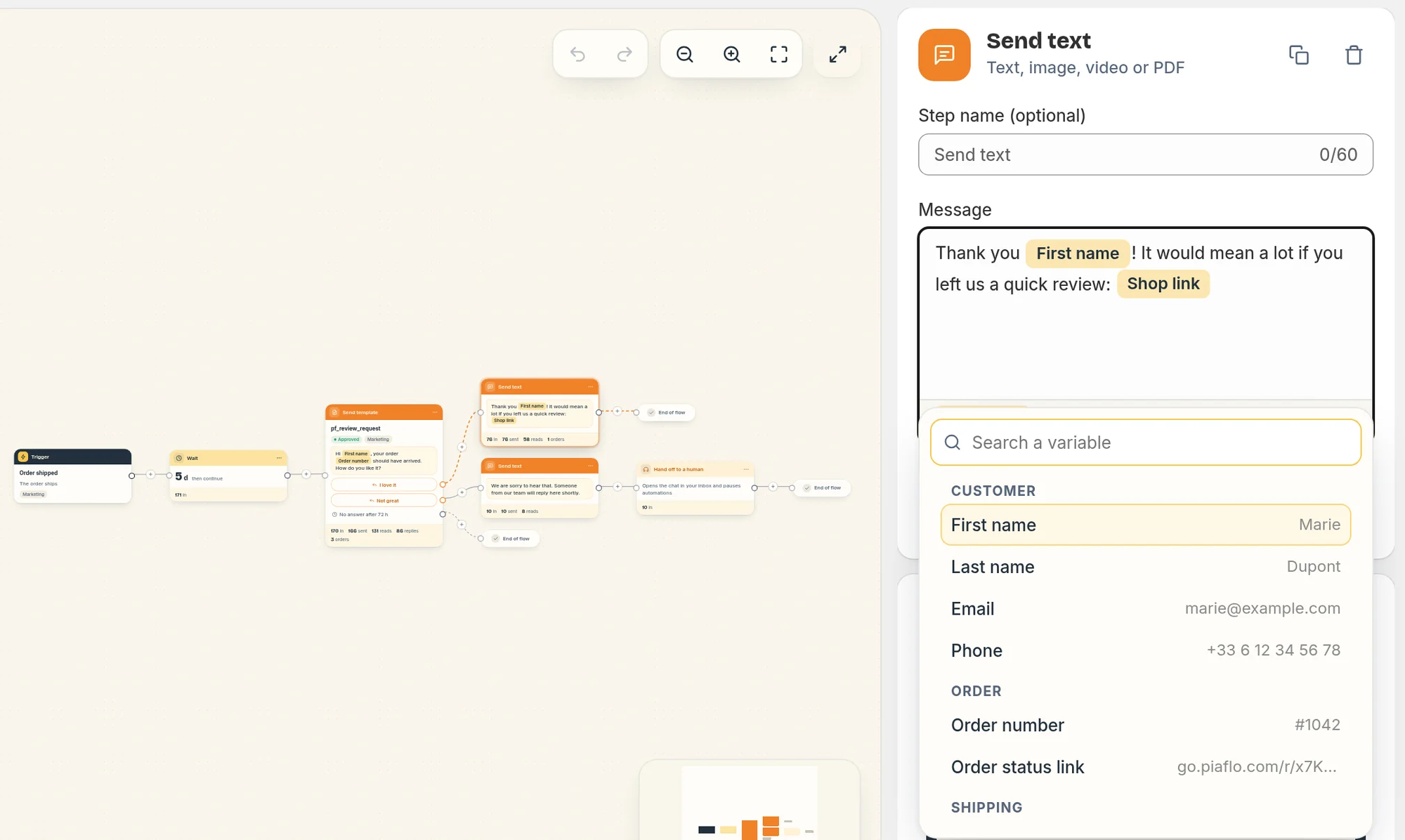
Insert a variable
In a free message (text, buttons, list, question):
- Click Variable above the message, or type
{{where you want it. - Search or pick the variable in the list. Each one shows an example value.
- Optionally fill in If empty, use, then click Insert.
In a template: the text is approved by Meta and fixed, only its blanks change. Click a highlighted value in the message ("Choose a value" when it is empty), then pick a variable or type a fixed text and choose Use "..." as fixed text.
Click a chip at any time to change the variable, its fallback, or to Remove it.
Available variables
These work in every flow:
| Group | Variables |
|---|---|
| Customer | First name, Last name, Email, Phone |
| Shop | Shop name, Shop link |
| Discount | Discount code, Discount amount (filled after a Create discount code step) |
Each trigger adds its own: the order variables (Order number, Order total, Order status link, First item, Number of items, Cancel reason), shipping (Carrier, Tracking number, Tracking link), cart (Cart link, Cart total, First item in cart), Opt-in source or Customer message. The list in the picker only shows what your trigger provides. See Triggers.
An Ask a question step adds Answer "..." for the answer it saves, in the steps after it.
Some details worth knowing:
- First name comes from Shopify. If the customer is not known in Shopify, Piaflo uses the first word of their WhatsApp profile name.
- First item is the first product of the order, followed by "+1", "+2"... when there are more.
- Links to the order status, the tracking page, the cart and your shop are replaced by short tracked links when they fill a template value or the link of a Send a link button step, so clicks show in your reports. A link written inside the text of a free message is sent as it is.
Fallbacks
A fallback is what Piaflo sends when the value is empty, for example a customer with no first name. Set it in If empty, use when you insert or edit the variable. It can be a fixed text or another variable. Piaflo suggests common ones in one click:
| Variable | Suggested fallback |
|---|---|
| First name | "there" (in the customer's language: "there" in English, "cher client" in French) |
| Order status link, Cart link | Shop link |
| Tracking link | Order status link |
| First item, First item in cart | "your items" |
| Carrier | "our carrier" |
| Shop name | "our shop" |
Without a fallback:
- in a free message, nothing is shown in place of the variable;
- in a template, Piaflo sends "-", because Meta refuses empty values.
Prices
On Order total and Cart total, the box Format as a price (49,90 €) is ticked by default. Piaflo then writes the amount in your store's currency, formatted for the customer's language. Untick it to send the plain number.
Custom values (Liquid)
Behind each chip is a Liquid expression, for example {{ customer.first_name | default: fallback_name }}. Piaflo also understands two extra filters:
money: formats a number as a price in your store's currency.utm: addsutm_source,utm_medium=whatsappandutm_campaignto a link, for example{{ shop.url | utm: 'whatsapp', 'welcome' }}.
Expressions the picker cannot show as a simple variable appear as Custom value. If an expression has an error, Piaflo sends it empty. The preview in the side panel shows example values only, so keep custom expressions simple.
Template writing rules
When you create a template with variables in Piaflo, the editor warns you about texts Meta tends to reject: a message that starts or ends with a variable, and two variables side by side. Add a word before, after or between them.
 Still stuck? Write to us with the flow name or the order number involved.