Flow report
Read the results of a flow: revenue, customers entered, messages, reads, replies, the funnel and the results of each step, plus the customers who were skipped and why.
Each flow has its own report. Open it with View report on the flow page, or click the revenue figure of a flow in Your flows.
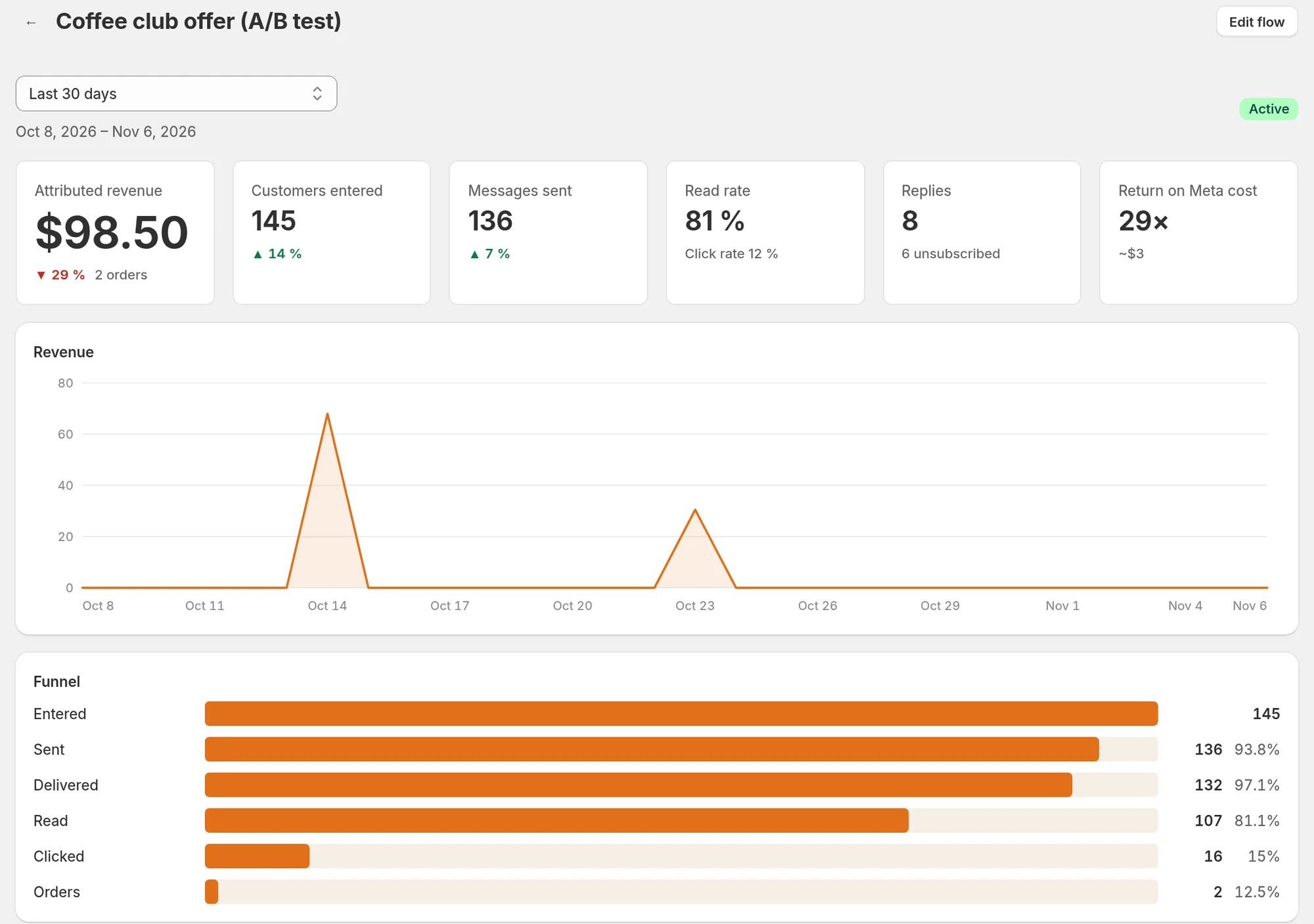
Choose the period
Pick the period at the top: Last 7 days, Last 30 days, Last 90 days, Last 6 months, Last 12 months or Custom range. Revenue, customers entered and messages sent show their change against the previous period of the same length.
How far back you can go depends on your plan:
| Plan | History | Custom range |
|---|---|---|
| Free | 30 days | No |
| Starter | 90 days | No |
| Growth | 183 days | Yes |
| Pro | 396 days | Yes |
Periods beyond your plan show "higher plan" in the list.
The figures
| Figure | What it counts |
|---|---|
| Attributed revenue | The value of the orders credited to this flow, with the number of orders |
| Customers entered | Customers who started the flow |
| Messages sent | Messages the flow sent |
| Read rate | Messages read out of messages delivered, with the Click rate below |
| Replies | Customer replies, with the number of customers who unsubscribed |
| Return on Meta cost | Revenue compared with the estimated Meta cost of the messages, shown in US dollars (Starter plan and above) |
Below, Revenue shows the revenue attributed to this flow per day.
How an order is credited
An order is credited to the flow when the customer clicked a tracked link from it within the attribution window (5 days by default, set with Attribution window (days) in Settings > Sending rules), or else read one of its messages in the 24 hours before ordering. More in Attribution and Meta cost.
Funnel
From the Starter plan, Funnel shows how many customers go from one stage to the next: Entered, Sent, Delivered, Read, Clicked, Orders. Use it to see where customers drop off.
Results by step
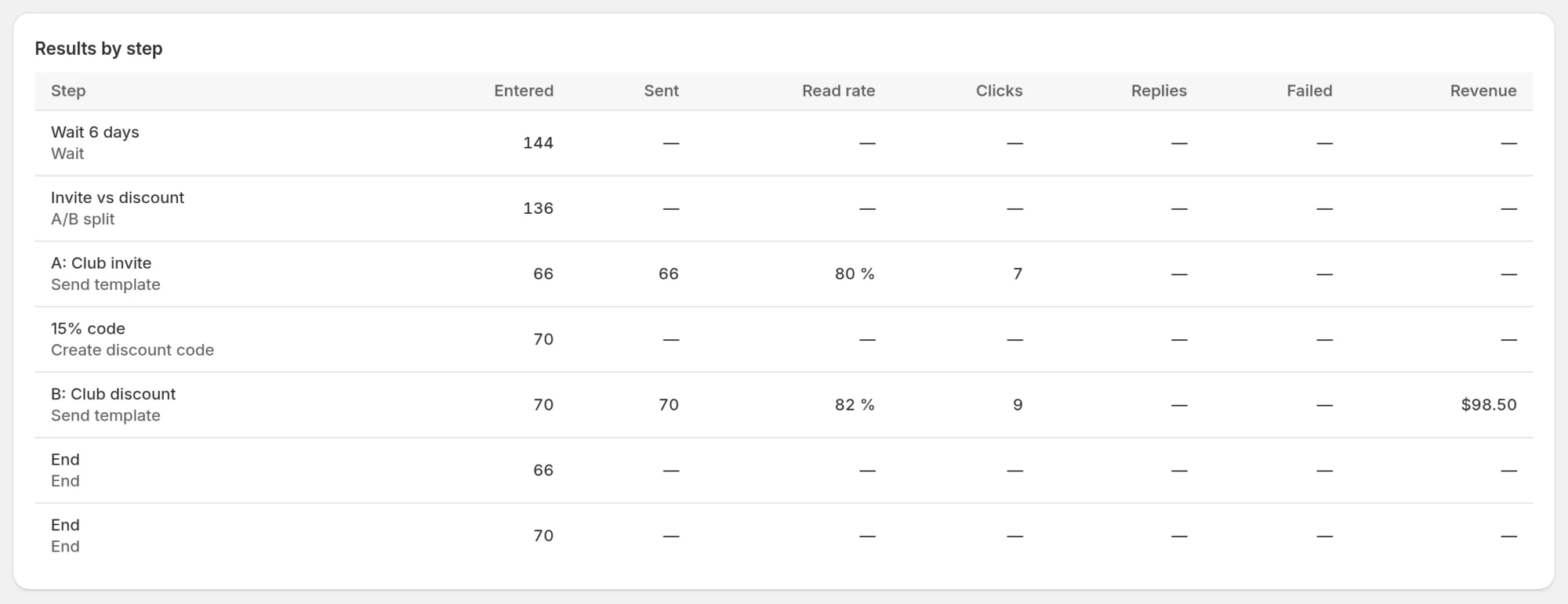
From the Growth plan, Results by step lists every step customers went through, with Entered, Sent, Read rate, Clicks, Replies, Failed and Revenue. Steps you named with Step name (optional) show under that name, which helps when a flow sends several messages or has an A/B split.
A short version appears on each card of the canvas in the editor (in, sent, reads, replies, orders).
Customers who did not enter
The report counts customers who entered. Customers who were skipped at the start, for example because they are not subscribed to marketing, are listed on the flow page itself, under Customers who did not enter this flow (30 days), with the reason and the count. Why a customer did not enter a flow explains each reason.
The flow page also shows a summary of the last 30 days: revenue, orders, messages sent, read rate, and how many customers are in progress or completed.
 Still stuck? Write to us with the flow name or the order number involved.