Meta payment method and display name
Meta bills your automated WhatsApp messages directly, so it needs a payment method on your WhatsApp Business account. Meta also reviews the name customers see. Here is where Piaflo shows both and how to fix them.
On this page 4
Two things live at Meta, outside Piaflo, and both affect your messages: the payment method that pays for them, and the display name of your number.
Why Meta needs a payment method
Meta charges for template messages, the messages a business starts: order confirmations, abandoned checkout reminders, campaigns. It bills them to your WhatsApp Business account, at Meta's rates, and Piaflo adds no markup. Your Piaflo plan is billed separately, by Shopify.
Without a valid payment method, Meta blocks templates, so no template message goes out: order messages, abandoned checkout reminders and campaigns stop.
Add a payment method
- In Piaflo, go to Settings > WhatsApp account.
- Click Open Meta billing. Meta's payment settings open in a new tab, on your WhatsApp Business account.
- Add your company card there and save.
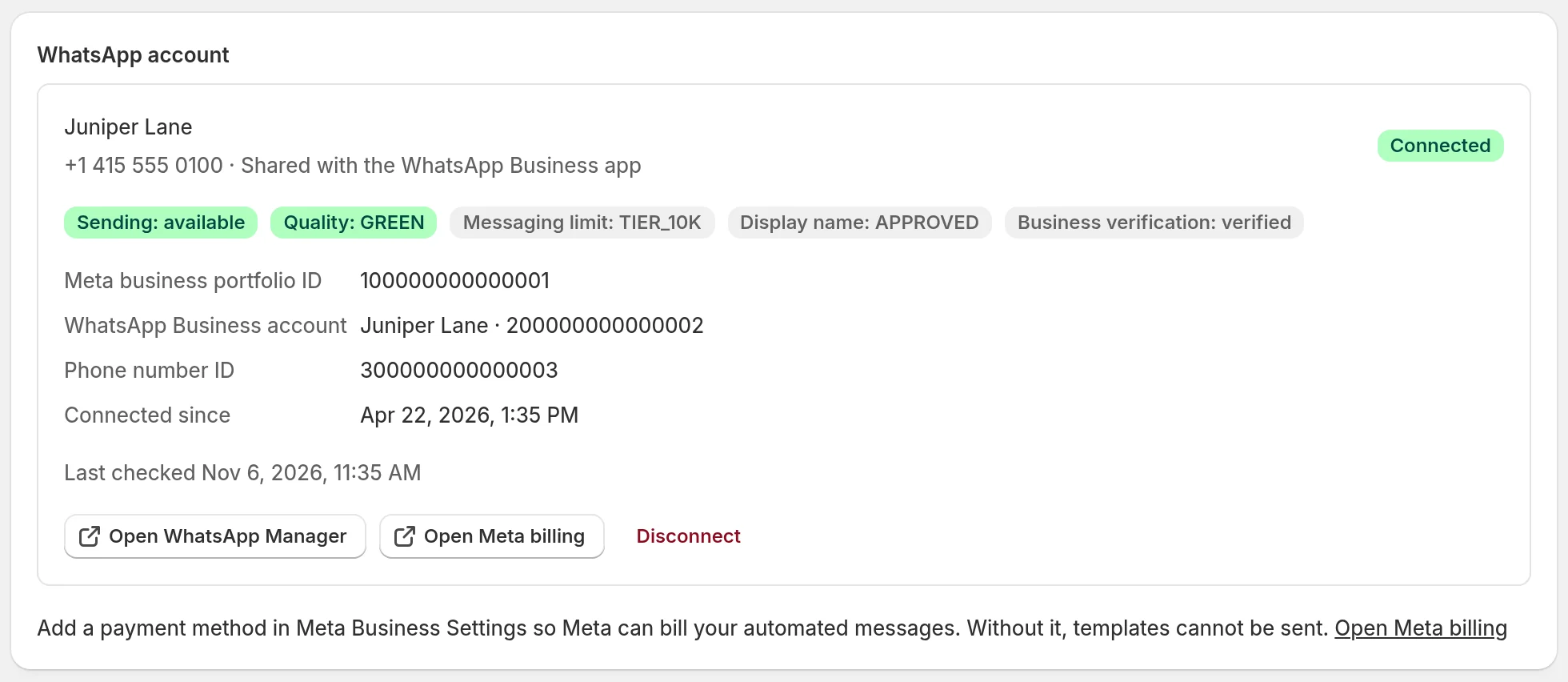
Piaflo re-reads your number's status from Meta every hour. If Meta reports a payment problem, the card shows a banner with No valid payment method on this WhatsApp Business account, so Meta blocks templates. and an Add a payment method button that opens the same Meta page. The banner goes away at the next check after Meta clears the problem.
Your display name
The display name is the name customers see on your WhatsApp messages. You choose it while connecting your number, in the Meta window, and Meta reviews it.
In Piaflo, the card in Settings > WhatsApp account shows:
- The name at the top of the card, or Display name pending while Meta has not provided one yet.
- A Display name badge with the status Meta returns for it.
- A Business verification badge with the status of your business verification at Meta.
Piaflo updates the display name status as soon as Meta reports a change.
To change the name, click Open WhatsApp Manager. It opens the phone numbers of your WhatsApp Business account at Meta, where the display name is edited. Piaflo cannot change it for you.
The naming rules Meta applies, and what to do if a name is rejected, are in Connect your WhatsApp number.
Check that everything works
Send yourself a test from Settings > Send a test message. If it arrives, Meta accepted the payment method and your template. See Send a test message.
 Still stuck? Write to us with the flow name or the order number involved.