A template was rejected by Meta
Meta refused one of your message templates, or paused or disabled it. Find the reason Piaflo shows, fix the wording, and replace the template in your flows.
Meta reviews every WhatsApp template before it can be sent. When it refuses one, or later pauses or disables it, the messages that use it stop going out. This page is the quick fix. Rejected or paused templates covers Meta's rules in more depth.
What you see
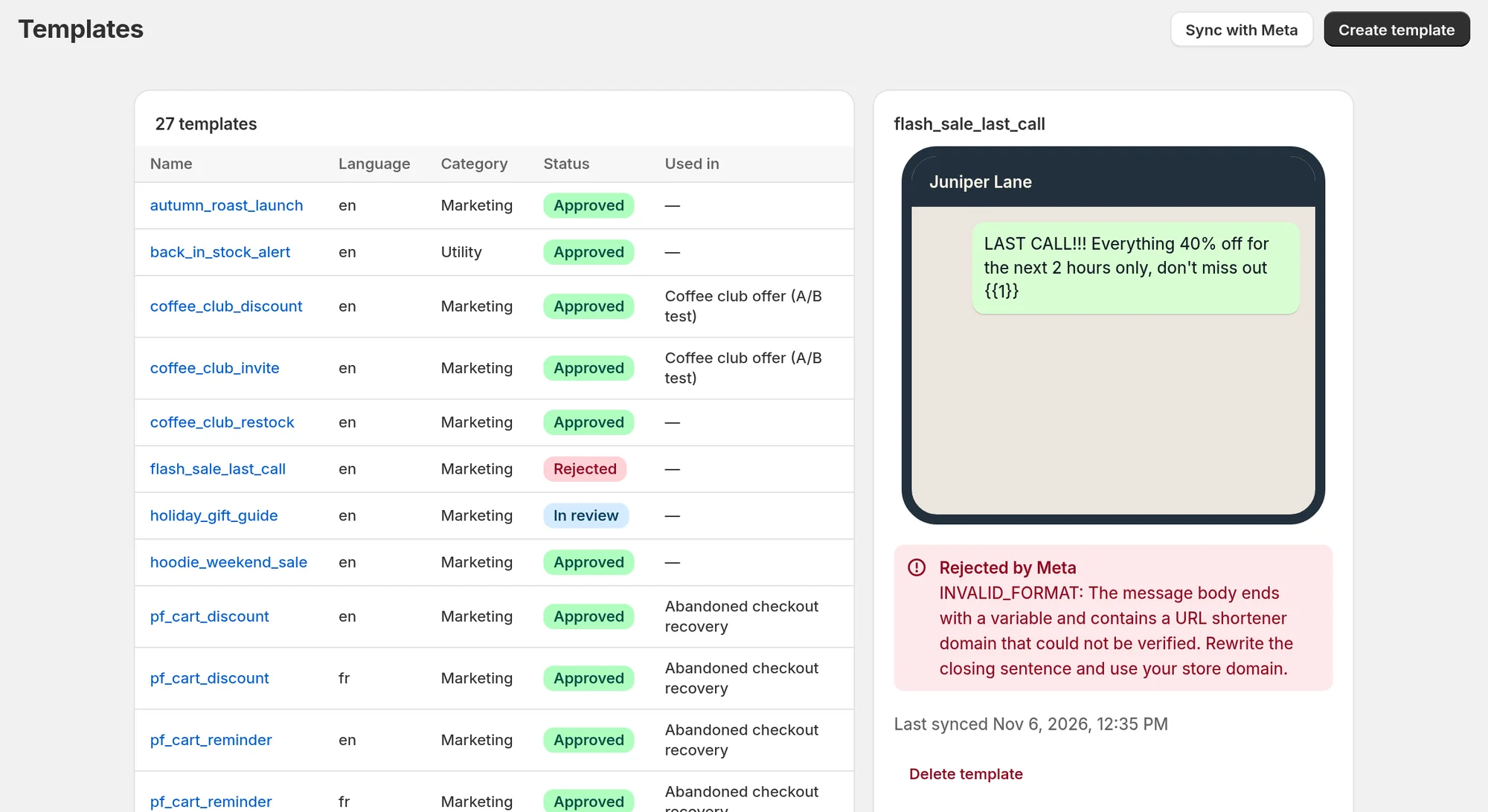
In Templates, the Status column shows one of:
| Status | Can it be sent? |
|---|---|
| Approved | Yes |
| In review | Not yet. Messages wait for up to 24 hours |
| In appeal | Not yet. Messages wait for up to 24 hours |
| Paused | Not while paused. Messages wait for up to 24 hours |
| Rejected | No. Messages fail right away |
| Disabled | No. Messages fail right away |
Click the template's name to see it. A rejected template shows a Rejected by Meta box with the reason Meta gave.
The Used in column lists the flows that use the template. In the flow editor, a step that uses a rejected or disabled template shows "Meta rejected this template." or "Meta disabled this template.", and the flow cannot be published until you change it.
Piaflo reads the status from Meta every hour. Click Sync with Meta to refresh it now.
Fix it
A template cannot be edited once submitted. You create a corrected one and use it instead.
- Read Meta's reason in the Rejected by Meta box.
- Go to Templates > Create template and write the new version. Give it a new name: lowercase letters, digits and underscores, starting with a letter.
- Click Submit to Meta and wait for its status to turn Approved.
- Open each flow listed in Used in, select the message step, choose the new template, then click Publish.
- Once no flow uses the old template, you can remove it with Delete template.
Wording Meta often refuses
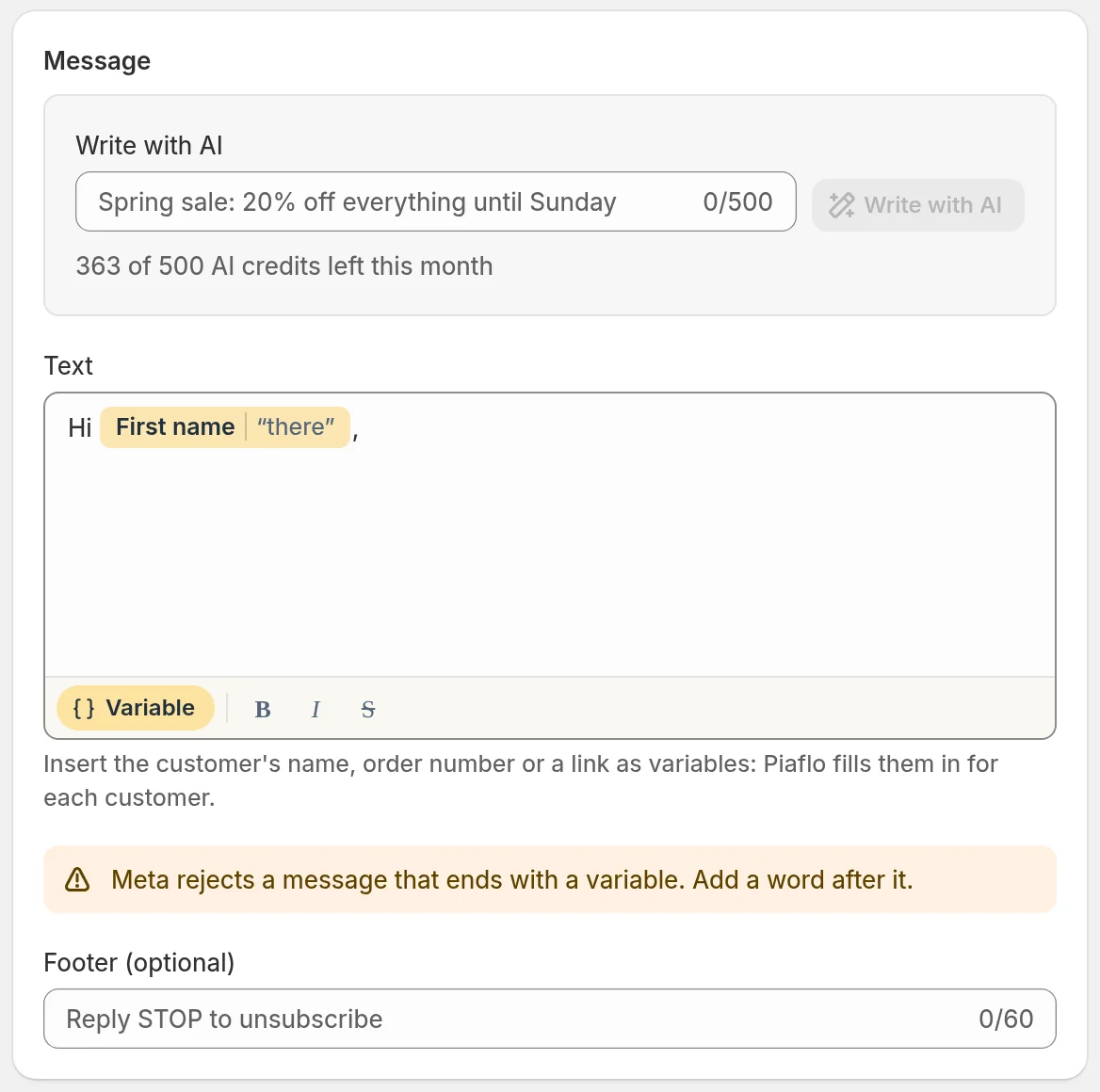
Piaflo's template editor warns you about the first two before you submit. The other two are for you to check:
- The message starts or ends with a variable. Meta rejects it. Put words before the first variable and after the last one. Piaflo refuses to submit a text whose very first or very last characters are a variable.
- Two variables side by side. They are often rejected. Put a word between them.
- Promotion in a utility template. Utility is for order updates only, with no promotion at all. A template that promotes something belongs in Marketing.
- Placeholders like [Name] or [link] typed as text. Use the variables Piaflo offers instead.
Every variable is sent to Meta with an example value. Check the preview line "Sent to Meta for review with example values" before submitting: unclear examples make the review harder.
Templates from recipes
Recipe templates have names that start with pf_. If one is rejected, replace it in the flow with a template of your own as above, and tell us through the chat in the app.
 Still stuck? Write to us with the flow name or the order number involved.