How flows work
A flow sends WhatsApp messages on its own when something happens in your store. Here is what a flow is made of, who it reaches and how you publish changes.
On this page 8
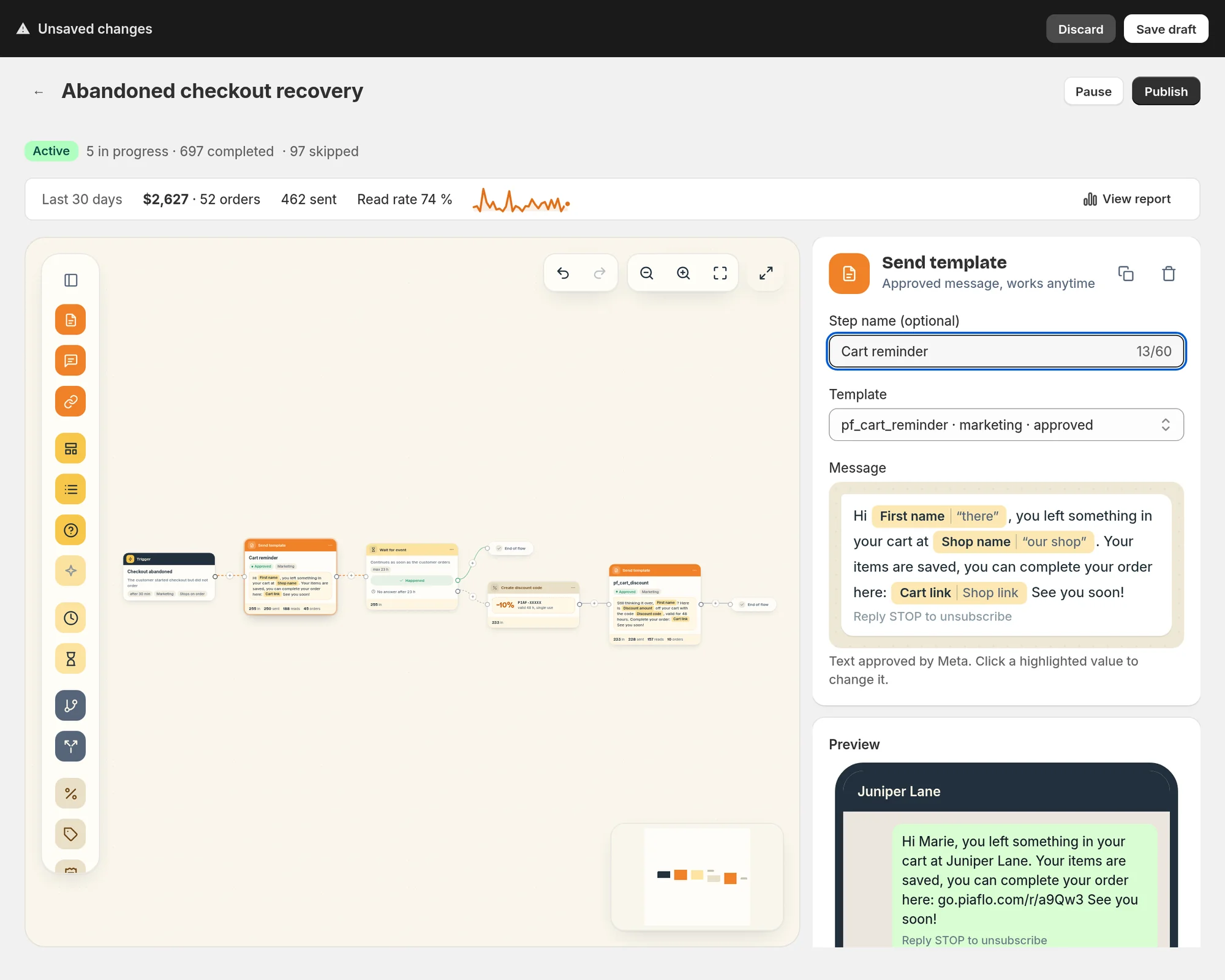
A flow is an automation. Something happens in your store (an order is placed, a checkout is left behind, a customer sends a keyword) and Piaflo runs a series of steps for that customer: send a message, wait, check a condition, create a discount code, tag the order.
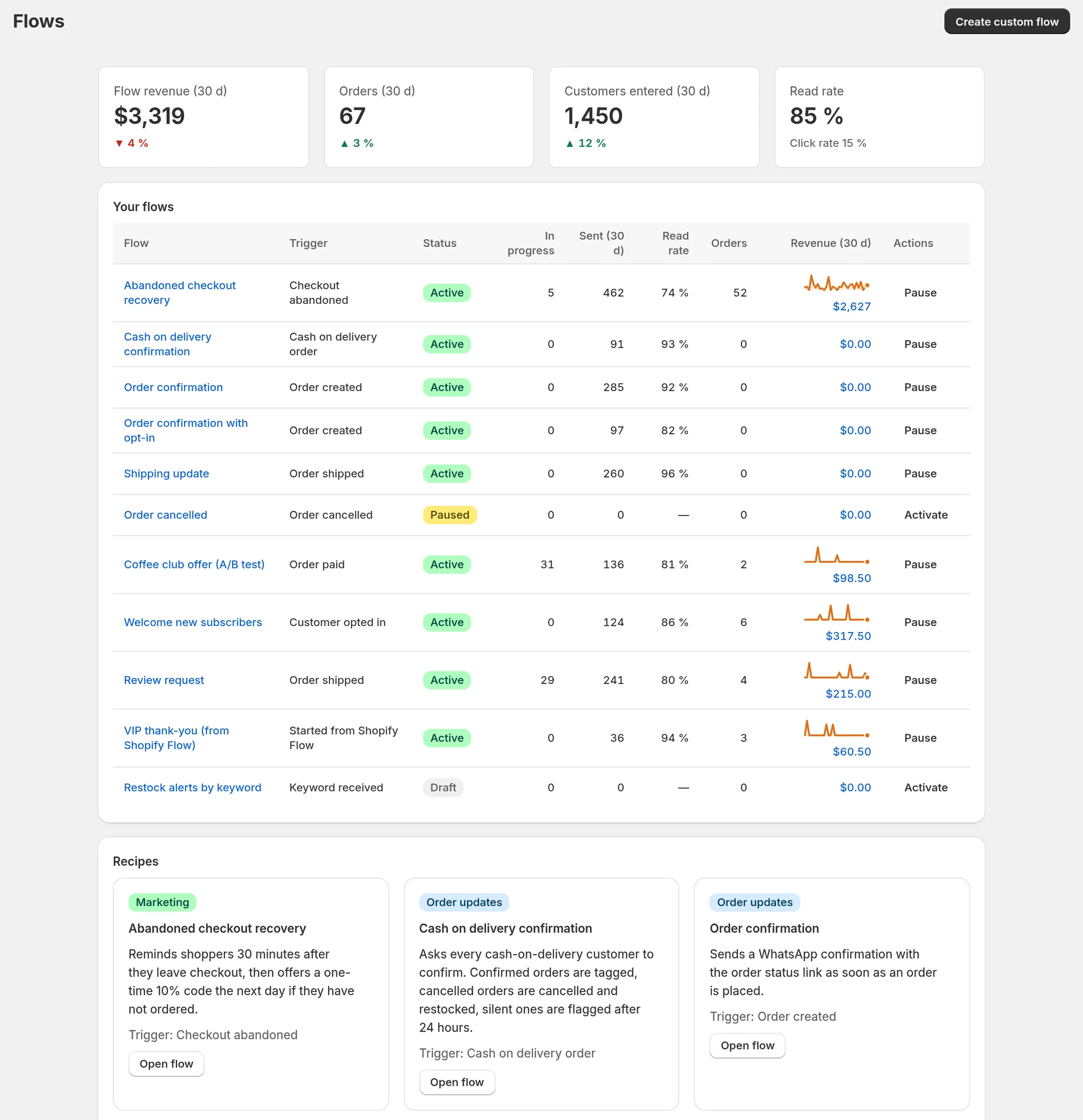
You find your flows in Flows, in the Piaflo menu of your Shopify admin.
What a flow is made of
Every flow has three parts.
- A trigger, the event that makes a customer enter the flow. Each flow has exactly one.
- Steps, run one after the other: messages, waits, conditions, Shopify actions. A step can split the path in two, for example "the customer replied Confirm" and "the customer replied Cancel".
- Settings: whether the flow is an order update or marketing, and how soon the same customer can enter again.
These are the triggers you can start a flow with:
| Trigger | When it fires |
|---|---|
| Order created | A customer places an order |
| Order paid | An order is marked as paid |
| Order shipped | An order is fulfilled |
| Order cancelled | An order is cancelled |
| Cash on delivery order | An order is placed with a cash on delivery payment method |
| Checkout abandoned | A shopper leaves checkout without ordering |
| Customer opted in | A customer subscribes to your WhatsApp messages |
| Keyword received | A customer sends you one of the keywords you chose |
| Started from Shopify Flow | A Shopify Flow workflow starts the flow (Growth plan) |
Recipes or your own flow
Most stores start with recipes: ready-made flows for order confirmation, shipping, abandoned checkout, cash on delivery and more. Their messages are already written in English and French. Click Activate on a recipe and Piaflo does three things at once:
- It submits the recipe's message templates to Meta for approval, in English and French.
- It creates the flow.
- It publishes the flow, so it starts working right away.
To build a flow from scratch, click Create custom flow. The Starter plan includes 3 custom flows, Growth and Pro have no limit.
Order updates and marketing flows
Each flow belongs to one of two categories, shown on each recipe card and on the trigger card in the flow editor. The category decides who can receive it.
| Order updates | Marketing | |
|---|---|---|
| Examples | Order confirmation, shipping update, cash on delivery confirmation | Abandoned checkout, welcome message, review request |
| Who receives it | Customers subscribed to WhatsApp. Every customer with a phone number if you turn on the setting below | Only customers subscribed to WhatsApp marketing |
| Quiet hours | Sent right away, day or night | Held until your quiet hours end |
| Weekly limit | No limit | Counts toward the marketing limit per customer |
Both rules for marketing live in Settings > Sending rules:
- Respect quiet hours for marketing messages: on by default, from 21:00 to 9:00 in your store's time zone. A message due during quiet hours goes out shortly after they end.
- Maximum marketing messages per contact per 7 days: 3 by default. When a customer has reached it, Piaflo skips that message and the flow carries on with the next step.
Drafts, publishing and versions
When you edit a flow, your changes stay in a draft until you publish them. Customers keep receiving the version that is live.
- Save draft keeps your changes without touching the live flow.
- Publish (or Republish on a flow that is already live) checks the flow and makes your draft the new live version.
- Discard throws away the changes you have not saved yet and goes back to the last saved version.
Piaflo checks the flow before publishing. Errors block publishing and are listed on the steps concerned, for example a step that is not connected to anything or a message template that does not exist. Warnings do not block, for example a template still waiting for Meta's approval.
A customer who is already in the flow when you publish finishes the journey on the version they started with. The new version applies to customers who enter after you publish.
Pausing a flow
Pause stops new customers from entering the flow. Click Activate to turn it back on.
To stop every outgoing message at once, for flows and campaigns alike, use Settings > Emergency stop. Messages stay queued and go out when you turn it off.
The same customer, twice
A customer cannot be in the same flow twice at the same time. If the trigger fires again while they are still in the flow, the new entry is skipped.
Each flow also has a re-entry window: how long after entering a customer has to wait before they can enter that flow again. The abandoned checkout recipe uses 72 hours, so a shopper who leaves checkout every day gets one reminder sequence per 72 hours.
Some flows also stop as soon as the customer places an order. The abandoned checkout recipe does: once the shopper buys, the reminders still planned are cancelled.
Check that a flow is working
Open a flow to see, over the last 30 days, the revenue it brought, the orders, the messages sent and the read rate. View report gives the full detail. On the Growth and Pro plans you also see the results on each step of the canvas.
When customers were skipped, the flow page shows how many under Customers who did not enter this flow (30 days), with the reason for each. Why a customer did not enter a flow explains every reason and what to do about it.
Free plan limits
On the Free plan you can run the three order update recipes, order confirmation, order confirmation with opt-in and shipping update, with one message each and one active flow per trigger. Marketing flows, custom flows and the other recipes need the Starter plan or above. See the plans.
 Still stuck? Write to us with the flow name or the order number involved.