The contact list
The Contacts page lists every WhatsApp number Piaflo knows, with its marketing consent. Find a contact, filter by consent or list, and add contacts to a list.
On this page 7
Contacts gathers every WhatsApp number Piaflo knows for your store. Contacts are added on their own when a customer orders, leaves a checkout with a phone number, writes to you on WhatsApp or signs up with an opt-in tool. You can also add them by import.
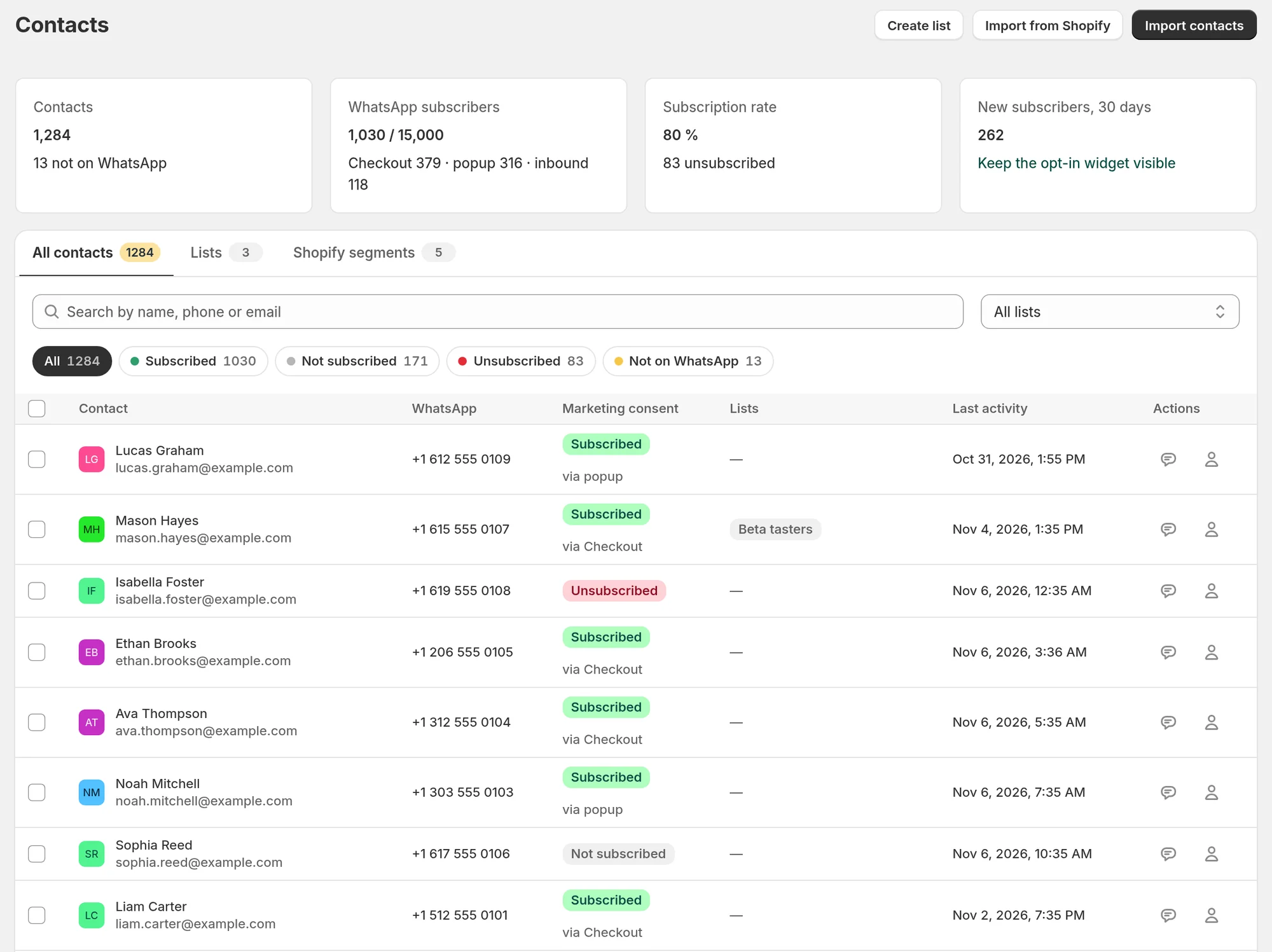
The tiles
| Tile | What it shows |
|---|---|
| Contacts | All WhatsApp numbers known to Piaflo, and how many are not on WhatsApp |
| WhatsApp subscribers | Contacts subscribed to marketing, out of your plan's limit, with the three main sources of subscriptions |
| Subscription rate | Subscribers out of all contacts, with the number of unsubscribed contacts |
| New subscribers, 30 days | Contacts who subscribed in the last 30 days |
The subscriber limit depends on your plan: 0 on Free, which has no marketing, 2,500 on Starter, 15,000 on Growth, no limit on Pro. When you reach it, Piaflo shows Subscriber limit reached. New subscribers are still recorded, but campaigns only reach as many subscribers as your plan allows. See Plans and billing.
The three tabs
- All contacts: the list described below.
- Lists: the lists you created. See Lists and CSV import.
- Shopify segments: your Shopify segments with their number of WhatsApp subscribers. See Shopify segments.
Find a contact
- Search by name, phone or email. A phone number or an email has to be complete. A name can be part of the first or last name, or of the name shown on WhatsApp.
- List: show only the contacts of one list.
- Marketing consent: All, Subscribed, Not subscribed, Unsubscribed, and Not on WhatsApp when some numbers are. Each filter shows its count.
What each consent status means is explained in WhatsApp consent.
The table
| Column | What it shows |
|---|---|
| Contact | Name and email |
| The phone number, with a Not on WhatsApp badge when a message to it failed for that reason | |
| Marketing consent | The status, and for subscribers where the subscription came from, for example "via Opt-in widget" |
| Lists | The lists the contact belongs to |
| Last activity | The last message sent or received |
| Actions | Open the conversation in Inbox, or the customer in Shopify |
The table shows 50 contacts per page, the most recently updated first.
Add contacts to a list
- Tick the contacts in the table. The box in the header selects the whole page.
- Click Add to list.
- Choose a list, or New list… and type its name.
- Click Add to list.
You can add up to 1,000 contacts at once. Adding a contact to a list does not change its consent and sends nothing.
Start from an empty page
If Piaflo has no contact yet, the page offers three ways to start: Import a CSV, Import from a Shopify segment and Set up the opt-in widget.
Common questions
Can I change a contact's consent here? No. Consent changes when the customer subscribes or replies STOP, see WhatsApp consent.
Can I delete a contact? Not from this page. Removing a contact from a list keeps the contact in Piaflo. For data removal, see Uninstall and data.
 Still stuck? Write to us with the flow name or the order number involved.