Install Piaflo and find your way around
Install Piaflo from the Shopify App Store, then get to know the menu: what each page is for and where to start.
On this page 5
Piaflo runs inside your Shopify admin. It sends WhatsApp messages for your store: order updates, abandoned checkout reminders, campaigns, and replies from a shared inbox.
Install the app
- Open the Piaflo listing on the Shopify App Store. It is called Piaflo - WhatsApp Flows.
- Click Install and approve the permissions Shopify shows you.
- Piaflo opens in your Shopify admin, on its Home page.
Piaflo asks Shopify for access to your customers, orders, fulfillments, products and discounts. It needs them to start flows when an order is placed or shipped, find abandoned checkouts, read the customer's WhatsApp consent, create discount codes and tag orders.
Your store starts on the Free plan. It sends order confirmations and shipping updates. To send marketing messages, such as abandoned checkout reminders and campaigns, choose a paid plan: see Plans and billing.
The menu
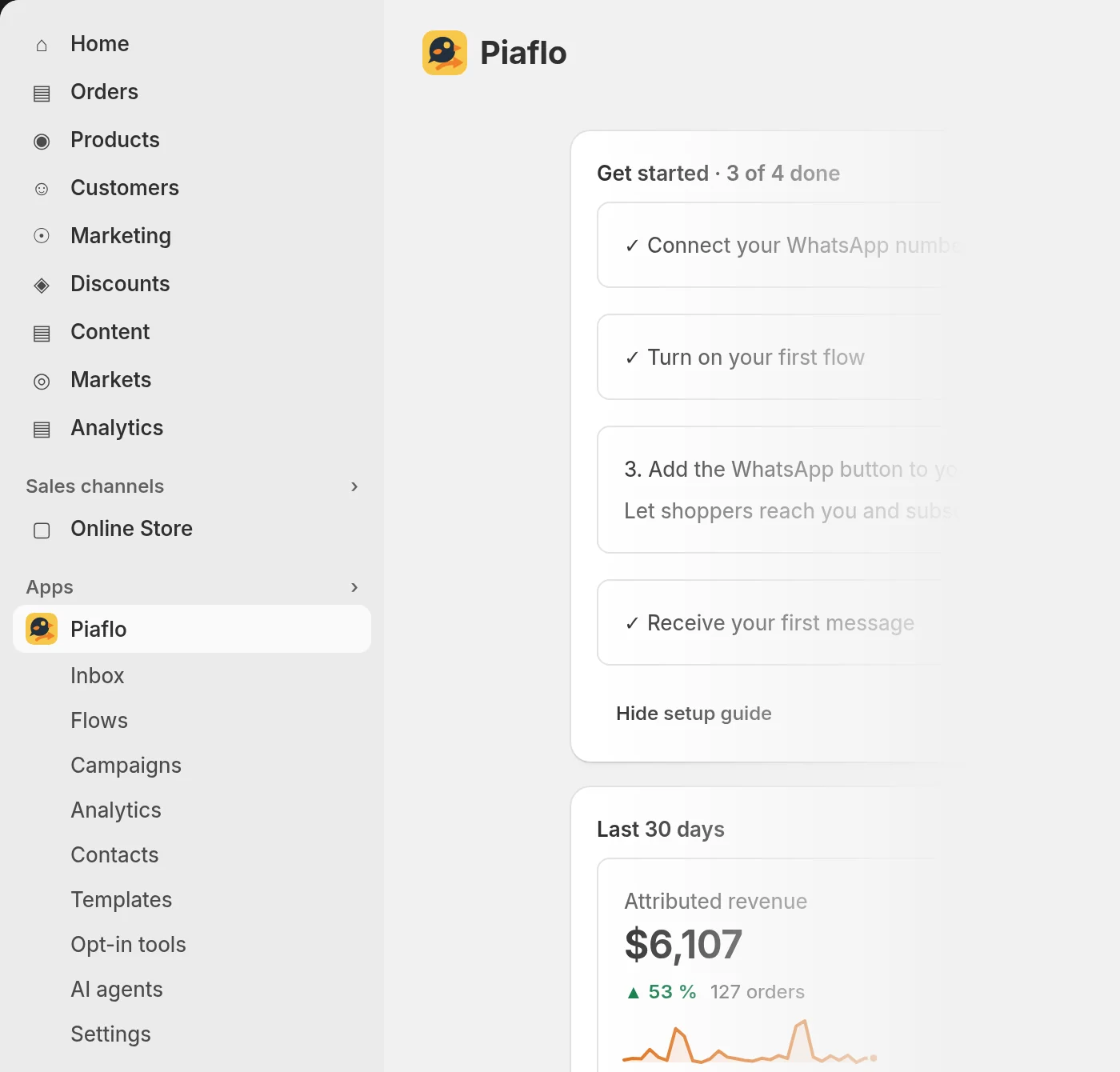
Piaflo adds these pages to the app menu of your Shopify admin. There is no Home item: click the app name, Piaflo, to go back to Home.
| Page | What you do there |
|---|---|
| Home | Follow the setup guide, see the last 30 days and the health of your WhatsApp number |
| Inbox | Read and answer customer conversations |
| Flows | Turn on recipes and build automated flows |
| Campaigns | Send one-off messages to Shopify segments and contact lists |
| Analytics | Revenue, messages, Meta cost and attribution |
| Contacts | Everyone Piaflo knows, their consent, your lists |
| Templates | The messages Meta approves before you can start a conversation |
| Opt-in tools | Chat button, signup popup, WhatsApp link and QR code |
| AI agents | Connect Claude, ChatGPT or another assistant to your Piaflo data |
| Settings | Your WhatsApp number, test message, sending rules, consent options, emergency stop |
The Plans page is not in the menu. Open it from the Plans link at the bottom of the WhatsApp health box on Home.
The Home page
Home is where you land each time you open Piaflo.
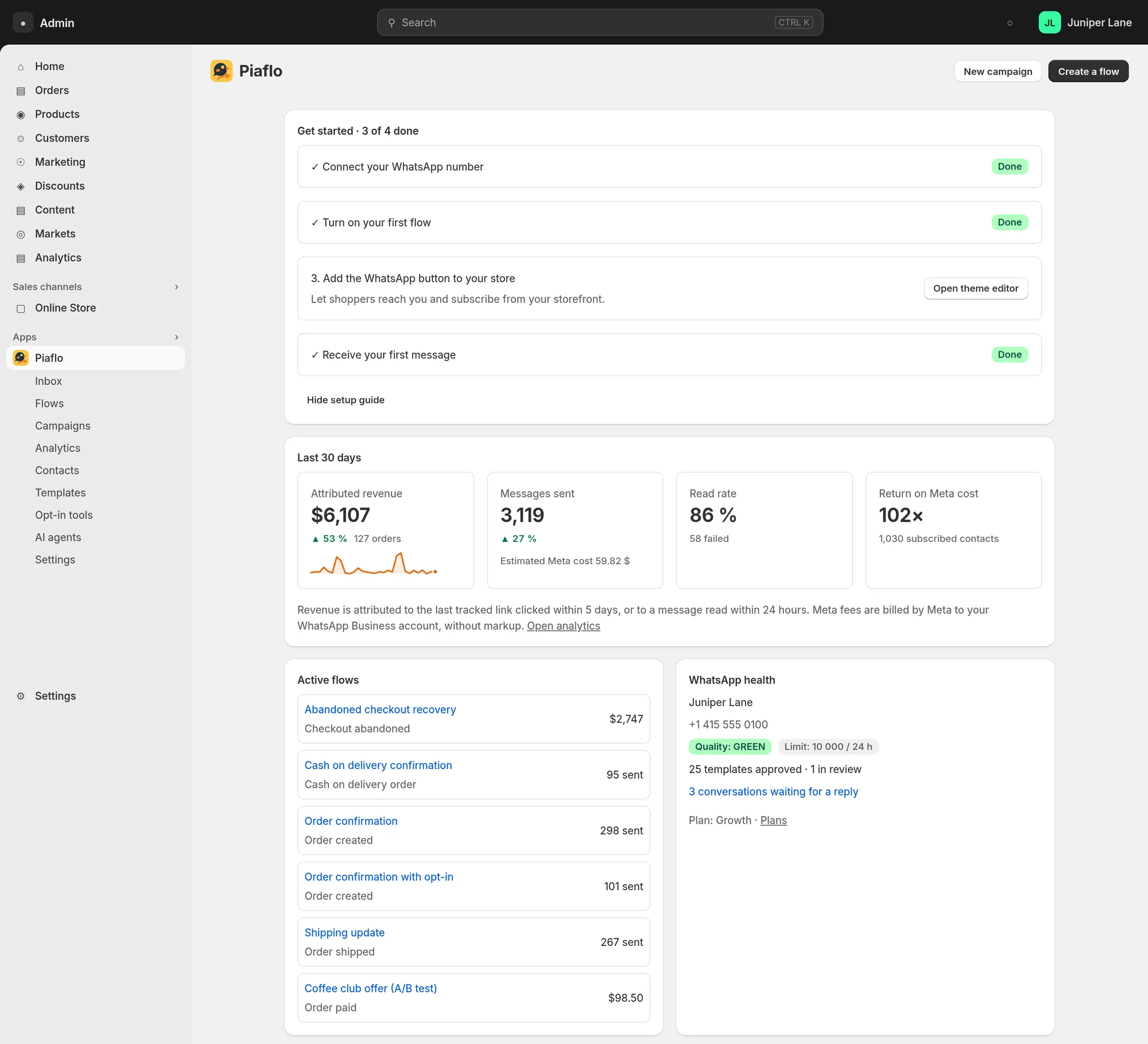
- Get started is the setup guide: four steps from connecting your number to receiving your first message. It is explained in The setup guide on Home.
- Last 30 days shows Attributed revenue, Messages sent, Read rate and Return on Meta cost. On the Free plan the last tile shows your WhatsApp subscribers instead, with a link to the plan that unlocks the return on Meta cost.
- Active flows lists the flows that are running, with the revenue or the number of messages each one sent.
- WhatsApp health shows your connected number, its quality rating, its messaging limit per 24 hours and how many templates are approved or in review.
Two buttons sit at the top of the page: Create a flow and New campaign.
Get help
A support chat bubble is available on every page of the app. You can also write to [email protected].
Where to start
- Connect your WhatsApp number: Connect your WhatsApp number.
- Turn on a recipe in Flows: How flows work.
- Add the chat button to your store: Add the WhatsApp button to your store.
- Send yourself a test: Send a test message.
 Still stuck? Write to us with the flow name or the order number involved.