Add the WhatsApp button to your store
Turn on the Piaflo app embed in your theme editor once, and a floating WhatsApp chat button appears on every page of your store. The same embed shows the opt-in popup on paid plans.
On this page 3
The WhatsApp button is a floating chat button on your storefront. A shopper who taps it opens a WhatsApp conversation with your store, with a first message already typed. The same app embed also shows the opt-in popup that subscribes shoppers to your WhatsApp messages.
You turn it on once, in your Shopify theme editor. There is no code to paste.
Turn on the app embed
- In Piaflo, click Open theme editor in the setup guide on Home, or Turn on the app embed in Opt-in tools > Add the widgets to your theme. Your theme editor opens in a new tab, on the app embeds of your live theme.
- Find Piaflo chat & opt-in and switch it on.
- Click Save in the theme editor.
- Come back to Piaflo. On Home, the step Add the WhatsApp button to your store shows Done.
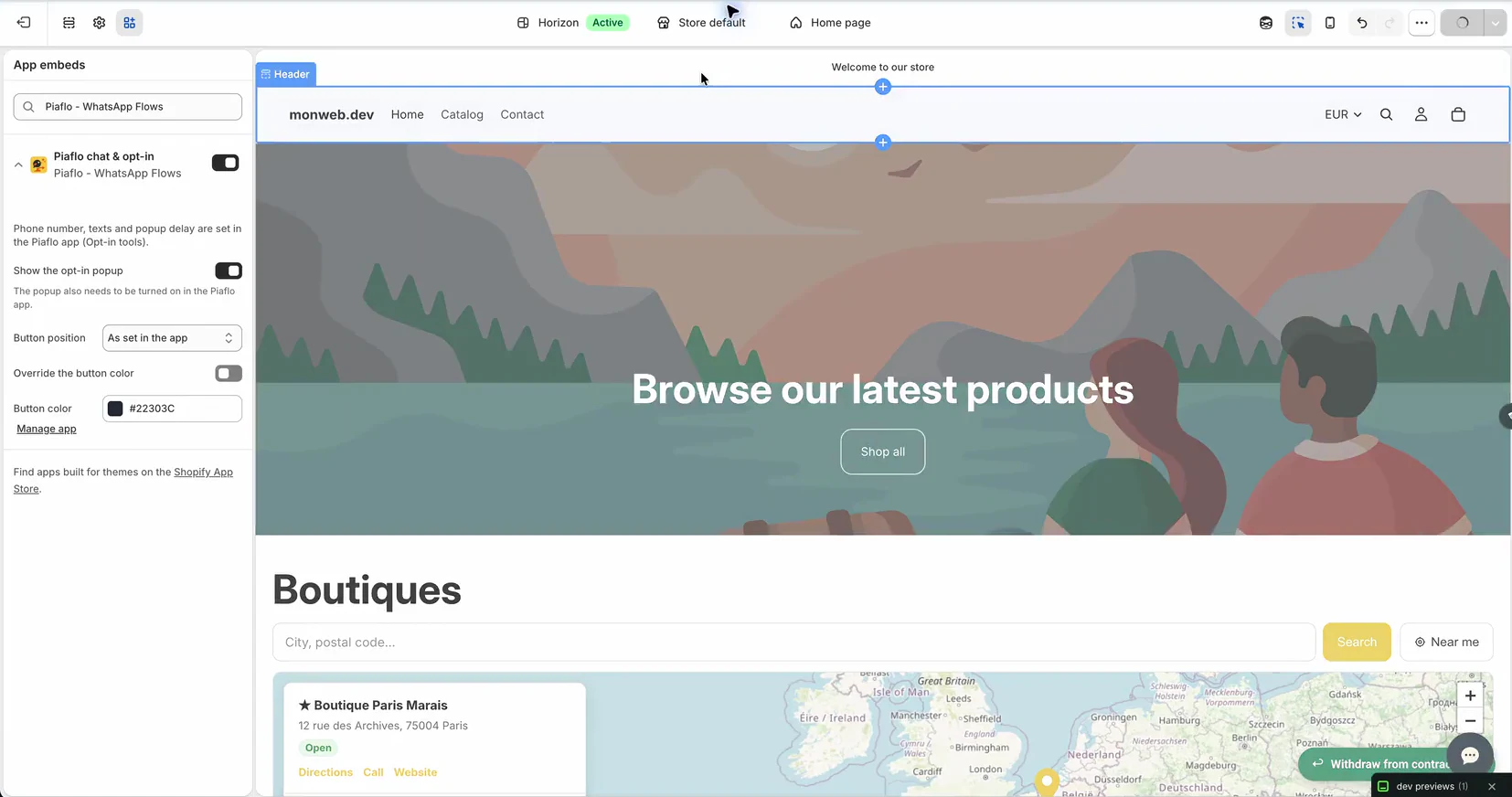
The embed settings
The theme editor shows a few settings for the embed. Everything else (texts, greeting, popup delay) is set in Piaflo, in Opt-in tools.
| Setting | What it does |
|---|---|
| Show the opt-in popup | On by default. Lets the embed show the popup. The popup also needs to be turned on in Piaflo |
| Button position | As set in the app (default), Bottom right or Bottom left |
| Override the button color | Tick it to use the Button color below instead of the color set in Piaflo |
When the button shows
The button appears on your store when all of these are true:
- The app embed is on in your live theme, and saved.
- A WhatsApp number is connected in Piaflo. Until then, Opt-in tools shows Connect your WhatsApp number first and the button stays hidden.
- Show the chat button on my store is on in Opt-in tools. It is on by default.
The chat button is included in every plan, Free too. The opt-in popup needs the Starter plan or above, and you turn it on in Opt-in tools: see Signup popup.
To set the button's color, greeting and prefilled message, see Chat button. If the button still does not show, see The WhatsApp button does not show on my store.
 Still stuck? Write to us with the flow name or the order number involved.