Saved replies and AI reply suggestions
Save the answers you send often and insert them with /. From the Starter plan, Piaflo can also draft a reply from the conversation and the customer's recent orders, which you check before sending.
Two tools speed up your replies in Inbox. Saved replies work on every plan. The AI suggestion needs the Starter plan or above.
Saved replies
Save a reply
- Type the answer in the reply box of any conversation.
- Click Saved replies (lightning icon) under the box.
- Click Save current message.
Piaflo names the saved reply after its first five words (40 characters at most). That name is what you type to find it. Saved replies are shared by everyone who uses Piaflo on your store.
Insert a reply
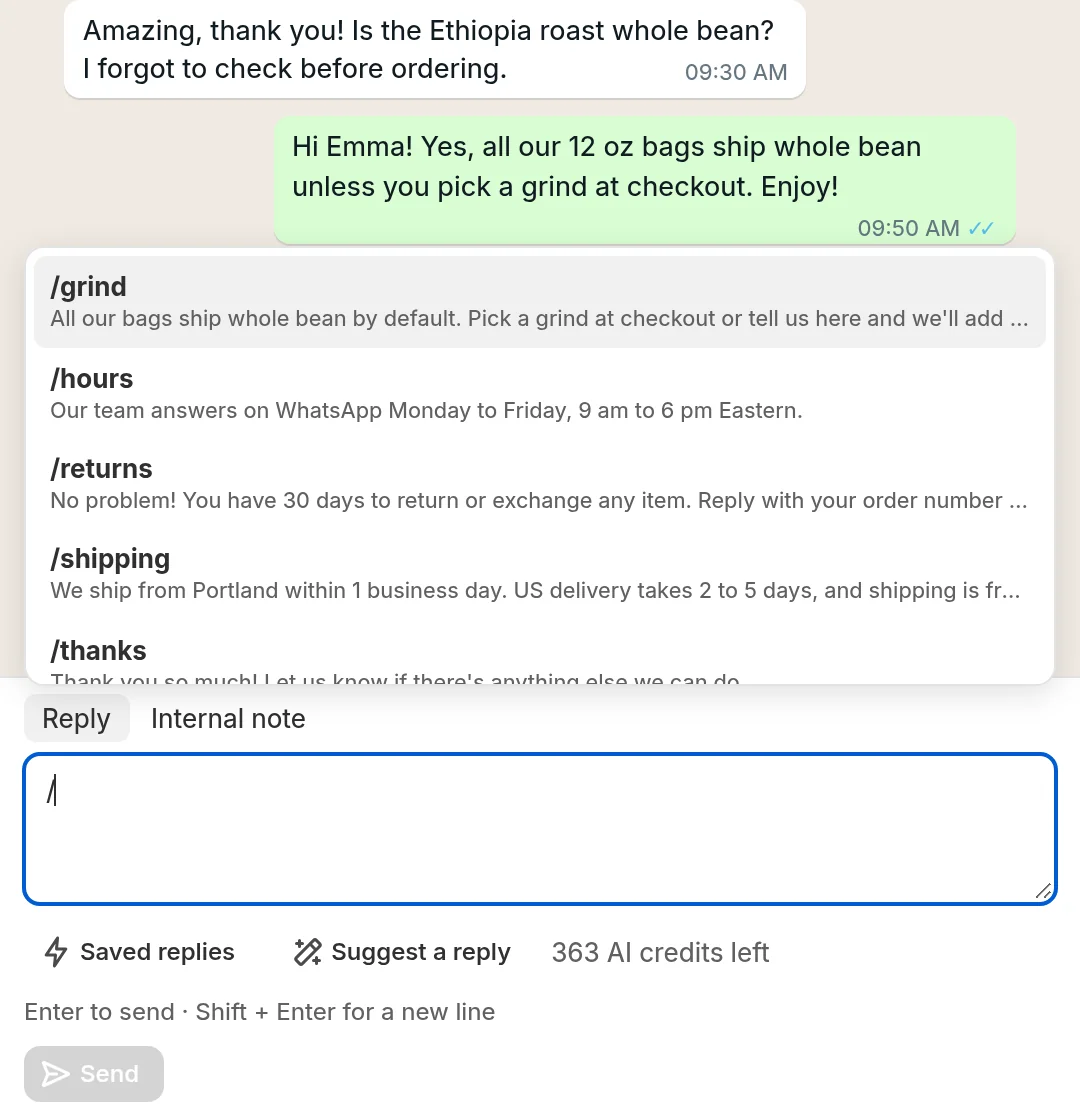
- Type
/in the reply box, followed by a few letters. Piaflo lists the saved replies whose name or text contains them. - Use the arrow keys to choose, then Enter or Tab to insert. Escape clears the box.
- Or click Saved replies and pick one from the list.
The text goes into the box. Edit it if needed, then send. Saved replies also work in Internal note mode.
Delete a saved reply
Click Saved replies, then the trash icon next to the reply.
AI reply suggestion
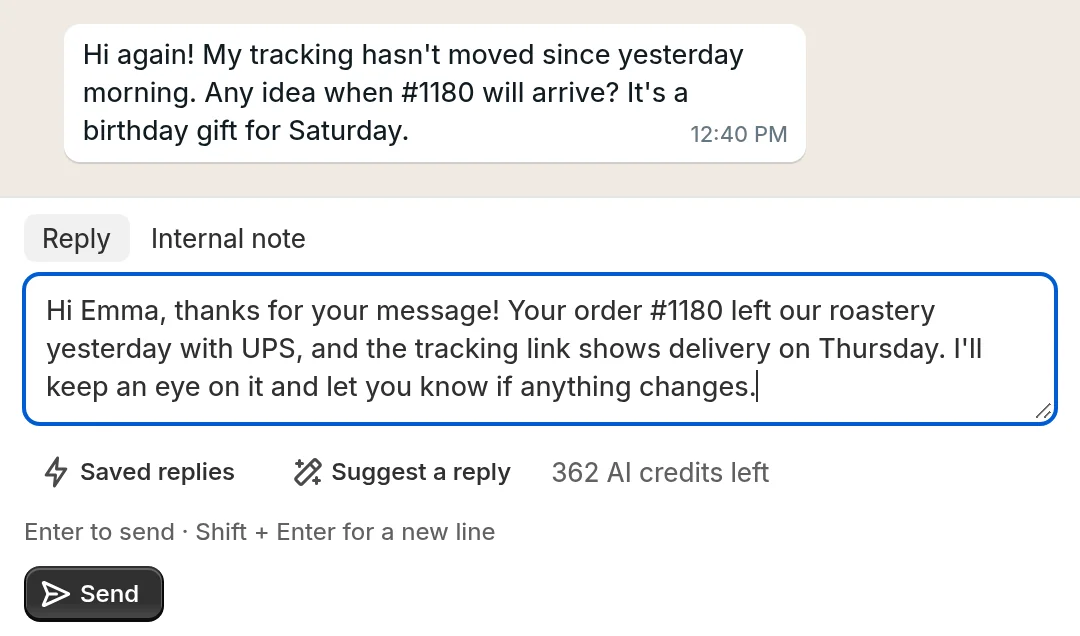
Click Suggest a reply (wand icon) under the reply box. A draft appears in the box. Read it, change what needs changing, then click Send. Piaflo never sends a suggestion on its own.
What the AI reads
- The last 12 messages of the conversation. Internal notes are left out.
- The customer's first name. Their last name, email and phone number are removed from the messages before they are sent to the AI.
- The customer's last 3 orders: number, date, status, items and tracking, when the contact is linked to a Shopify customer.
What it is told to do
- Answer in the language the customer writes in, in 1 to 4 short sentences.
- Use only facts from the conversation and the orders. It must not invent an order status, a tracking number, a delivery date, a refund, a discount or a policy. When the information is missing, the draft says your team will check and come back to the customer.
Always check dates, amounts and promises before sending: you are the one who sends the message.
When the button is not available
- Outside the 24-hour window: the reply box is replaced by the template picker, so there is nothing to draft. The AI only drafts free replies.
- On the Free plan: the button is greyed out and the text next to it reads AI writing is available from the Starter plan.
- No credits left: the button is greyed out and the text next to it reads You have used all your AI credits this month.
AI credits
Each suggestion uses one credit. The number of credits left shows next to the button. If the AI fails to answer, the credit is given back.
| Plan | AI credits per month |
|---|---|
| Free | None |
| Starter | 50 |
| Growth | 500 |
| Pro | 3,000 |
Credits are shared with the other AI features of Piaflo, such as Write with AI when you create a template. They start again at the beginning of each month. See the plans.
 Still stuck? Write to us with the flow name or the order number involved.