The inbox: conversations and the 24-hour window
Every WhatsApp conversation with your customers, in one place inside Shopify. How the list works, how to reply, and what changes when the 24-hour window closes.
On this page 7
The inbox shows every WhatsApp conversation between your store and your customers: their messages, your replies, and the messages your flows and campaigns sent them. It is included in every plan, Free included.
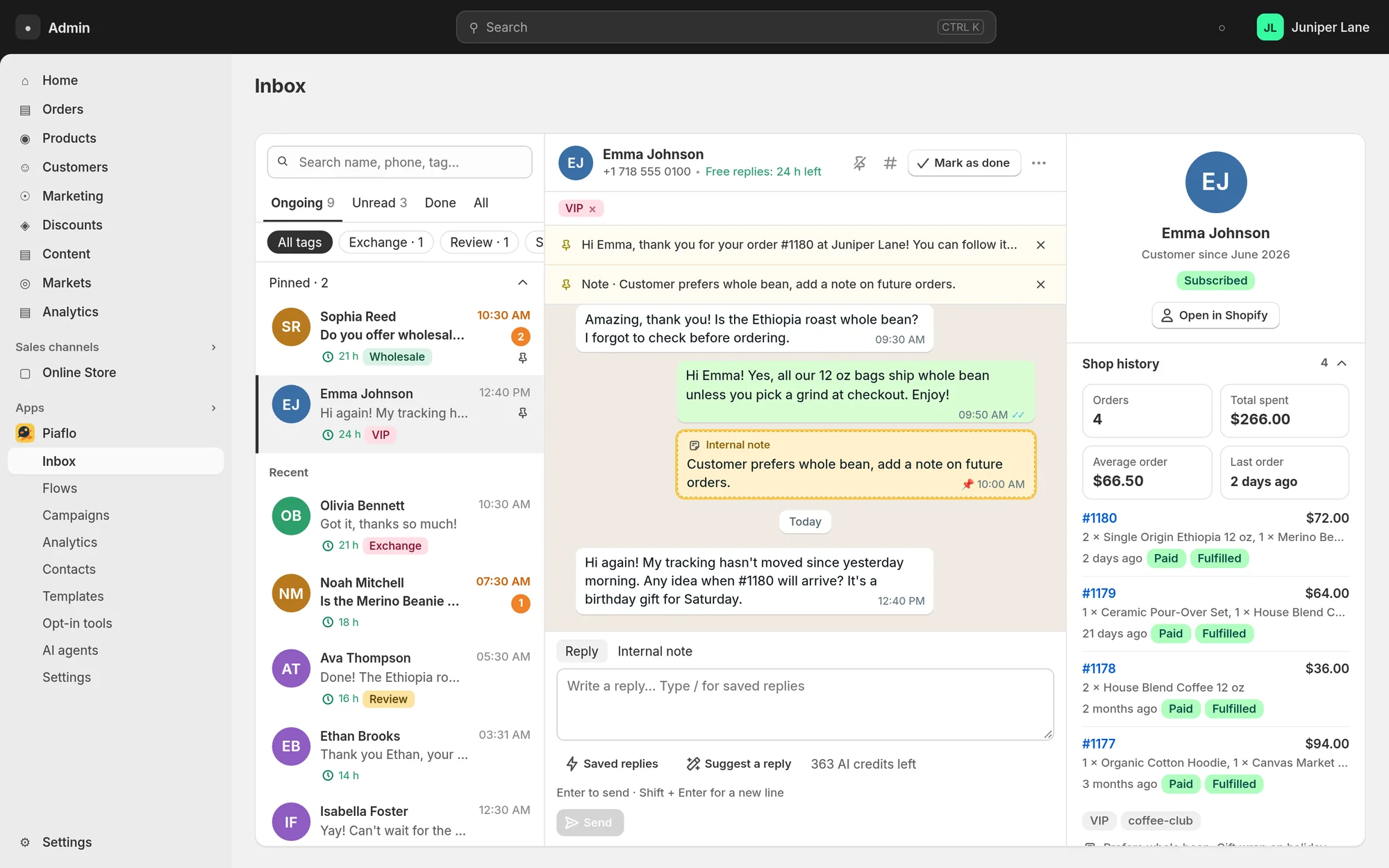
Open it from Inbox in the Piaflo menu of your Shopify admin. The page has three columns: the conversation list, the conversation itself, and the customer's details on the right.
The conversation list
A customer gets a conversation as soon as Piaflo sends them a message or they write to you. When a customer writes, their conversation moves to the top, shows an unread count and is marked as ongoing again.
Four tabs sort the list:
| Tab | What it shows |
|---|---|
| Ongoing | Conversations that are not marked as done. This is the default view |
| Unread | Conversations with messages you have not opened yet |
| Done | Conversations you marked as done |
| All | Everything |
Ongoing and Unread show how many conversations they hold.
- Search with the field at the top (Search name, phone, tag…). It looks in the customer's name, email and phone number, the last message and the conversation tags. Type a full phone number to find that exact number.
- Filter by tag with the chips under the tabs, once you have tagged conversations. See The customer profile, tags, notes and pins.
- Pinned conversations stay at the top of the list, above Recent.
A clock icon with a number of hours on a row means the customer wrote recently and you can still reply freely for that many hours. See the next section.
The list refreshes on its own every few seconds while the page is open.
The 24-hour window
WhatsApp lets you write freely to a customer for 24 hours after their last message. Outside that window, you can only send a message template approved by Meta.
The conversation header tells you where you stand:
- Free replies: 5 h left (for example): you can type any reply.
- 24-hour window closed: the reply box is replaced by a template picker.
The window opens again each time the customer writes.
Reply to a customer
- Click the conversation in the list.
- Type your message in the box at the bottom. Type
/to insert a saved reply. - Press Enter or click Send. Shift + Enter adds a new line.
Replies are text, up to 4,096 characters. WhatsApp formatting works: *bold*, _italic_.
When you send a reply, Piaflo pauses the automations on that conversation so a flow does not answer the customer while you are talking to them. Automation pause explains what that changes.
To write something only your team can see, switch from Reply to Internal note above the box, then click Add note. Notes are never sent to the customer.
When the window is closed: send a template
When more than 24 hours have passed since the customer's last message, the box shows More than 24 hours since the customer's last message: WhatsApp only allows approved templates.
- Choose a template in the Template list. Only templates approved by Meta appear, with their language.
- Click Send template.
Piaflo fills in the customer's first name. A conversation has no order or discount code to put in the other variables: in your own templates they get the fallback you set (or a dash), and in the templates Piaflo created for you (names starting with pf_) they get the example values, such as order #1042. Pick a template that reads well on its own. If the customer answers, the window opens again and you can reply freely.
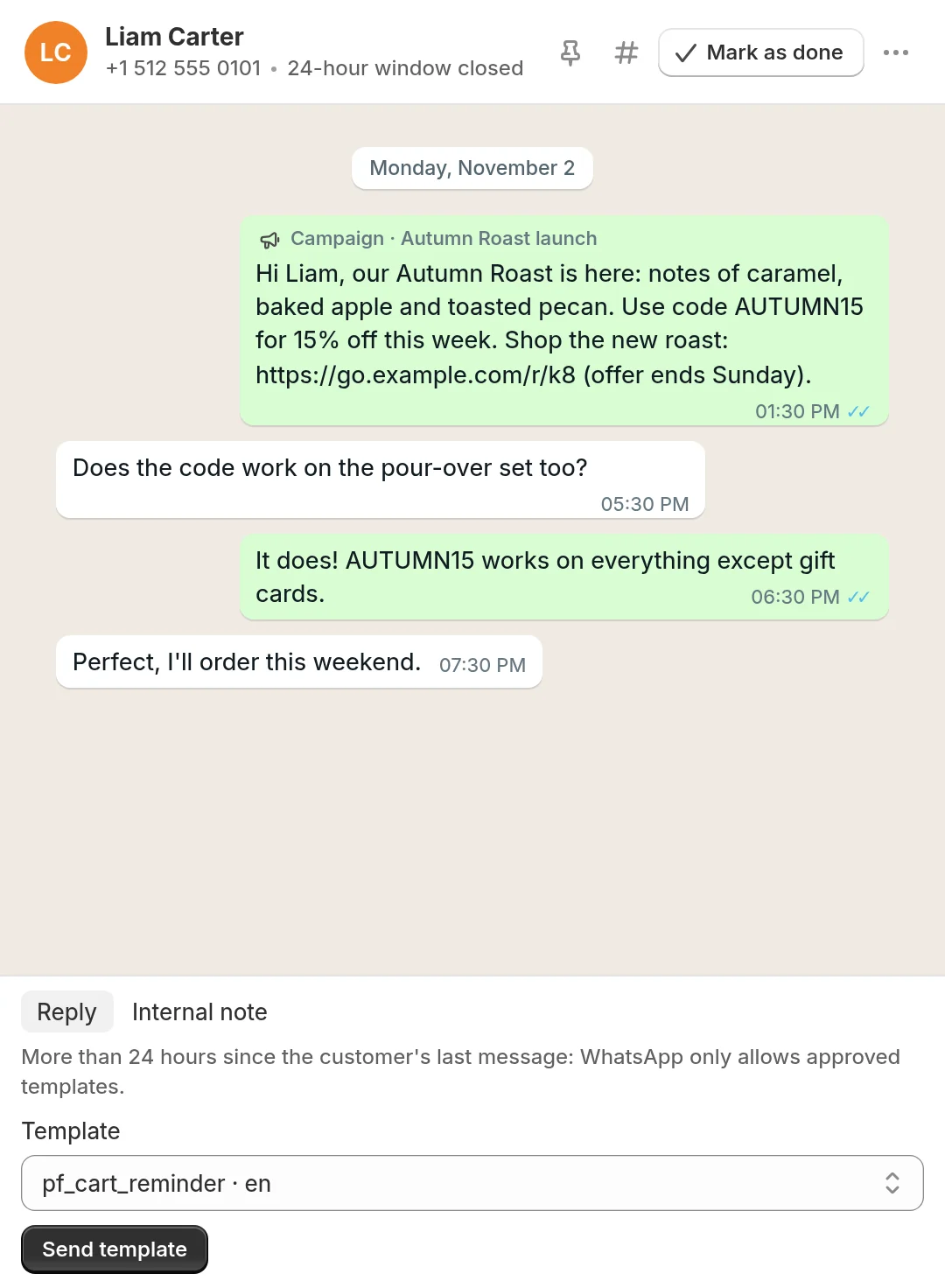
If the list is empty, no template is approved yet. See WhatsApp templates.
Read a conversation
- Messages sent by a flow carry the label Flow · name of the flow, campaign messages Campaign · name of the campaign, other templates Template followed by the template name.
- Ticks under your messages: one tick when the message is sent, two when it is delivered, two highlighted ticks when the customer read it. A message that did not go through shows failed in red, with the reason from WhatsApp underneath. See Why a message was not delivered.
- Click Load earlier messages at the top to go further back.
- If you also use the WhatsApp Business app on your phone with the same number, the replies you send from the phone appear in the conversation too.
Organize your conversations
In the conversation header:
- Mark as done moves the conversation to Done. If the customer writes again, it comes back to Ongoing. Reopen brings it back yourself.
- The pin icon pins the conversation at the top of the list.
- The
#icon adds tags. - The More actions menu (three dots) has Mark as unread, Resume automations when they are paused, and Open in Shopify when the contact is linked to a Shopify customer.
How long messages are kept
Piaflo keeps the message history for a period that depends on your plan, then deletes older messages.
| Plan | History kept |
|---|---|
| Free and Starter | 92 days |
| Growth | 183 days |
| Pro | 396 days |
 Still stuck? Write to us with the flow name or the order number involved.