Shopify segments
See how many customers of each Shopify segment can receive WhatsApp marketing, browse their consent, import them into Piaflo and send them a campaign.
On this page 6
Shopify segments are the customer groups you build in your Shopify admin, under Customers > Segments: VIP customers, repeat buyers, customers who have not ordered for six months. Piaflo shows them all and tells you how many of their customers can receive WhatsApp marketing.
You create and edit segments in Shopify. Piaflo reads them and never changes them.
The Shopify segments tab
Go to Contacts and open the Shopify segments tab. Each segment shows:
| Column | What it shows |
|---|---|
| Segment | Its name and its definition in Shopify |
| Customers | The number of customers in the segment |
| WhatsApp subscribers | How many are subscribed to WhatsApp marketing, and the share of the segment |
| Consent | A bar split into Subscribed, Not subscribed, Unsubscribed and No phone number |
| In Piaflo | The date of the last import, or View |
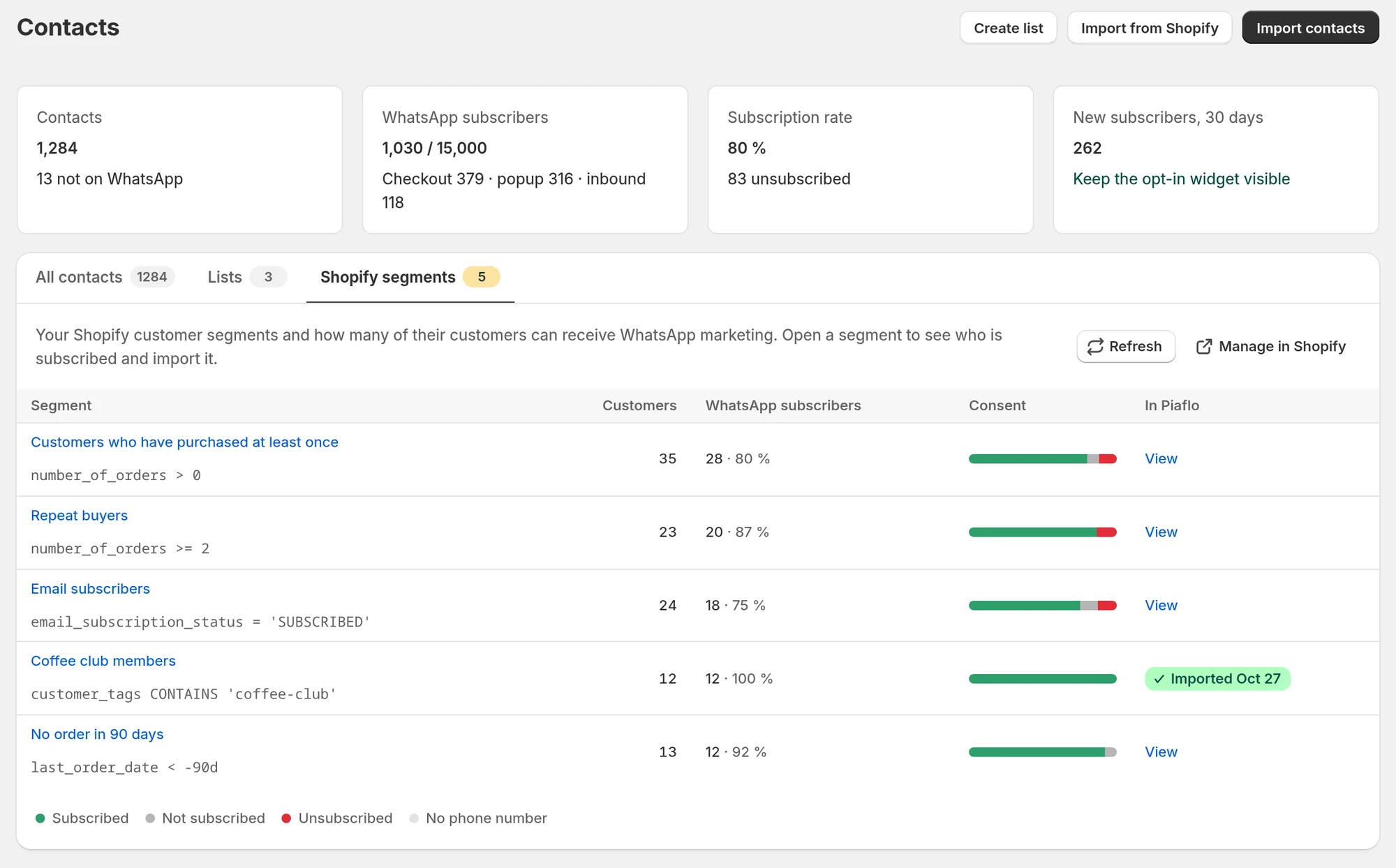
The first time you open the tab, Piaflo analyzes every segment and shows "Analyzing WhatsApp consent" with its progress. Counts are kept for 12 hours, then analyzed again. Click Refresh to analyze them right away, for example after creating a segment. Manage in Shopify opens your segments in Shopify.
A segment you delete in Shopify disappears from the tab, and a segment whose definition you change is analyzed again.
How a customer's consent is counted
For each customer of the segment, Piaflo combines what Shopify and Piaflo know:
- No phone number: the customer has no phone number in Shopify.
- Unsubscribed: the customer unsubscribed in Piaflo (STOP) or in Shopify. An unsubscribe in Piaflo always wins.
- Subscribed: the customer gave WhatsApp consent in Shopify, or subscribed through Piaflo.
- Not subscribed: everyone else with a phone number.
For large segments, the analysis reads the first 20,000 customers. The segment page then says "Based on the first (number) customers."
A segment's page
Click a segment to open its page.
- Customers, with how many have a phone number.
- WhatsApp subscribers, with the share of the segment.
- Can be invited: customers with a phone number who have not subscribed yet.
- Unsubscribed: customers who never receive marketing.
- The Segment definition from Shopify.
- The list of customers, with their phone number, consent, number of orders and amount spent. Filter it by consent with the buttons above it.
When some customers can be invited, Piaflo reminds you that Meta does not allow messaging them first. Invite them with the opt-in widget, at checkout or after their next order: Grow subscribers opens the opt-in tools. See Signup popup.
If Shopify does not return the segment's customers, the page shows "WhatsApp consent couldn't be analyzed for this segment". The customer list still works. Click Try again a little later.
Send a campaign to a segment
Click Send a campaign on the segment page, or choose the segment in the audience of a new campaign. You do not need to import it first: Piaflo reads the segment's customers and their Shopify consent when the campaign starts, and only subscribers receive it. See Create a campaign.
Import a segment into Piaflo
Importing copies the segment's customers into your contacts, usually into a list, so you can find them in Piaflo and reuse them.
- On the segment page, click Import into Piaflo.
- Under Who to import, choose:
- WhatsApp subscribers only: ready for campaigns.
- All customers with a phone number: those who are not subscribed are added as contacts and receive no marketing.
- Choose the list. By default Piaflo creates a new list named after the segment.
- Click Start import.
Consent stays the one recorded in Shopify, and nobody receives a message. The import runs in the background and its result appears in a banner, as for a CSV import. One segment import can run at a time.
The list is a snapshot: customers who join the segment in Shopify later are not added to it. To send to the segment as it is today, choose the segment itself in the campaign.
Common questions
I created a segment in Shopify and do not see it. Open the Shopify segments tab again or click Refresh.
 Still stuck? Write to us with the flow name or the order number involved.