Your number is limited or blocked by Meta
Meta can lower your number's quality rating, limit it or block it from sending. Here is where Piaflo shows it, what Piaflo does on its own, and how to get back to normal.
Meta rates every WhatsApp Business number. Based on how customers react to your messages, or when something is missing on your Meta account, Meta can lower your number's quality, limit it or stop it from sending. Piaflo shows what Meta reports, in Settings and on the Home page.
Where to look
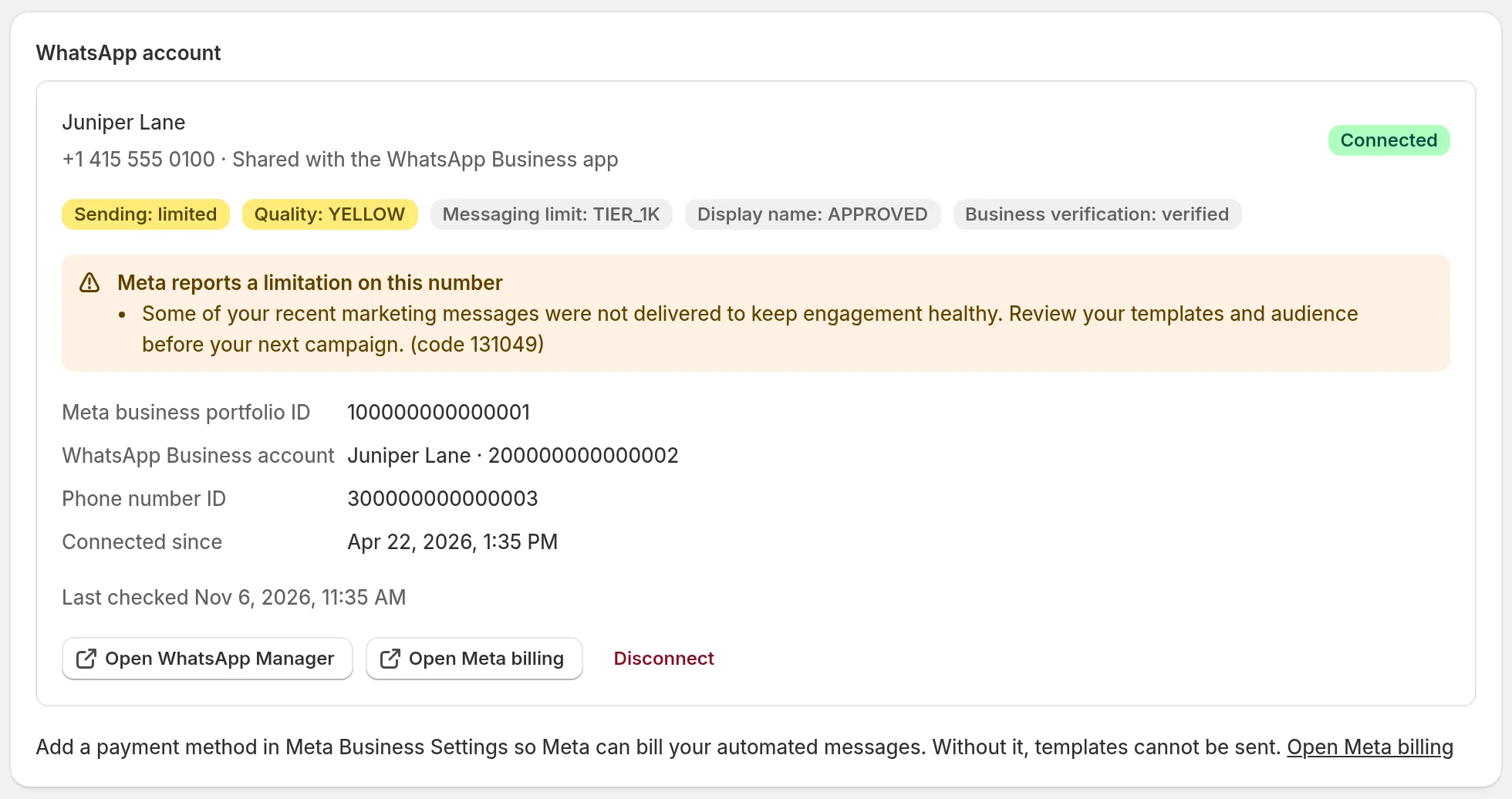
Go to Settings, section WhatsApp account. The card of your number shows:
- Sending: available, Sending: limited or Sending: blocked: whether Meta lets the number send.
- Quality: the quality rating Meta gives the number.
- Messaging limit: Meta's limit on the number of customers you can message in 24 hours.
- Display name and Business verification: the review status of your display name and of your business at Meta.
- Last checked: Piaflo reads all of this from Meta every hour.
The Home page repeats the essentials under WhatsApp health: Quality and Limit … / 24 h.
When Meta reports a problem
The card then shows a box:
- Meta reports a limitation on this number when sending is limited.
- Meta is blocking messages from this number when sending is blocked.
The box lists each problem Meta gives, with its code. Fix the cause at Meta, then wait for the next check: the box goes away once Meta no longer reports the problem.
No valid payment method
The box shows No valid payment method on this WhatsApp Business account, so Meta blocks templates. Meta bills templates to your WhatsApp Business account, and without a valid card it does not send them.
- Click Add a payment method. Meta Business Suite opens on the payment settings of your WhatsApp Business account.
- Add a card, or fix the one that was refused.
- Come back to Piaflo. The box clears at the next hourly check.
See Meta payment method and display name.
Other problems
For any other message in the box, click Open WhatsApp Manager: Meta's page for your phone numbers shows the detail and what Meta asks you to do, such as completing business verification or fixing the display name.
Low quality
If Meta drops your number's quality to red (low), Piaflo sets every campaign that is sending to Paused. Messages already in the sending queue are not held back by this: to stop them, click Cancel campaign on the campaign page. Flows keep running.
Once quality is back up, you can open a paused campaign and click Resume.
To bring quality back up and keep it there:
- Send marketing only to subscribed customers. Piaflo does this for you in flows and campaigns.
- Keep the weekly limit on: Settings > Sending rules > Maximum marketing messages per contact per 7 days (3 by default). Piaflo's own help text: it protects your number's quality rating.
- Keep Respect quiet hours for marketing messages on.
- Make each message worth reading, and make it easy to stop: the marketing templates of the recipes end with "Reply STOP to unsubscribe".
Protect your number's quality goes further on campaigns.
Messaging limit
Meta caps how many different customers a number can start conversations with in 24 hours. The limit shows on the card and on Home, and Meta sets and changes it on its side. If your list is larger than your limit, spread your campaigns over time: see Create a campaign.
 Still stuck? Write to us with the flow name or the order number involved.