Create a template
Write your own WhatsApp template in Piaflo: name, category, language, text with variables, footer and up to 3 quick reply buttons, then submit it to Meta.
On this page 7
Recipes come with their templates already written. Create your own when you want different wording, a message for a custom flow, or a template to reuse in campaigns.
You need a connected WhatsApp number. Go to Templates and click Create template.
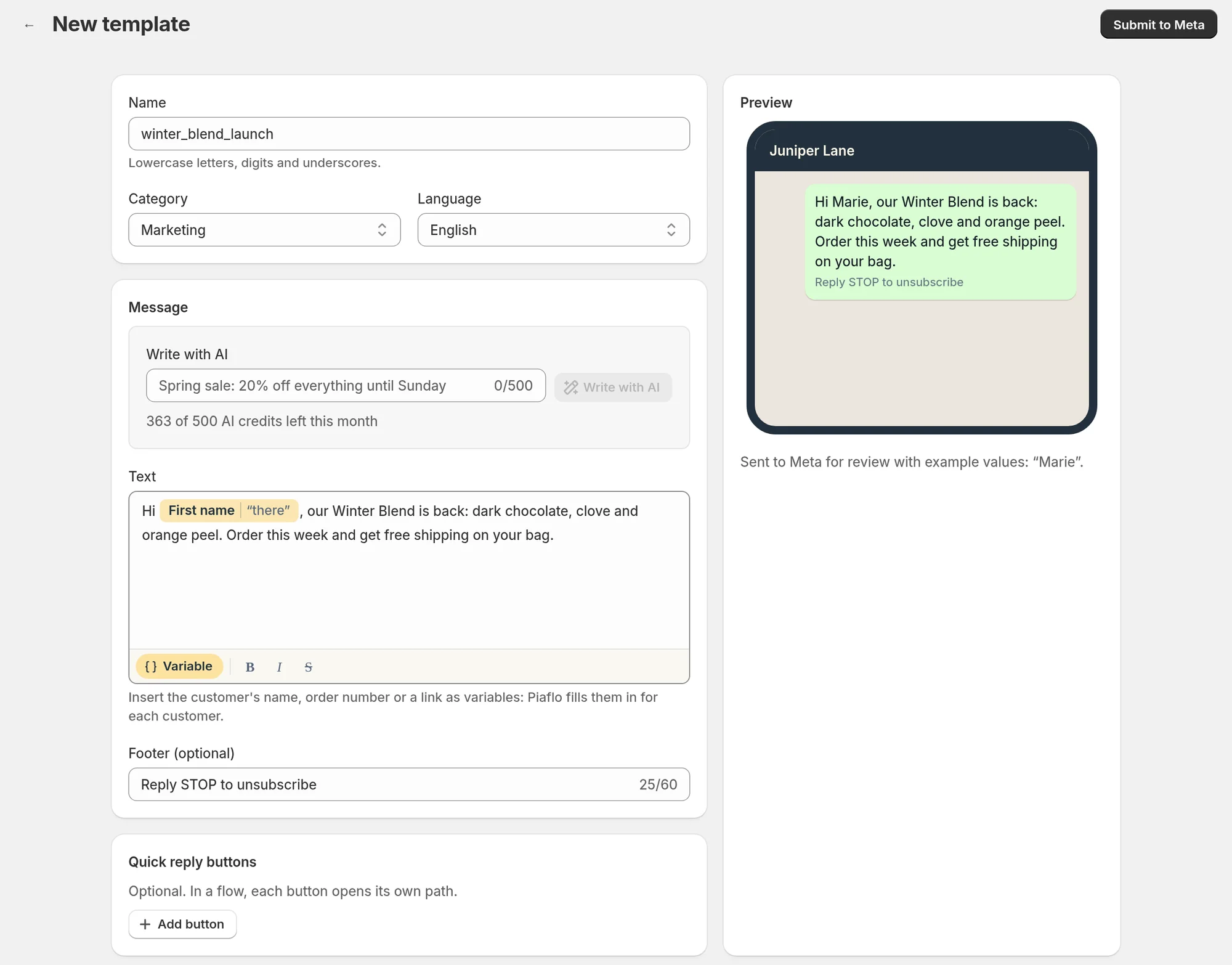
Write the template
- Name: lowercase letters, digits and underscores, starting with a letter, for example
spring_sale_v1. Piaflo converts what you type: capitals become lowercase, spaces and other characters become underscores. Only you see the name. - Category: Marketing for anything promotional, Utility (order updates only, no promotion) for messages about an order. See Utility or marketing.
- Language: Français, English, Español, Italiano, Deutsch or Português (BR). One template covers one language. To have the same message in two languages, create two templates with the same name, one per language.
- Text: the body of the message. It starts with "Hi" and the customer's first name, which you can keep or change.
- Footer (optional): a short line under the message, up to 60 characters. For marketing, the field suggests "Reply STOP to unsubscribe".
- Quick reply buttons: optional, up to 3 buttons of 25 characters each. Click Add button for each one.
- Check the Preview and click Submit to Meta.
Piaflo shows "Template sent to Meta for review" and takes you back to Templates, where the new template appears as In review. Meta's answer usually comes within a few minutes, and can take up to 24 hours.
Variables
Variables are filled in for each customer when the message is sent: first name, order number, tracking link, cart link, discount code, store name and more.
- Click Variable above the text, or type
{{, then pick a variable from the list. - Each variable can have a value to use when it is empty, under If empty, use. The first name has a ready-made one: "there", in the customer's language. Without a fallback, nothing is shown when the value is missing.
- The bold, italic and strikethrough buttons apply WhatsApp formatting to the selected text.
Meta needs an example for each variable to review the template. Piaflo fills them in for you and shows them under the preview: "Sent to Meta for review with example values". With the default text, Meta sees "Hi Marie, ...".
A template lists every variable Piaflo knows. Only use the ones that make sense where the template will be sent: an order number has no value in a campaign, and a cart link only exists in flows started by an abandoned checkout. Variables lists which variable is available with which trigger.
The rules Meta checks
Piaflo warns you in the editor before you submit:
- "Meta rejects a message that starts with a variable. Add a word before it."
- "Meta rejects a message that ends with a variable. Add a word after it." The default text ends with the first name and a comma: keep writing after it.
- "Two variables side by side are often rejected. Put a word between them."
A template that starts or ends with a variable cannot be submitted at all. For the rest of Meta's review, see Rejected or paused templates.
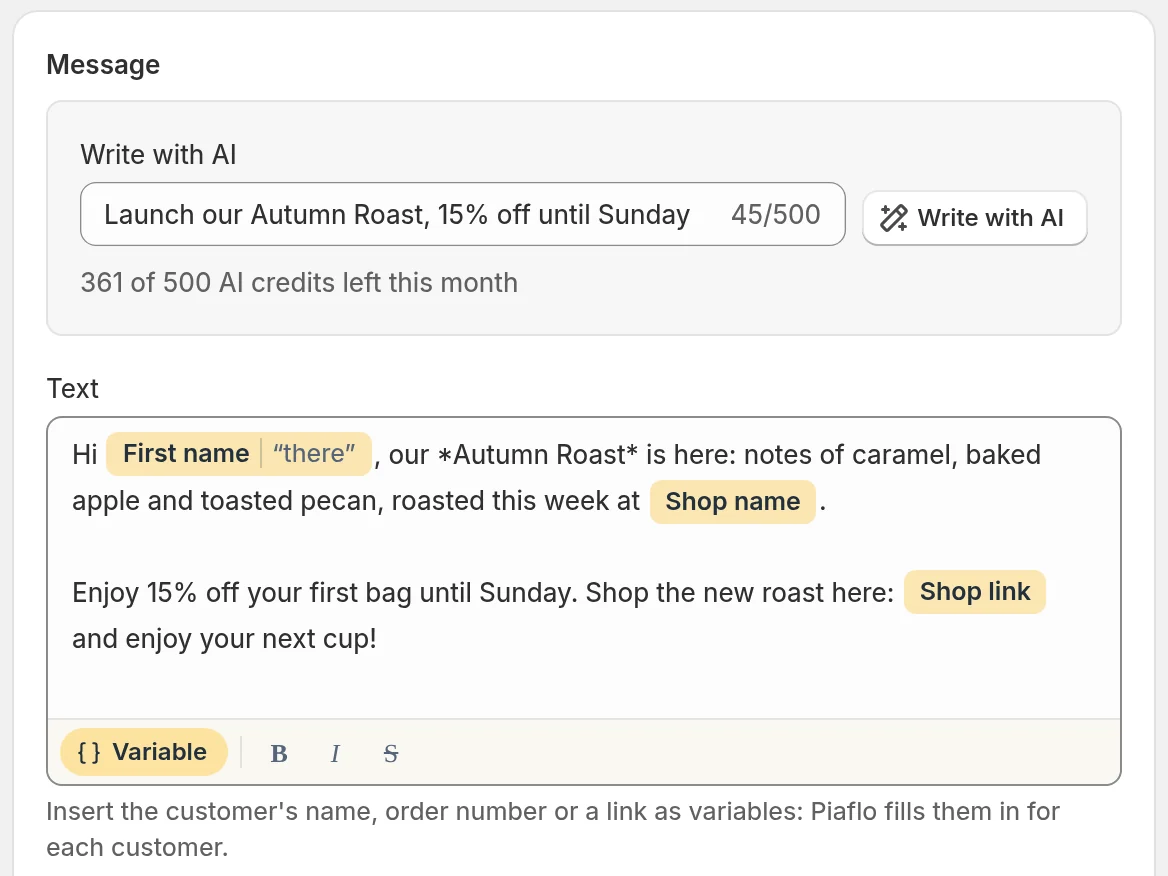
Write with AI
From the Starter plan, Piaflo can draft the text for you.
- In Write with AI, describe what the message is for in one sentence, for example "Spring sale: 20% off everything until Sunday".
- Click Write with AI. The draft replaces the text in the editor, in the category and language you chose.
- Edit it as you like, then submit.
Each draft uses one AI credit. The credits left this month are shown under the field: 50 per month on Starter, 500 on Growth, 3,000 on Pro. If the AI cannot produce a draft, the credit is given back.
Quick reply buttons in flows
When a template with buttons is used in a flow, each button opens its own path on the canvas. For example "Confirm" and "Cancel" can lead to different steps. See Steps.
Use the template
Once Meta approves it:
- In a flow: add a message step and choose the template.
- In a campaign: choose Use an approved template in the message section. See Create a campaign.
AI assistants connected to Piaflo can also write and submit templates for you. See Connect an AI assistant.
Common questions
Can I add an image, a header or a link button? Not from Piaflo. The editor builds templates with a text, a footer and quick reply buttons. To send a link, put it in the text as a variable, for example the order status link or the tracked link of a campaign.
I made a typo after submitting. Can I fix it? Templates cannot be edited once submitted. Create a new one with another name, then delete the old one if no flow uses it.
Does creating templates require a paid plan? No. Creating templates is available on every plan. Marketing templates are only sent by marketing flows and campaigns, which need the Starter plan or above.
 Still stuck? Write to us with the flow name or the order number involved.