Chat button
A floating button on every page of your store that opens a WhatsApp chat with you, with a message already typed. Set it up in Opt-in tools, then turn on the app embed in your theme.
On this page 4
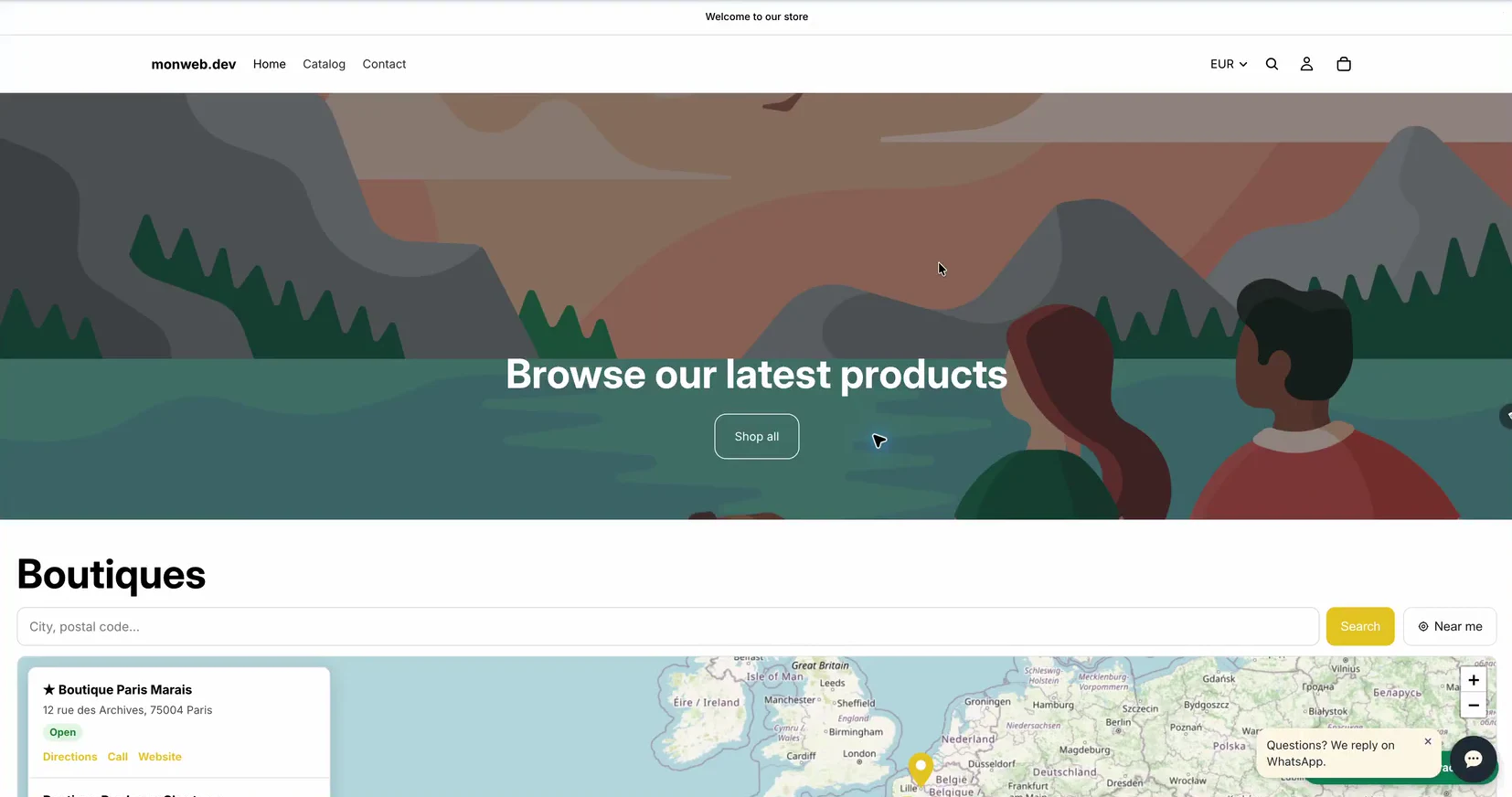
The chat button sits in a bottom corner of every page of your store. A shopper who clicks it opens WhatsApp with a chat to your number and a message already typed, which they can edit before sending. Their message lands in your Inbox.
The chat button is included in every plan, Free included. It needs a connected WhatsApp number: until then, it stays hidden. See Connect your WhatsApp number.
Set it up
Go to Opt-in tools in the Piaflo menu. The Chat button section has these settings, and the Preview on the right shows the result as you type.
| Setting | What it does | Default |
|---|---|---|
| Show the chat button on my store | Shows or hides the button | On |
| Position | Bottom right or Bottom left | Bottom right |
| Button color | Background color of the button. The icon turns dark or light to stay readable | Ink (#22303C) |
| Greeting bubble | A short message next to the button, up to 120 characters. Leave it empty to hide it | "Questions? We reply on WhatsApp." |
| Pre-filled message | The message already typed when the chat opens, up to 300 characters | "Hello! I have a question about your products." |
Click Save when you are done.
The greeting bubble appears 4 seconds after the page loads, once per visit, and goes away after 12 seconds or when the shopper closes it.
Turn on the app embed
The button only shows once the Piaflo app embed is turned on in your theme. You do this once.
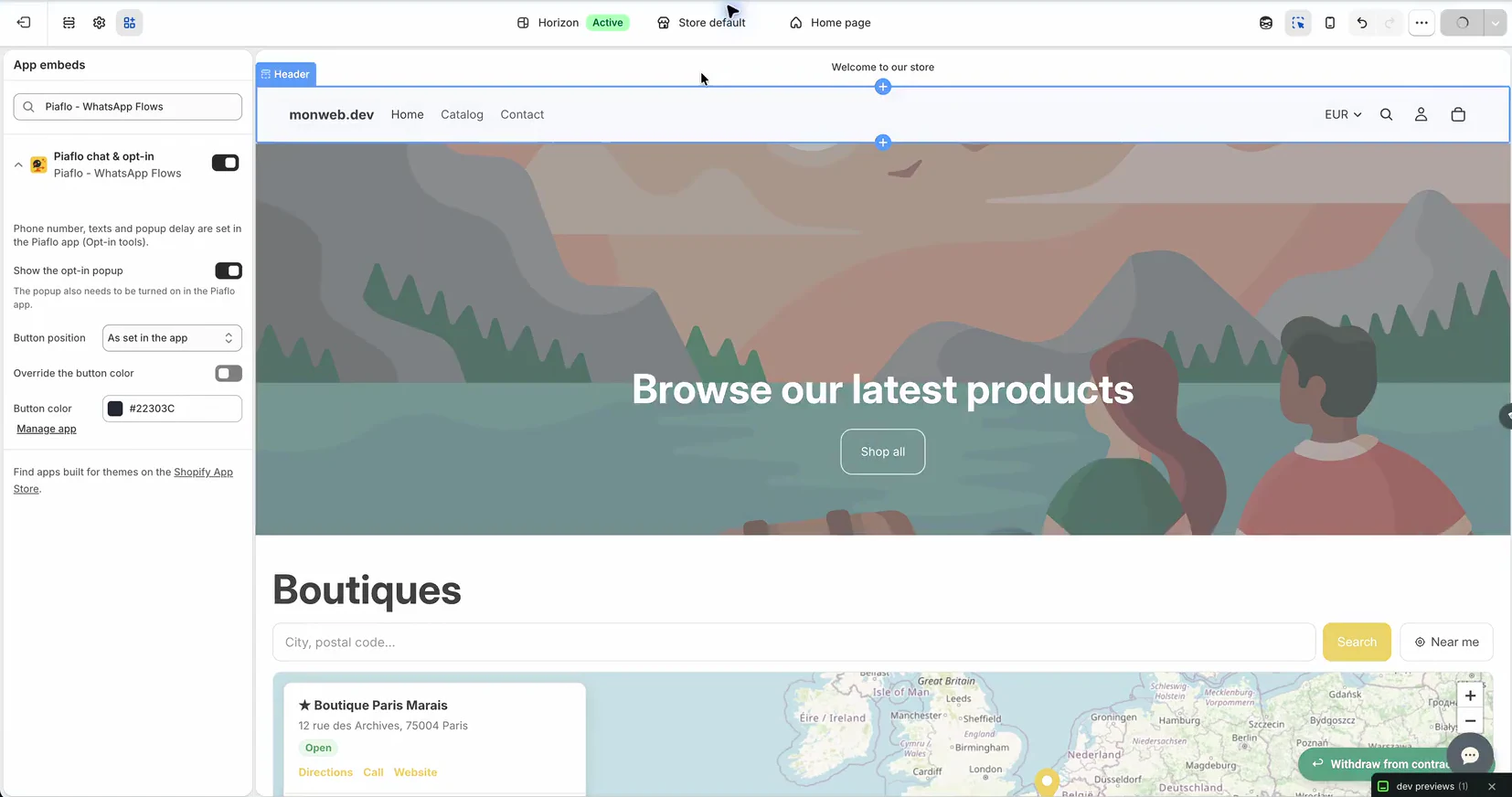
- In Opt-in tools, under Add the widgets to your theme, click Turn on the app embed. Your theme editor opens in a new tab, on the app embeds.
- Turn on Piaflo chat & opt-in.
- Click Save in the theme editor.
- Come back to Piaflo.
On the Home page of Piaflo, the setup step Add the WhatsApp button to your store is ticked once the embed is on in your current theme.
If you change themes later, turn the embed on again in the new theme. Add the WhatsApp button to your store walks through the whole setup.
Settings in the theme editor
The app embed has a few settings of its own in the theme editor:
- Show the opt-in popup: on by default. The popup also has to be turned on in Piaflo. See Signup popup.
- Button position: As set in the app (default), Bottom right or Bottom left.
- Override the button color, with Button color: use your theme's color instead of the one set in Piaflo.
When you set the position or the color in the theme editor, it wins over the setting in Piaflo.
Use the pre-filled message well
- Write it the way a customer would, so they only have to press send.
- The same text is used by your WhatsApp link and QR code.
- A customer who writes to you through the button is not subscribed to your marketing messages. You can reply freely for 24 hours after their message. To collect marketing consent from your store, use the signup popup.
If the button does not appear, see The chat button or popup does not show.
 Still stuck? Write to us with the flow name or the order number involved.