Send a test message
Send one of your approved templates to your own phone to see exactly what customers receive, and check that your number, Meta billing and templates all work.
On this page 5
The test message sends one of your templates to a phone number you choose, usually your own. It is the quickest way to check that everything is in place before customers start receiving messages.
Before you start
You need:
- A connected WhatsApp number. The Send test button stays greyed out until one is connected. See Connect your WhatsApp number.
- At least one approved template. Activate a recipe in Flows: Piaflo submits its templates to Meta, and they appear in the test once Meta approves them.
- A payment method at Meta. Without it, Meta blocks templates. See Meta payment method and display name.
Send the test
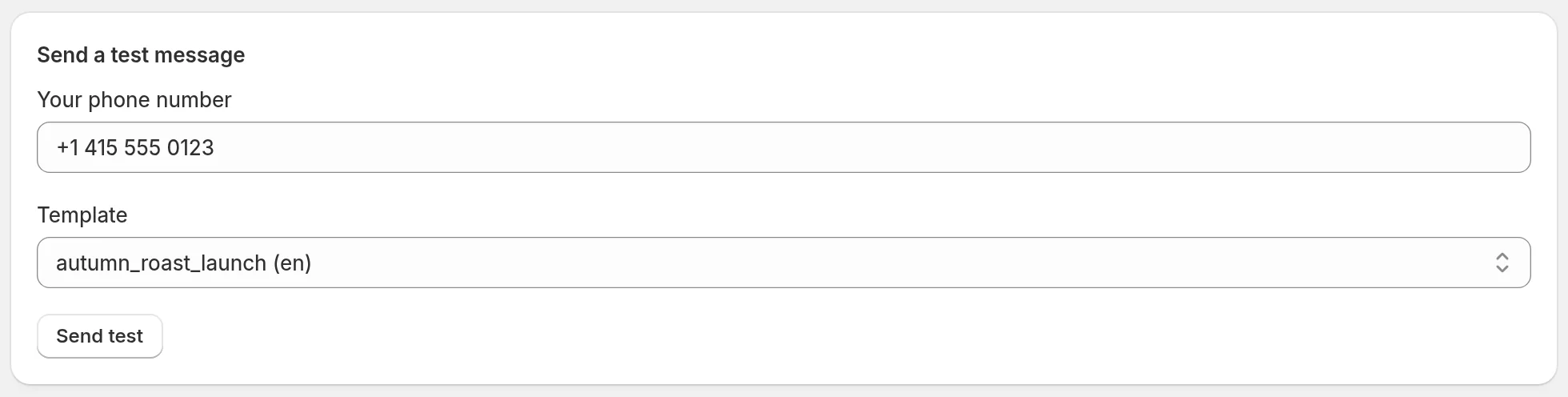
- Go to Settings > Send a test message. The Send a test button of the setup guide on Home takes you there too.
- In Your phone number, type the number with its country code, for example +33 6 12 34 56 78. Without a country code, Piaflo assumes your store's country.
- In Template, choose the template to send. Each one shows its name and language.
- Click Send test. Piaflo confirms with Test message queued.
What the test contains
The test is the real template, as Meta approved it. Its variables are filled with sample values:
- For a recipe template, Piaflo uses the example values written into the recipe: the first name Marie, order #1042, a sample store name and sample links. Marie is replaced by the contact's first name if Piaflo knows it. Do not worry if the test shows a store name that is not yours: real messages use your order data.
- For a template you created, Piaflo fills the variables you set when creating it, and uses their fallback values for order or discount details, which do not exist in a test.
The test is sent from your connected number like an order update: quiet hours and the weekly marketing limit do not apply to it.
Follow the test
- The conversation appears in Inbox, so you can see the message and reply from Piaflo.
- The number you tested with is saved as a contact in Contacts.
- On Home, the setup step Receive your first message turns Done once the message is delivered.
If the test does not arrive
| What you see | What to do |
|---|---|
| Send test is greyed out | Connect a WhatsApp number first |
| The template list says No approved template yet | Activate a recipe in Flows and wait for Meta's approval. Follow the status in Templates |
| Enter a valid phone number with its country code. | Check the number and add the country code |
| The banner on the WhatsApp account card mentions a payment method | Add a payment method at Meta |
| Emergency stop is on in Settings | Turn it off: queued messages go out within a few minutes |
| The message shows as failed in Inbox | See Why a message was not delivered |
 Still stuck? Write to us with the flow name or the order number involved.